> ## Documentation Index
> Fetch the complete documentation index at: https://docs.bigdata.com/llms.txt
> Use this file to discover all available pages before exploring further.
# Interact with your investment research content
> Set up an investment research connector, audit synced documents, filter by broker tags, query with the Search API and Research Agent, or use Claude with Bigdata MCP—aligned with the Colab tutorial.
Onboard your Broker research through an **`investment_research`** [connector](/api-rest/content_introduction#connectors) as private **documents**. This guide follows the same end-to-end workflow as the **[Investment Research Connector tutorial](https://colab.research.google.com/drive/1MAkOhjXLsrlqgBtTqRMkGkejumYL1LoS?usp=sharing)** on Google Colab: authenticate, create the connector, audit ingestion, discover broker tags, then run Search and Research Agent with filters scoped to that corpus.
Private & Secure: No LLM training on your data
**Prefer a notebook?** Open the Colab tutorial and run the cells in order. Every REST call uses your API key in the `X-API-KEY` header. See [Authentication](/api-rest/introduction) for key handling.
 ***
## End-to-end workflow
After the connector syncs, Bigdata **enriches** each report (extraction, structure, and annotation) and **indexes** it for the Search Service and Research Agent. The steps below mirror the notebook.
Send your API key on every request (repeat the two headers on each call below, or set a shell variable you expand into `-H` flags):
```bash theme={null}
export API_KEY="YOUR_API_KEY"
```
Broker credentials are used only when **creating** the connector (see [Create connector](/api-reference/connectors/create-connector)); they are **not** returned or updatable via the update-connector API.
**POST** [`/contents/v1/connectors`](https://api.bigdata.com/contents/v1/connectors) with `type: "investment_research"` and broker credentials in `config`. Set `share_with_org` if colleagues should see ingested documents.
```bash theme={null}
curl -s -X POST 'https://api.bigdata.com/contents/v1/connectors' \
-H "X-API-KEY: ${API_KEY}" \
-H 'Content-Type: application/json' \
-d '{
"type": "investment_research",
"label": "Broker Research Reports",
"description": "Collects broker research reports from the broker feed",
"share_with_org": false,
"config": {
"user_id": "YOUR_BROKER_USER_ID",
"user_password": "YOUR_BROKER_PASSWORD"
}
}'
```
The response includes **`connector_id`**. Save it for listing documents and for dashboards; ingestion runs asynchronously after creation.
**GET** [List documents](/api-reference/documents/list-documents) with **`connector=`** (and optionally `ownership=all`) and paginate with `page` / `page_size`. Sort by `created_at` to see the newest items first.
```bash theme={null}
# Replace CONNECTOR_UUID with your connector_id
curl -s -G 'https://api.bigdata.com/contents/v1/documents' \
-H "X-API-KEY: ${API_KEY}" \
--data-urlencode "ownership=all" \
--data-urlencode "connector=CONNECTOR_UUID" \
--data-urlencode "page=1" \
--data-urlencode "page_size=50" \
--data-urlencode "sort_by=created_at" \
--data-urlencode "sort_order=desc"
```
Each document has **`status`**: `processing` while enrichment runs, then **`completed`** when it is ready for Search and Research Agent. You can also use [Get document metadata](/api-reference/documents/get-document-metadata) on a single `id` for detail.
You can confirm broker-ingested items with **`origin=investment_research`** when listing across connectors; each item still includes **`request_origin`**, **`connector_id`**, and **`tags`**.
Ingested reports get automatic tags such as **`broker:`**. **GET** [`/contents/v1/tags`](https://api.bigdata.com/contents/v1/tags) with **`prefix=broker:`** to list broker tags and their **`file_count`**.
```bash theme={null}
curl -s -G 'https://api.bigdata.com/contents/v1/tags' \
-H "X-API-KEY: ${API_KEY}" \
--data-urlencode "prefix=broker:"
```
The Colab notebook picks the tag with the highest `file_count` as a convenience filter for the next steps; you can pass any broker tag (or several) into Search and Research Agent filters.
**POST** [`/v1/search`](https://api.bigdata.com/v1/search) with `query.text` and **`query.filters`** so results stay on your private investment research archive. Typical combinations (see [Query filters](/getting-started/search/query_filters)):
* **Category:** [Category filter](/api-reference/search/search-documents#body-query-filters-category) with `mode: "INCLUDE"` and `values: ["my_files"]` limits hits to **your private content** (same as **My Files** in the Developer Platform).
* **Source:** [Source filter](/getting-started/search/query_filters#source), include the **Investment Research** source id for your workspace (the Colab example uses `E5A77C`; confirm the id you need in your environment).
* **Document taxonomy:** [Investment research document types](/getting-started/search/query_filters#investment-research), e.g. `INVESTMENT-RESEARCH` with subtype `COMPANY_REPORT`.
* **Broker tag:** [File tag filter](/getting-started/search/query_filters#filetag), `tag.any_of` with your `broker:...` name.
```bash theme={null}
curl -s -X POST 'https://api.bigdata.com/v1/search' \
-H "X-API-KEY: ${API_KEY}" \
-H 'Content-Type: application/json' \
-d '{
"search_mode": "fast",
"query": {
"ranking_params": {
"content_diversification": { "enabled": true }
},
"filters": {
"category": {
"mode": "INCLUDE",
"values": ["my_files"]
},
"source": {
"mode": "INCLUDE",
"values": ["E5A77C"]
},
"tag": {
"any_of": ["broker:Your Broker Name"]
},
"document_type": {
"mode": "INCLUDE",
"values": [
{
"type": "INVESTMENT-RESEARCH",
"subtypes": ["COMPANY_REPORT"]
}
]
}
}
}
}'
```
The notebook renders hits in a small table and builds links to open a hit in the app, for example `https://app.bigdata.com/documents/{id}?private=true&cnum={chunk}` using the Search hit id and first chunk number.
For summarization and question answering over the same corpus, **POST** to **`https://agents.bigdata.com/v1/research-agent`** with a user **`message`** and **`tools_configs.search.query_filters`** aligned with the Search filters above: **`tags`** (broker tag) and **`content`** scoped to the Investment Research **source** id.
The Research Agent returns a **stream** of events (`data: ...` lines). The Colab notebook buffers `ANSWER` events until `COMPLETE`, then optionally parses **`AUDIT`** traces to show which chunks grounded the reply. Same buffering pattern as [Non-streaming response](/how-to-guides/agents/research/how_to_non_streaming).
For parameter details, see the [Research Agent API](/api-reference/research-agent/research-agent). Try the [Research Agent playground](https://platform.bigdata.com/research-agent) with **My Files** / your private sources selected in the UI for an interactive equivalent.
***
## Search and Research Agent in the Developer Platform
In the [Developer Platform](https://platform.bigdata.com), open **Search** or **Research Agent**, use the source selector, and limit results to **My Files** category or **Investment Research** source within this category to interact with this content.
Search across private investment research and other sources; use the source selector and filters to match the API workflow above.
Ground answers in broker research by scoping tools to private content and the same tags or sources you use in the API.
***
## Claude and Bigdata MCP
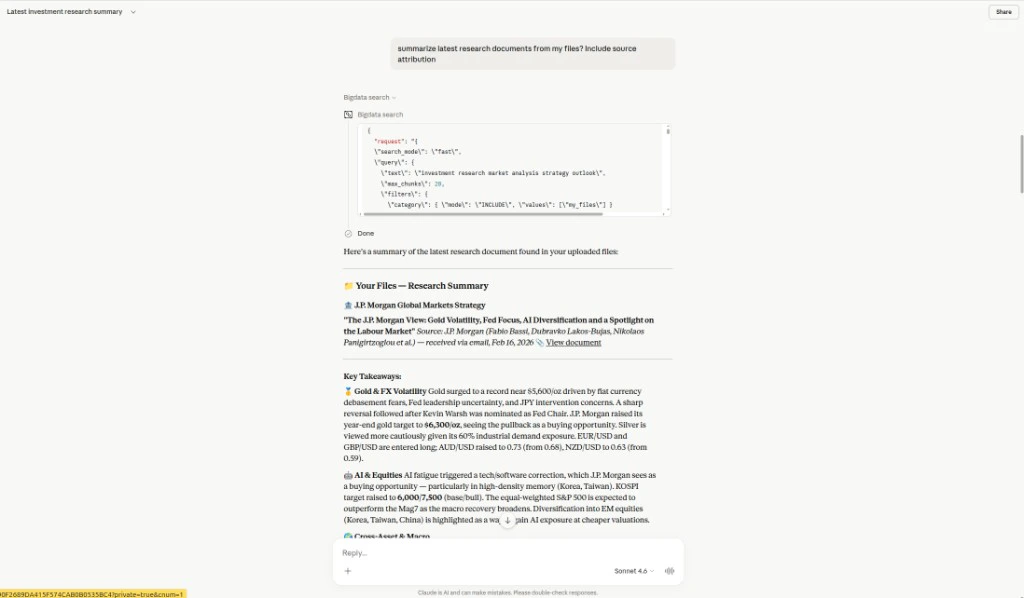
You can work with your broker research the same way in **Claude** once the [Bigdata MCP integration for Claude](/mcp-reference/oauth-integrations/claude-mcp-integration) is enabled for your workspace. Claude can call the **`bigdata_search`** tool (see [bigdata\_search](/mcp-reference/tools/bigdata-search)) to run semantic search over your corpus and pass the returned chunks into the conversation as grounding context.
Ask in natural language, for example:
> Summarize the latest research documents from my files. Include source attribution.
Claude will typically issue a search with filters such as **`category`** set to **`my_files`** so results stay in your private content (uploads, connector-backed research, and other ingested files visible to your account). It merges the retrieved excerpts with your instructions and can cite titles, publishers, and links in the reply, similar to scoping **My Files** in the API or Developer Platform.
***
## End-to-end workflow
After the connector syncs, Bigdata **enriches** each report (extraction, structure, and annotation) and **indexes** it for the Search Service and Research Agent. The steps below mirror the notebook.
Send your API key on every request (repeat the two headers on each call below, or set a shell variable you expand into `-H` flags):
```bash theme={null}
export API_KEY="YOUR_API_KEY"
```
Broker credentials are used only when **creating** the connector (see [Create connector](/api-reference/connectors/create-connector)); they are **not** returned or updatable via the update-connector API.
**POST** [`/contents/v1/connectors`](https://api.bigdata.com/contents/v1/connectors) with `type: "investment_research"` and broker credentials in `config`. Set `share_with_org` if colleagues should see ingested documents.
```bash theme={null}
curl -s -X POST 'https://api.bigdata.com/contents/v1/connectors' \
-H "X-API-KEY: ${API_KEY}" \
-H 'Content-Type: application/json' \
-d '{
"type": "investment_research",
"label": "Broker Research Reports",
"description": "Collects broker research reports from the broker feed",
"share_with_org": false,
"config": {
"user_id": "YOUR_BROKER_USER_ID",
"user_password": "YOUR_BROKER_PASSWORD"
}
}'
```
The response includes **`connector_id`**. Save it for listing documents and for dashboards; ingestion runs asynchronously after creation.
**GET** [List documents](/api-reference/documents/list-documents) with **`connector=`** (and optionally `ownership=all`) and paginate with `page` / `page_size`. Sort by `created_at` to see the newest items first.
```bash theme={null}
# Replace CONNECTOR_UUID with your connector_id
curl -s -G 'https://api.bigdata.com/contents/v1/documents' \
-H "X-API-KEY: ${API_KEY}" \
--data-urlencode "ownership=all" \
--data-urlencode "connector=CONNECTOR_UUID" \
--data-urlencode "page=1" \
--data-urlencode "page_size=50" \
--data-urlencode "sort_by=created_at" \
--data-urlencode "sort_order=desc"
```
Each document has **`status`**: `processing` while enrichment runs, then **`completed`** when it is ready for Search and Research Agent. You can also use [Get document metadata](/api-reference/documents/get-document-metadata) on a single `id` for detail.
You can confirm broker-ingested items with **`origin=investment_research`** when listing across connectors; each item still includes **`request_origin`**, **`connector_id`**, and **`tags`**.
Ingested reports get automatic tags such as **`broker:`**. **GET** [`/contents/v1/tags`](https://api.bigdata.com/contents/v1/tags) with **`prefix=broker:`** to list broker tags and their **`file_count`**.
```bash theme={null}
curl -s -G 'https://api.bigdata.com/contents/v1/tags' \
-H "X-API-KEY: ${API_KEY}" \
--data-urlencode "prefix=broker:"
```
The Colab notebook picks the tag with the highest `file_count` as a convenience filter for the next steps; you can pass any broker tag (or several) into Search and Research Agent filters.
**POST** [`/v1/search`](https://api.bigdata.com/v1/search) with `query.text` and **`query.filters`** so results stay on your private investment research archive. Typical combinations (see [Query filters](/getting-started/search/query_filters)):
* **Category:** [Category filter](/api-reference/search/search-documents#body-query-filters-category) with `mode: "INCLUDE"` and `values: ["my_files"]` limits hits to **your private content** (same as **My Files** in the Developer Platform).
* **Source:** [Source filter](/getting-started/search/query_filters#source), include the **Investment Research** source id for your workspace (the Colab example uses `E5A77C`; confirm the id you need in your environment).
* **Document taxonomy:** [Investment research document types](/getting-started/search/query_filters#investment-research), e.g. `INVESTMENT-RESEARCH` with subtype `COMPANY_REPORT`.
* **Broker tag:** [File tag filter](/getting-started/search/query_filters#filetag), `tag.any_of` with your `broker:...` name.
```bash theme={null}
curl -s -X POST 'https://api.bigdata.com/v1/search' \
-H "X-API-KEY: ${API_KEY}" \
-H 'Content-Type: application/json' \
-d '{
"search_mode": "fast",
"query": {
"ranking_params": {
"content_diversification": { "enabled": true }
},
"filters": {
"category": {
"mode": "INCLUDE",
"values": ["my_files"]
},
"source": {
"mode": "INCLUDE",
"values": ["E5A77C"]
},
"tag": {
"any_of": ["broker:Your Broker Name"]
},
"document_type": {
"mode": "INCLUDE",
"values": [
{
"type": "INVESTMENT-RESEARCH",
"subtypes": ["COMPANY_REPORT"]
}
]
}
}
}
}'
```
The notebook renders hits in a small table and builds links to open a hit in the app, for example `https://app.bigdata.com/documents/{id}?private=true&cnum={chunk}` using the Search hit id and first chunk number.
For summarization and question answering over the same corpus, **POST** to **`https://agents.bigdata.com/v1/research-agent`** with a user **`message`** and **`tools_configs.search.query_filters`** aligned with the Search filters above: **`tags`** (broker tag) and **`content`** scoped to the Investment Research **source** id.
The Research Agent returns a **stream** of events (`data: ...` lines). The Colab notebook buffers `ANSWER` events until `COMPLETE`, then optionally parses **`AUDIT`** traces to show which chunks grounded the reply. Same buffering pattern as [Non-streaming response](/how-to-guides/agents/research/how_to_non_streaming).
For parameter details, see the [Research Agent API](/api-reference/research-agent/research-agent). Try the [Research Agent playground](https://platform.bigdata.com/research-agent) with **My Files** / your private sources selected in the UI for an interactive equivalent.
***
## Search and Research Agent in the Developer Platform
In the [Developer Platform](https://platform.bigdata.com), open **Search** or **Research Agent**, use the source selector, and limit results to **My Files** category or **Investment Research** source within this category to interact with this content.
Search across private investment research and other sources; use the source selector and filters to match the API workflow above.
Ground answers in broker research by scoping tools to private content and the same tags or sources you use in the API.
***
## Claude and Bigdata MCP
You can work with your broker research the same way in **Claude** once the [Bigdata MCP integration for Claude](/mcp-reference/oauth-integrations/claude-mcp-integration) is enabled for your workspace. Claude can call the **`bigdata_search`** tool (see [bigdata\_search](/mcp-reference/tools/bigdata-search)) to run semantic search over your corpus and pass the returned chunks into the conversation as grounding context.
Ask in natural language, for example:
> Summarize the latest research documents from my files. Include source attribution.
Claude will typically issue a search with filters such as **`category`** set to **`my_files`** so results stay in your private content (uploads, connector-backed research, and other ingested files visible to your account). It merges the retrieved excerpts with your instructions and can cite titles, publishers, and links in the reply, similar to scoping **My Files** in the API or Developer Platform.
 For richer report-style workflows on top of MCP tools, consider the [Financial Research Analyst](/skills-reference/mcp-helpers/financial-research-analyst) skill.