> ## Documentation Index
> Fetch the complete documentation index at: https://docs.bigdata.com/llms.txt
> Use this file to discover all available pages before exploring further.
# Grok MCP Integration
## Overview
This guide shows how to connect the **Grok SDK** to the **Bigdata MCP** server so that a Grok-powered agent can search for financial news, resolve securities, and generate structured analysis using Bigdata.com.
You will configure a remote MCP tool inside a Grok API call, point it at the Bigdata MCP server, and restrict the tool set to exactly the tools you need.
## Requirements
* A [xAI account](https://console.x.ai) with a Grok API key
* A [Bigdata.com API key](https://platform.bigdata.com/api-keys)
* The [xAI SDK](https://docs.x.ai/docs/overview) installed
## Step 1: Install the xAI SDK
The xAI SDK supports multiple languages. This guide uses Python, but you can also use cURL or any HTTP client to call the API directly. Follow the official [xAI SDK installation guide](https://docs.x.ai/docs/overview) for the full reference.
```bash theme={null}
pip install xai-sdk
```
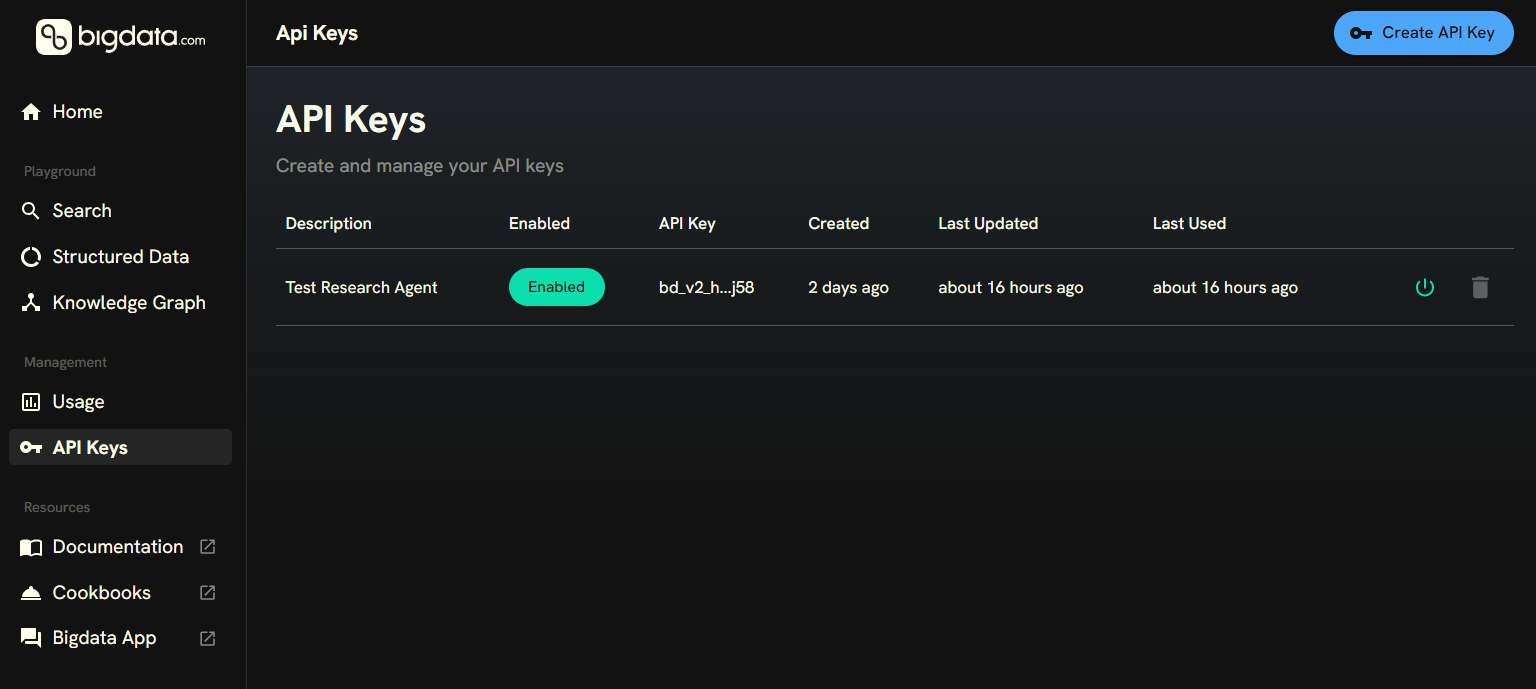
## Step 2: Create a Bigdata API key
You can create your API Key in the [Developer Platform > API Keys](https://platform.bigdata.com/api-keys).
 ## Step 3: Connect Grok to Bigdata MCP
The Grok SDK supports [Remote MCP tools](https://docs.x.ai/developers/tools/remote-mcp) natively. You can connect to the Bigdata MCP server by adding an MCP tool definition to your API call.
By default, Grok discovers all tools exposed by the MCP server. To restrict the agent to a subset, pass the `allowed_tool_names` parameter. In this example we enable two tools:
* **`bigdata_search`**: Search for insights across news, filings, transcripts, and more. See [bigdata\_search reference](/mcp-reference/tools/bigdata-search).
* **`find_securities`**: Look up securities by name, ticker, or identifier. See [find\_securities reference](/mcp-reference/tools/find-securities).
```python grok_bigdata_agent.py highlight="12-15" theme={null}
import os
from xai_sdk import Client
from xai_sdk.chat import user
from xai_sdk.tools import mcp
client = Client(api_key=os.getenv("XAI_API_KEY"))
response = client.chat.create(
model="grok-4.3",
tools=[
mcp(
server_url="https://mcp.bigdata.com/",
extra_headers={"x-api-key": os.getenv("BIGDATA_API_KEY")},
allowed_tool_names=["bigdata_search", "find_securities"],
),
],
)
response.append(user("What are the top financial news topics today that could impact NVIDIA?"))
# Send the conversation to Grok and get the response
result = response.sample()
# Print the tools that were called and their arguments
for tool_call in result.tool_calls:
print(f"Tool: {tool_call.function.name}")
print(f" Arguments: {tool_call.function.arguments}")
print()
# Print the response text
print(result.content)
```
```bash highlight="16-22" theme={null}
curl https://api.x.ai/v1/responses \
-H "Content-Type: application/json" \
-H "Authorization: Bearer $XAI_API_KEY" \
--no-buffer \
-d '{
"model": "grok-4.3",
"stream": true,
"input": [
{
"role": "user",
"content": "What are the top financial news topics today that could impact NVIDIA?"
}
],
"tools": [
{
"type": "mcp",
"server_label": "bigdata",
"server_url": "https://mcp.bigdata.com/",
"headers": {
"x-api-key": "'"$BIGDATA_API_KEY"'"
},
"allowed_tools": ["bigdata_search", "find_securities"]
}
]
}'
```
The `"stream": true` parameter enables Server-Sent Events so you can see output as it is generated. Remove it if you prefer to wait for the complete response.
## Step 4: Run and review the results
You can now run your script with the following command
```bash theme={null}
python grok_bigdata_agent.py
```
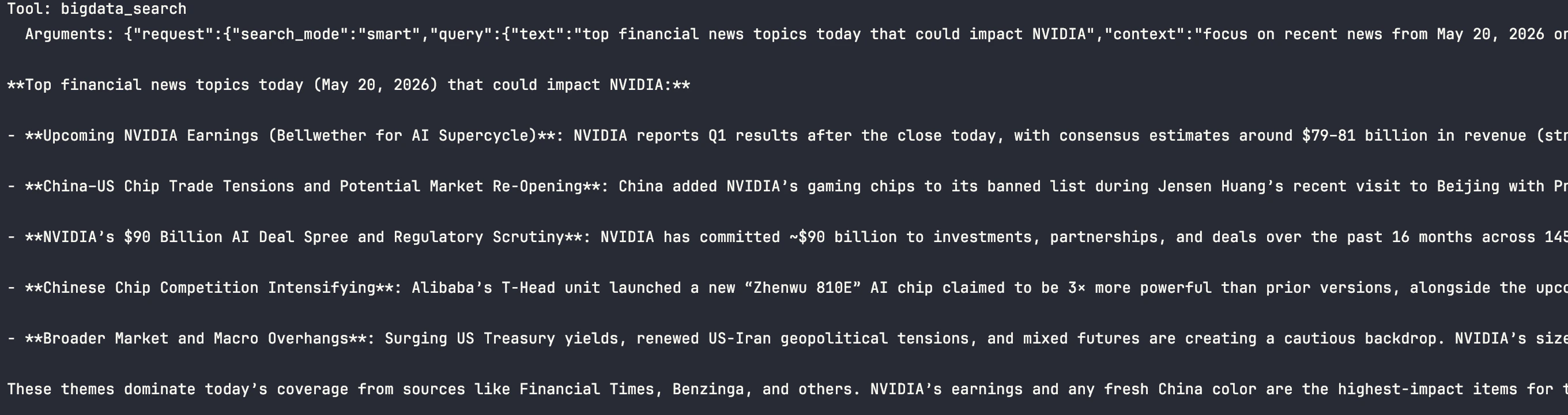
Grok will call the Bigdata MCP tools during its reasoning loop, search for relevant financial content, and return a response grounded in real-time data from Bigdata.com.
**Output:**
## Step 3: Connect Grok to Bigdata MCP
The Grok SDK supports [Remote MCP tools](https://docs.x.ai/developers/tools/remote-mcp) natively. You can connect to the Bigdata MCP server by adding an MCP tool definition to your API call.
By default, Grok discovers all tools exposed by the MCP server. To restrict the agent to a subset, pass the `allowed_tool_names` parameter. In this example we enable two tools:
* **`bigdata_search`**: Search for insights across news, filings, transcripts, and more. See [bigdata\_search reference](/mcp-reference/tools/bigdata-search).
* **`find_securities`**: Look up securities by name, ticker, or identifier. See [find\_securities reference](/mcp-reference/tools/find-securities).
```python grok_bigdata_agent.py highlight="12-15" theme={null}
import os
from xai_sdk import Client
from xai_sdk.chat import user
from xai_sdk.tools import mcp
client = Client(api_key=os.getenv("XAI_API_KEY"))
response = client.chat.create(
model="grok-4.3",
tools=[
mcp(
server_url="https://mcp.bigdata.com/",
extra_headers={"x-api-key": os.getenv("BIGDATA_API_KEY")},
allowed_tool_names=["bigdata_search", "find_securities"],
),
],
)
response.append(user("What are the top financial news topics today that could impact NVIDIA?"))
# Send the conversation to Grok and get the response
result = response.sample()
# Print the tools that were called and their arguments
for tool_call in result.tool_calls:
print(f"Tool: {tool_call.function.name}")
print(f" Arguments: {tool_call.function.arguments}")
print()
# Print the response text
print(result.content)
```
```bash highlight="16-22" theme={null}
curl https://api.x.ai/v1/responses \
-H "Content-Type: application/json" \
-H "Authorization: Bearer $XAI_API_KEY" \
--no-buffer \
-d '{
"model": "grok-4.3",
"stream": true,
"input": [
{
"role": "user",
"content": "What are the top financial news topics today that could impact NVIDIA?"
}
],
"tools": [
{
"type": "mcp",
"server_label": "bigdata",
"server_url": "https://mcp.bigdata.com/",
"headers": {
"x-api-key": "'"$BIGDATA_API_KEY"'"
},
"allowed_tools": ["bigdata_search", "find_securities"]
}
]
}'
```
The `"stream": true` parameter enables Server-Sent Events so you can see output as it is generated. Remove it if you prefer to wait for the complete response.
## Step 4: Run and review the results
You can now run your script with the following command
```bash theme={null}
python grok_bigdata_agent.py
```
Grok will call the Bigdata MCP tools during its reasoning loop, search for relevant financial content, and return a response grounded in real-time data from Bigdata.com.
**Output:**
 ## Enabling additional tools
The Bigdata MCP server exposes several tools beyond `bigdata_search` and `find_securities`. For example, you can add `bigdata_company_tearsheet` for comprehensive company profiles or `bigdata_sentiment_tearsheet` for real-time media sentiment analysis. Simply add the tool names to the `allowed_tool_names` list (or `allowed_tools` in cURL).
To enable all tools, remove the parameter entirely and Grok will discover them automatically.
For the complete list of available tools, see the [Bigdata MCP tools overview](/mcp-reference/introduction#bigdata-services).
## Tips and customization
Avoid hardcoding API keys in your scripts. Store them in environment variables or a `.env` file:
```bash theme={null}
export XAI_API_KEY="your-grok-api-key"
export BIGDATA_API_KEY="your-bigdata-api-key"
```
The code example in Step 3 already reads these via `os.getenv()`.
Grok supports multiple MCP servers in a single request. Add additional tool objects to the `tools` array to connect other data sources alongside Bigdata.
Replace `grok-4.3` with any available Grok model. See the [xAI models page](https://docs.x.ai/docs/models) for the latest recommendations, or browse the [full model list](https://console.x.ai/team/default/models) in the xAI console.
## Enabling additional tools
The Bigdata MCP server exposes several tools beyond `bigdata_search` and `find_securities`. For example, you can add `bigdata_company_tearsheet` for comprehensive company profiles or `bigdata_sentiment_tearsheet` for real-time media sentiment analysis. Simply add the tool names to the `allowed_tool_names` list (or `allowed_tools` in cURL).
To enable all tools, remove the parameter entirely and Grok will discover them automatically.
For the complete list of available tools, see the [Bigdata MCP tools overview](/mcp-reference/introduction#bigdata-services).
## Tips and customization
Avoid hardcoding API keys in your scripts. Store them in environment variables or a `.env` file:
```bash theme={null}
export XAI_API_KEY="your-grok-api-key"
export BIGDATA_API_KEY="your-bigdata-api-key"
```
The code example in Step 3 already reads these via `os.getenv()`.
Grok supports multiple MCP servers in a single request. Add additional tool objects to the `tools` array to connect other data sources alongside Bigdata.
Replace `grok-4.3` with any available Grok model. See the [xAI models page](https://docs.x.ai/docs/models) for the latest recommendations, or browse the [full model list](https://console.x.ai/team/default/models) in the xAI console.