> ## Documentation Index
> Fetch the complete documentation index at: https://docs.bigdata.com/llms.txt
> Use this file to discover all available pages before exploring further.
# MCP Integration with API Key
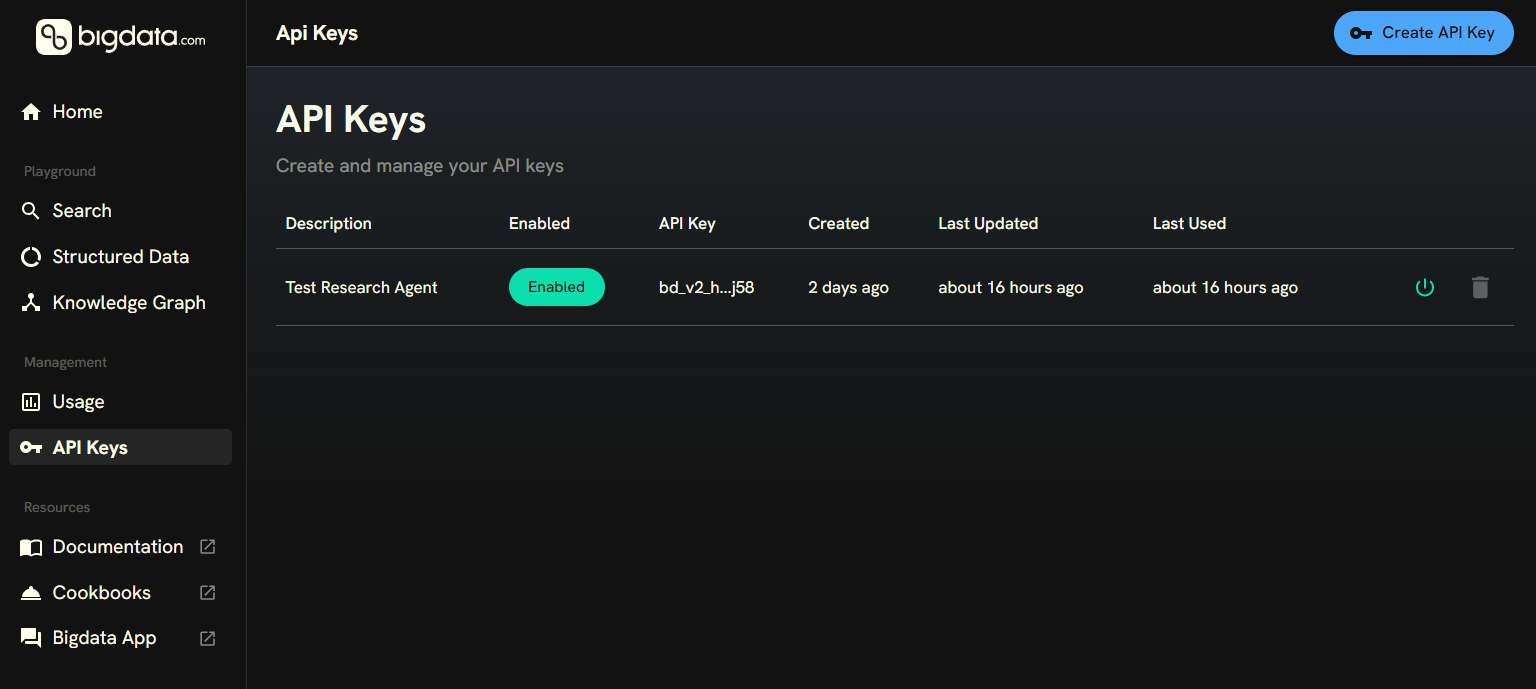
You can bring the financial expertise of Bigdata.com to your Agentic Client integrating with your API Key.
You can manage your API Keys in the [Developer Platform > API Keys](https://platform.bigdata.com/api-keys)
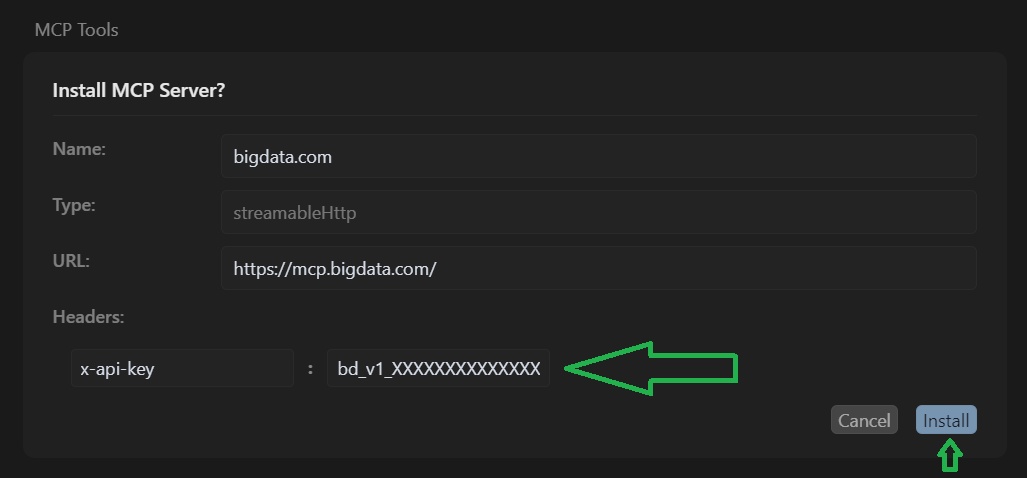
 Click on the `Add to Cursor` icon below, and the browser will guide you to open the Cursor Application to configure the MCP.
 Enter your API Key in the `x-api-key` field and then click on `Install`.
 Once installed, you can see the tool in the `Tools` section of Cursor.
 You can connect the Bigdata.com Remote MCP server to [Snowflake Cortex Code CLI](https://docs.snowflake.com/en/user-guide/cortex-code/extensibility#model-context-protocol-mcp) by adding the following configuration to your `~/.snowflake/cortex/mcp.json` file:
```json theme={null}
{
"mcpServers": {
"mcp.bigdata.com": {
"type": "http",
"url": "https://mcp.bigdata.com/",
"headers": {
"x-api-key": "${YOUR_API_KEY}"
}
}
}
}
```
Replace `${YOUR_API_KEY}` with your Bigdata.com API Key from the [Developer Platform](https://platform.bigdata.com/api-keys), or set it as an environment variable in your shell profile.
Once configured, the Bigdata.com tools will be available automatically in your Cortex Code CLI sessions.
You can also set up this Remote MCP in any other Agentic Host compatible with MCP.
Update the configuration to use your personal API Key.
```json highlight="4" theme={null}
"mcp.bigdata.com": {
"url": "https://mcp.bigdata.com/",
"headers": {
"x-api-key": ""
}
}
```
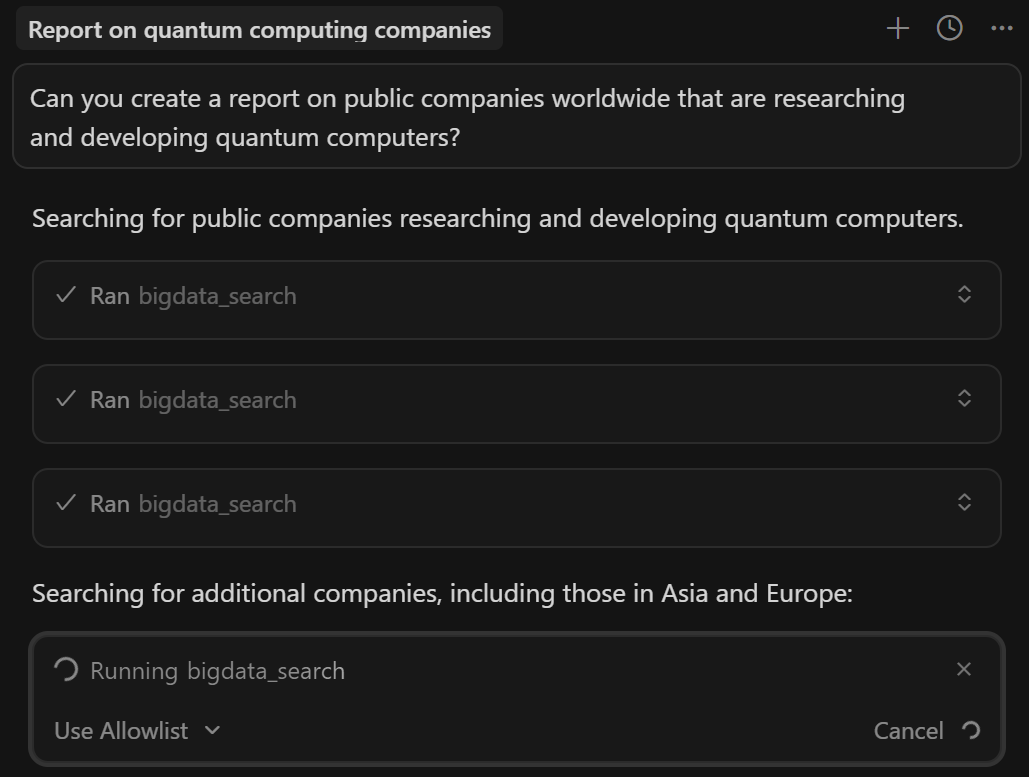
You can ask your agentic client to help you write a report.
```
Can you create a report on public companies worldwide that are researching and developing quantum computers?
```
Cursor will use the Bigdata.com Remote MCP to search for insights and generate the report.
You can connect the Bigdata.com Remote MCP server to [Snowflake Cortex Code CLI](https://docs.snowflake.com/en/user-guide/cortex-code/extensibility#model-context-protocol-mcp) by adding the following configuration to your `~/.snowflake/cortex/mcp.json` file:
```json theme={null}
{
"mcpServers": {
"mcp.bigdata.com": {
"type": "http",
"url": "https://mcp.bigdata.com/",
"headers": {
"x-api-key": "${YOUR_API_KEY}"
}
}
}
}
```
Replace `${YOUR_API_KEY}` with your Bigdata.com API Key from the [Developer Platform](https://platform.bigdata.com/api-keys), or set it as an environment variable in your shell profile.
Once configured, the Bigdata.com tools will be available automatically in your Cortex Code CLI sessions.
You can also set up this Remote MCP in any other Agentic Host compatible with MCP.
Update the configuration to use your personal API Key.
```json highlight="4" theme={null}
"mcp.bigdata.com": {
"url": "https://mcp.bigdata.com/",
"headers": {
"x-api-key": ""
}
}
```
You can ask your agentic client to help you write a report.
```
Can you create a report on public companies worldwide that are researching and developing quantum computers?
```
Cursor will use the Bigdata.com Remote MCP to search for insights and generate the report.
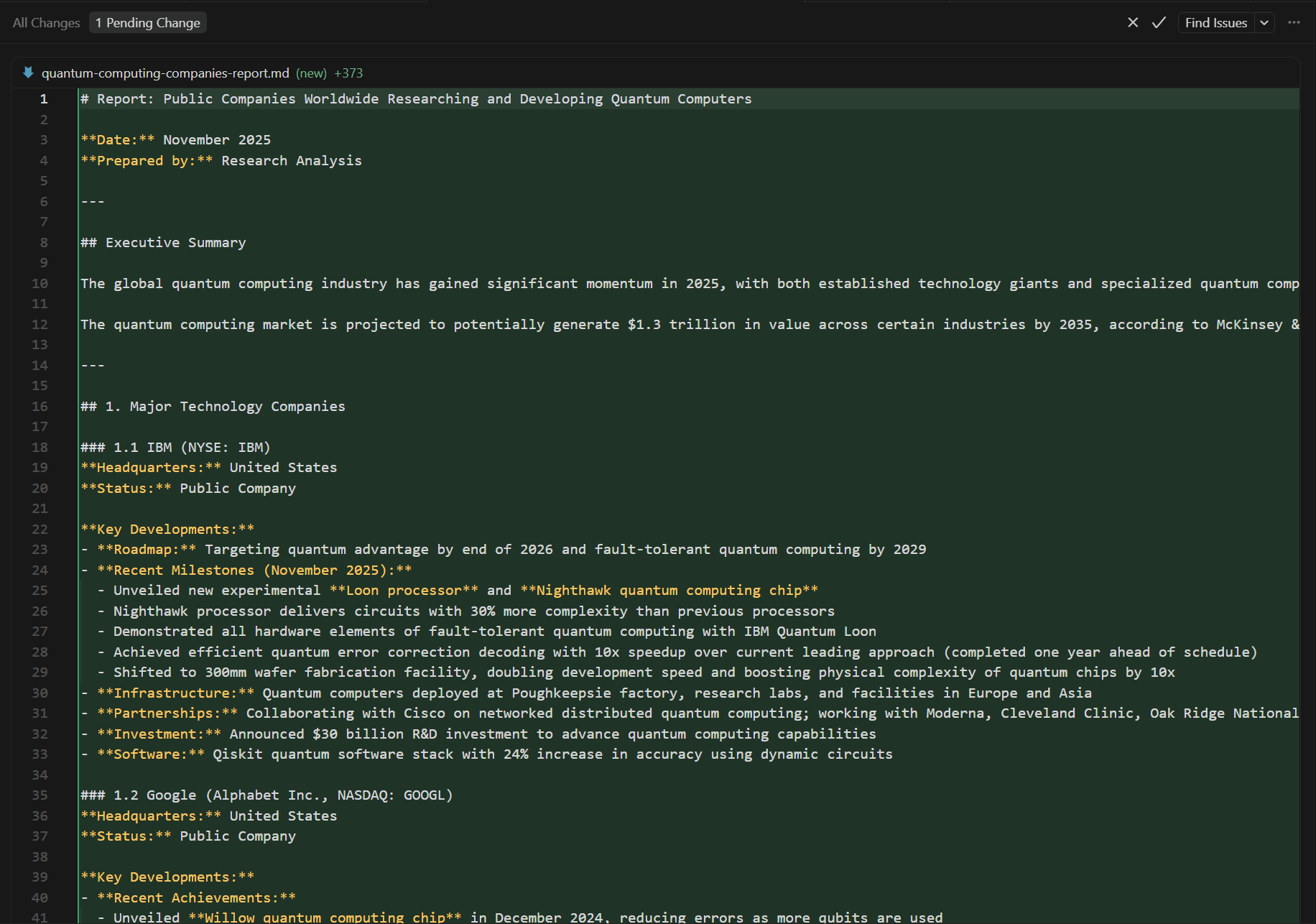
 🥳🚀 After a minute or two, you will get a report in markdown format.