> ## Documentation Index
> Fetch the complete documentation index at: https://docs.bigdata.com/llms.txt
> Use this file to discover all available pages before exploring further.
# Perplexity MCP Integration
## Overview
This guide walks you through connecting [Perplexity](https://www.perplexity.ai/) to the Bigdata.com Remote MCP as a **custom MCP connector** with OAuth authentication. Once connected, Perplexity can search financial news, filings and transcripts, resolve securities, and build research reports grounded in Bigdata.com content.
The setup has two parts: you first create an **OAuth client** for Perplexity in the Bigdata.com Developer Platform, then you register the Bigdata.com MCP server in Perplexity using that client's credentials. Each user then logs in to Bigdata.com with their own account the first time they use the connector.
On a Perplexity **Enterprise** plan, an organization admin configures the connector once and enables it for all organization members, who only need to log in to Bigdata.com. See [Enterprise workspaces](#enterprise-workspaces).
## Requirements
* A Perplexity plan that supports custom connectors. At the time of writing, custom MCP connectors are available on **Pro**, **Max** and **Enterprise** plans.
## Configuration Steps
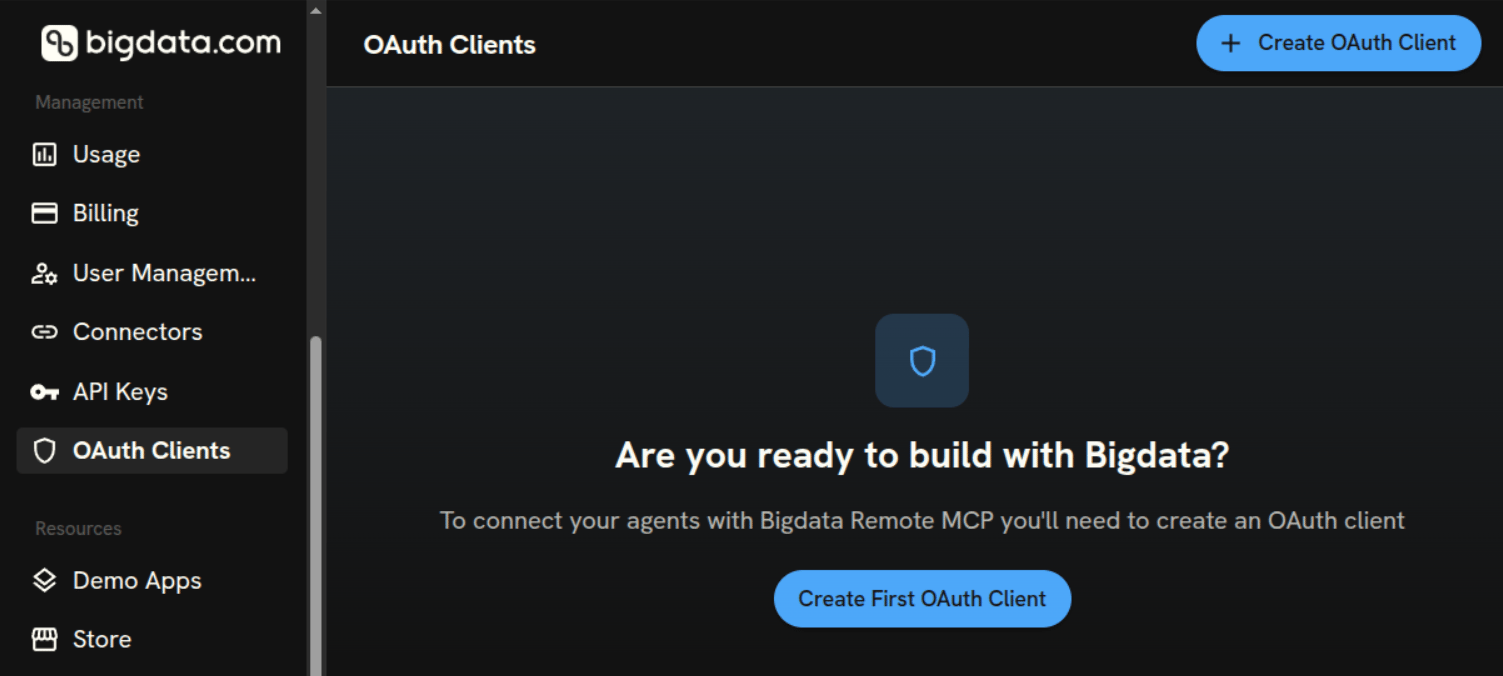
Go to [Developer Platform > OAuth Clients](https://platform.bigdata.com/oauth-clients) and click **Create OAuth Client**.
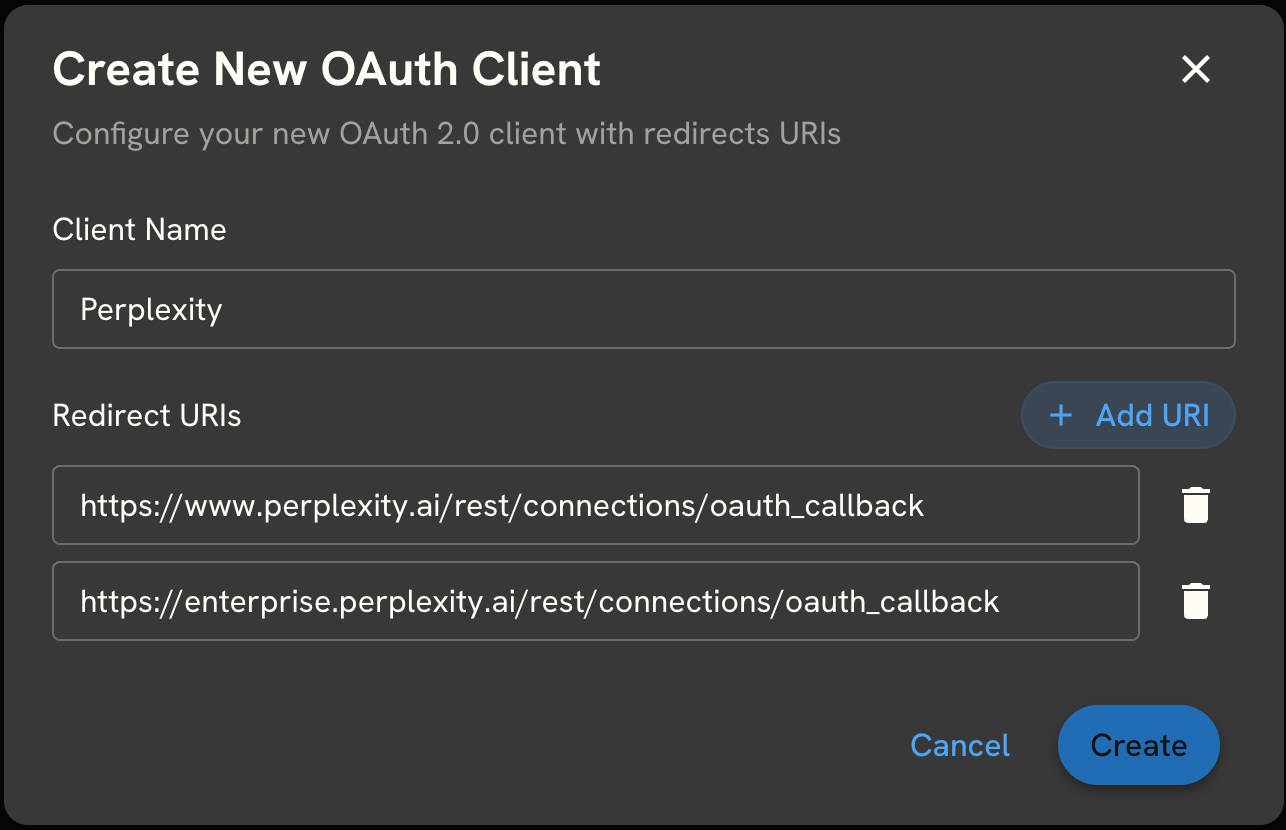
 Fill in the **Create New OAuth Client** form:
* **Client Name**: `Perplexity`
* **Redirect URIs**: add the Perplexity callback URL.
```text theme={null}
https://www.perplexity.ai/rest/connections/oauth_callback
```
If your organization also uses Perplexity Enterprise, click **Add URI** and add the Enterprise callback URL as well.
```text theme={null}
https://enterprise.perplexity.ai/rest/connections/oauth_callback
```
Click **Create**.
Fill in the **Create New OAuth Client** form:
* **Client Name**: `Perplexity`
* **Redirect URIs**: add the Perplexity callback URL.
```text theme={null}
https://www.perplexity.ai/rest/connections/oauth_callback
```
If your organization also uses Perplexity Enterprise, click **Add URI** and add the Enterprise callback URL as well.
```text theme={null}
https://enterprise.perplexity.ai/rest/connections/oauth_callback
```
Click **Create**.
 The Developer Platform shows the **Client ID** and **Client Secret** of the new client. Copy both and store them in your password manager. You will need them in the next step.
The Client Secret is only displayed once. If you lose it, delete the client and create a new one.
The new client now appears in the OAuth Clients list with its Client ID and redirect URLs.
The Developer Platform shows the **Client ID** and **Client Secret** of the new client. Copy both and store them in your password manager. You will need them in the next step.
The Client Secret is only displayed once. If you lose it, delete the client and create a new one.
The new client now appears in the OAuth Clients list with its Client ID and redirect URLs.
 Open [Perplexity](https://www.perplexity.ai/) in your browser and go to **Settings** > **Connectors**. Click **+ Custom connector** in the top-right corner and select **Add MCP connector**.
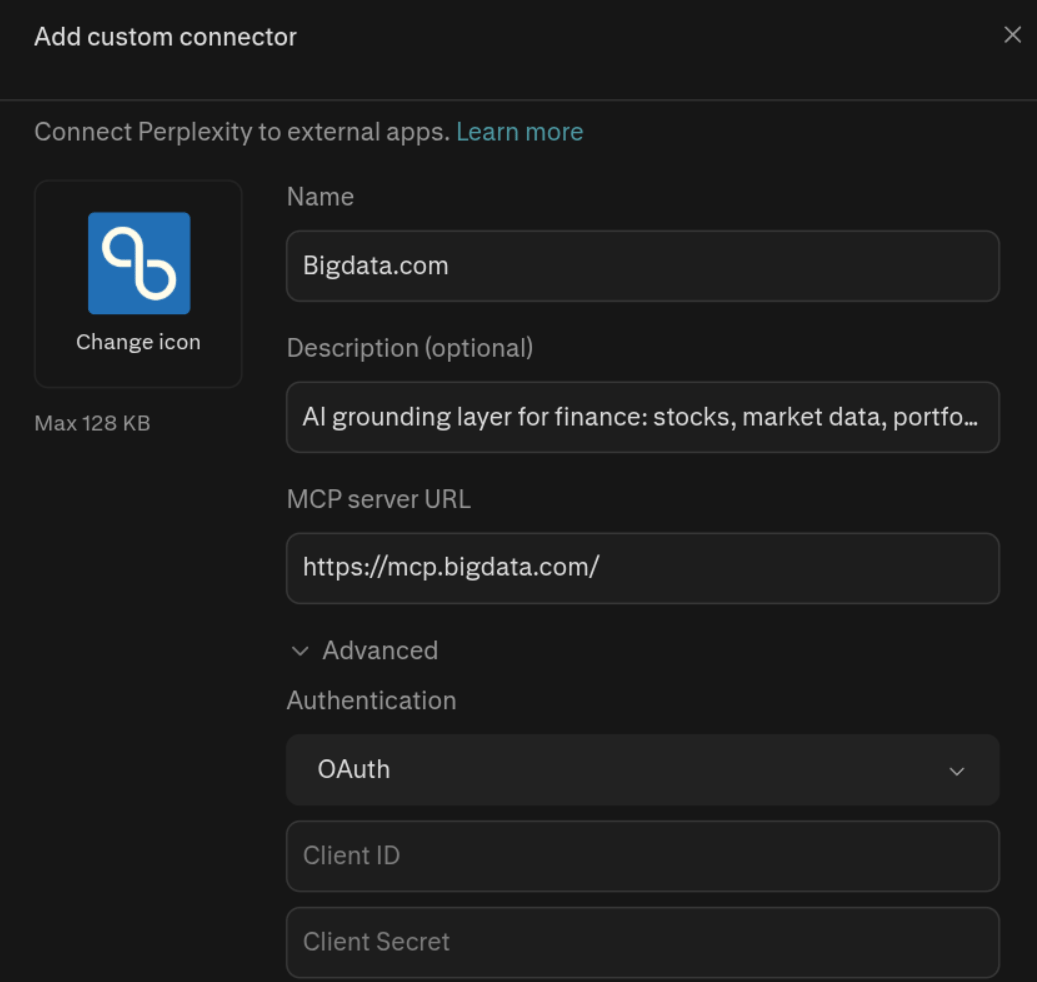
 Fill in the connector form with the following values:
* **Name**
```text theme={null}
Bigdata.com
```
* **MCP Server URL**
```text theme={null}
https://mcp.bigdata.com/
```
* **Description (Optional)**
```text theme={null}
AI grounding layer for finance: stocks, market data, portfolio, investment research and financial data, including SEC filings, earnings calls, sentiment, premium news, plus your own private documents, all cited
```
* **Icon**: upload the Bigdata.com logo. You can download it from here
Then click **Advanced** to show the authentication settings and fill them in:
* **Authentication**: select **OAuth**
* **Client ID**: paste the Client ID from Step 3
* **Client Secret**: paste the Client Secret from Step 3
* **Transport**: select **Streamable HTTP**
Review and accept the acknowledgement for third-party connectors, then save the connector.
Fill in the connector form with the following values:
* **Name**
```text theme={null}
Bigdata.com
```
* **MCP Server URL**
```text theme={null}
https://mcp.bigdata.com/
```
* **Description (Optional)**
```text theme={null}
AI grounding layer for finance: stocks, market data, portfolio, investment research and financial data, including SEC filings, earnings calls, sentiment, premium news, plus your own private documents, all cited
```
* **Icon**: upload the Bigdata.com logo. You can download it from here
Then click **Advanced** to show the authentication settings and fill them in:
* **Authentication**: select **OAuth**
* **Client ID**: paste the Client ID from Step 3
* **Client Secret**: paste the Client Secret from Step 3
* **Transport**: select **Streamable HTTP**
Review and accept the acknowledgement for third-party connectors, then save the connector.
 The **Bigdata.com** connector now appears in your connectors list.
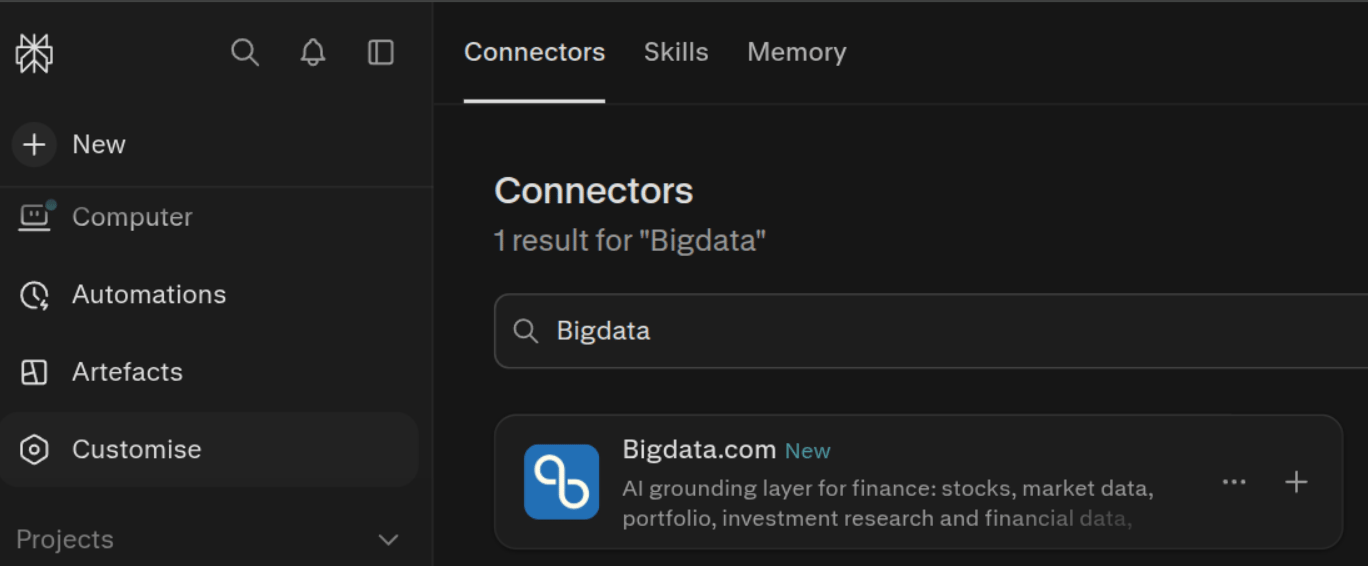 Click the **+** button on the **Bigdata.com** connector card, then click **Add connector**.
 Perplexity authorizes with Bigdata.com through the OAuth client you created and returns to the connectors list with the connector enabled for your account. Since you are already logged in to Bigdata.com from creating the OAuth client, no extra login is required.
The connector now shows as connected, with the Bigdata.com tools listed, such as `bigdata_search`, `find_securities` and `bigdata_company_tearsheet`. For the complete list, see the [Bigdata MCP tools overview](/mcp-reference/introduction#bigdata-services).
Start a new chat, type `@Bigdata.com` and select the connector from the suggestions, then ask any question about your financial research. For example:
```text theme={null}
Give me the latest semiconductor news. Add inline attribution in this exact format: Source name , DD Mon YYYY with the hyperlink to app.bigdata.com. Include a source link for every bullet.
```
Perplexity calls the Bigdata.com MCP tools during its reasoning loop, retrieves grounded financial content, and answers with citations that link back to the source documents.
Perplexity authorizes with Bigdata.com through the OAuth client you created and returns to the connectors list with the connector enabled for your account. Since you are already logged in to Bigdata.com from creating the OAuth client, no extra login is required.
The connector now shows as connected, with the Bigdata.com tools listed, such as `bigdata_search`, `find_securities` and `bigdata_company_tearsheet`. For the complete list, see the [Bigdata MCP tools overview](/mcp-reference/introduction#bigdata-services).
Start a new chat, type `@Bigdata.com` and select the connector from the suggestions, then ask any question about your financial research. For example:
```text theme={null}
Give me the latest semiconductor news. Add inline attribution in this exact format: Source name , DD Mon YYYY with the hyperlink to app.bigdata.com. Include a source link for every bullet.
```
Perplexity calls the Bigdata.com MCP tools during its reasoning loop, retrieves grounded financial content, and answers with citations that link back to the source documents.
 🥳🚀 You can now use Bigdata.com MCP tools in your Perplexity threads!
## Enterprise workspaces
On Perplexity Enterprise, administrators control which connectors members can use. To make Bigdata.com available to your organization:
1. Make sure the OAuth client created in Step 2 includes the Enterprise redirect URI, `https://enterprise.perplexity.ai/rest/connections/oauth_callback`.
2. In Perplexity, go to **Enterprise settings** > **Permissions** > **Connectors permissions**, click **+ Custom connector** and select **Add MCP connector**.
3. Fill in the same values as in [Configure the Bigdata.com connector](#configuration-steps).
One OAuth client serves the whole organization. Each member still logs in to Bigdata.com with their own account the first time they connect, so usage is attributed to the right Bigdata.com user.
## Troubleshooting
The redirect URI registered in the OAuth client must match the one Perplexity uses exactly. Check that the client in [Developer Platform > OAuth Clients](https://platform.bigdata.com/oauth-clients) contains `https://www.perplexity.ai/rest/connections/oauth_callback`, and `https://enterprise.perplexity.ai/rest/connections/oauth_callback` for Perplexity Enterprise. Edit the client to add a missing URI.
Copy both values again from your password manager and check for leading or trailing spaces. If the secret was lost, delete the OAuth client, create a new one with the same redirect URIs, and update the connector in Perplexity with the new credentials.
Type `@Bigdata.com` at the start of your prompt to select the connector explicitly. Without the mention, Perplexity decides which tools to call based on the question, and may answer from the public web instead.
Perplexity custom connectors also accept an API key. OAuth is the recommended option because each user logs in with their own Bigdata.com account and no long-lived key is stored in Perplexity. If you still prefer an API key, create one in the [Developer Platform](https://platform.bigdata.com/api-keys) and send it in a header named `x-api-key`. See [MCP Integration with API Key](/mcp-reference/api-integrations/mcp-api-integration).
Go to **Settings** > **Connectors** in Perplexity, open the **Bigdata.com** connector and choose to remove it. To revoke access for everyone who used the client, delete the OAuth client in [Developer Platform > OAuth Clients](https://platform.bigdata.com/oauth-clients).
This documentation is built and hosted on [Mintlify](https://mintlify.com), a developer documentation platform.
🥳🚀 You can now use Bigdata.com MCP tools in your Perplexity threads!
## Enterprise workspaces
On Perplexity Enterprise, administrators control which connectors members can use. To make Bigdata.com available to your organization:
1. Make sure the OAuth client created in Step 2 includes the Enterprise redirect URI, `https://enterprise.perplexity.ai/rest/connections/oauth_callback`.
2. In Perplexity, go to **Enterprise settings** > **Permissions** > **Connectors permissions**, click **+ Custom connector** and select **Add MCP connector**.
3. Fill in the same values as in [Configure the Bigdata.com connector](#configuration-steps).
One OAuth client serves the whole organization. Each member still logs in to Bigdata.com with their own account the first time they connect, so usage is attributed to the right Bigdata.com user.
## Troubleshooting
The redirect URI registered in the OAuth client must match the one Perplexity uses exactly. Check that the client in [Developer Platform > OAuth Clients](https://platform.bigdata.com/oauth-clients) contains `https://www.perplexity.ai/rest/connections/oauth_callback`, and `https://enterprise.perplexity.ai/rest/connections/oauth_callback` for Perplexity Enterprise. Edit the client to add a missing URI.
Copy both values again from your password manager and check for leading or trailing spaces. If the secret was lost, delete the OAuth client, create a new one with the same redirect URIs, and update the connector in Perplexity with the new credentials.
Type `@Bigdata.com` at the start of your prompt to select the connector explicitly. Without the mention, Perplexity decides which tools to call based on the question, and may answer from the public web instead.
Perplexity custom connectors also accept an API key. OAuth is the recommended option because each user logs in with their own Bigdata.com account and no long-lived key is stored in Perplexity. If you still prefer an API key, create one in the [Developer Platform](https://platform.bigdata.com/api-keys) and send it in a header named `x-api-key`. See [MCP Integration with API Key](/mcp-reference/api-integrations/mcp-api-integration).
Go to **Settings** > **Connectors** in Perplexity, open the **Bigdata.com** connector and choose to remove it. To revoke access for everyone who used the client, delete the OAuth client in [Developer Platform > OAuth Clients](https://platform.bigdata.com/oauth-clients).
This documentation is built and hosted on [Mintlify](https://mintlify.com), a developer documentation platform.