> ## Documentation Index
> Fetch the complete documentation index at: https://docs.bigdata.com/llms.txt
> Use this file to discover all available pages before exploring further.
# ChatGPT MCP Integration
This guide will walk you through setting up the official Bigdata.com Connector in ChatGPT, so you can use it in ChatGPT.com and ChatGPT Desktop.
🚀 Ready to bring the financial expertise of Bigdata.com to your ChatGPT environment using our **Bigdata.com Official Connector**?
## Configuration Steps
As a Workspace administrator, you can manage which Apps are allowed within your organization. The following steps walk you through on how to add **Bigdata.com** App to your Workspace together with the recommended settings.
Find the **Bigdata.com** connector in the Workspace settings.
1. Open Workspace settings in [ChatGPT.com](https://chatgpt.com/)
2. Go to **Apps**
3. Type **Bigdata** in the search bar
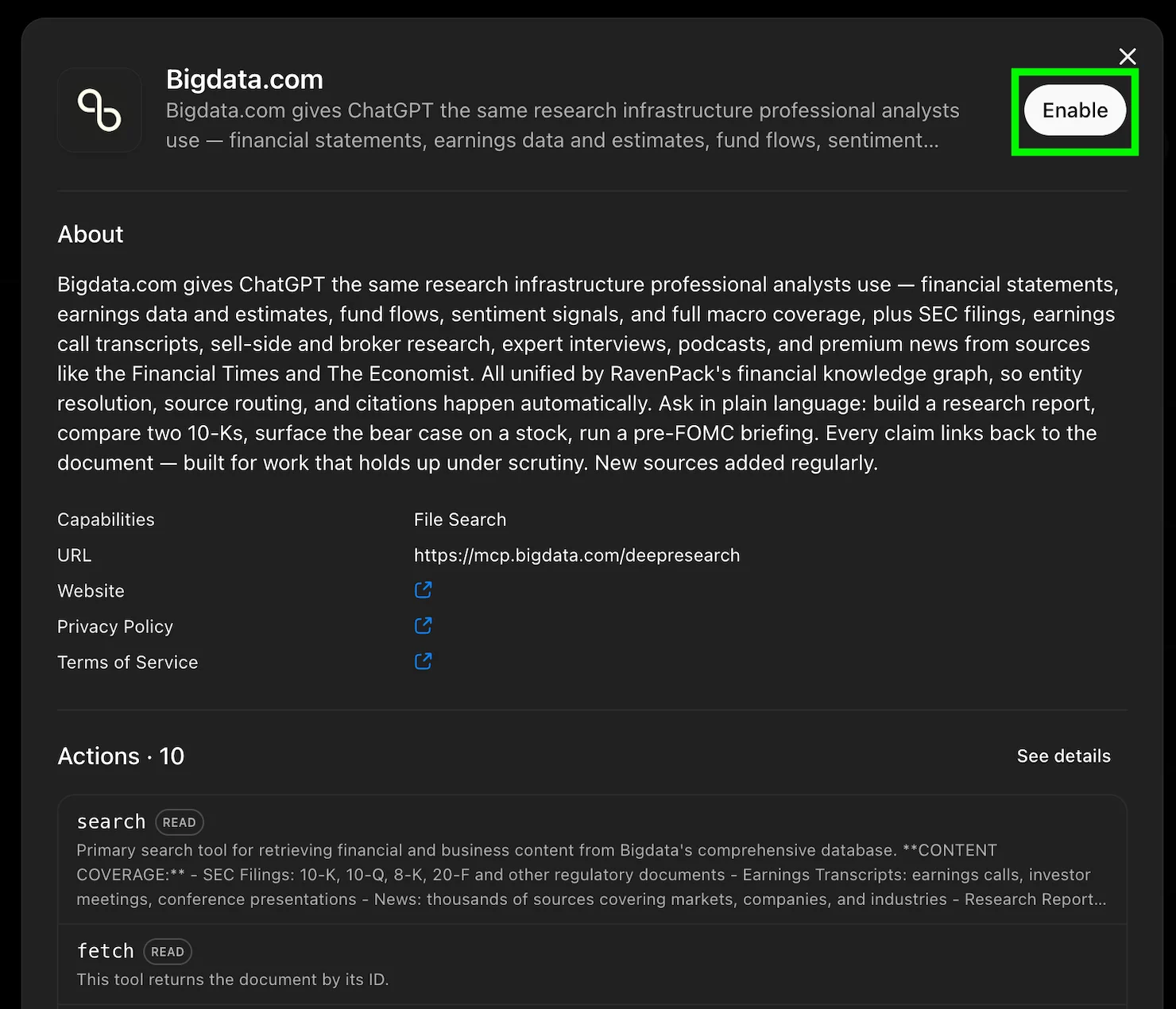
Click the Bigdata.com App and click **Enable**
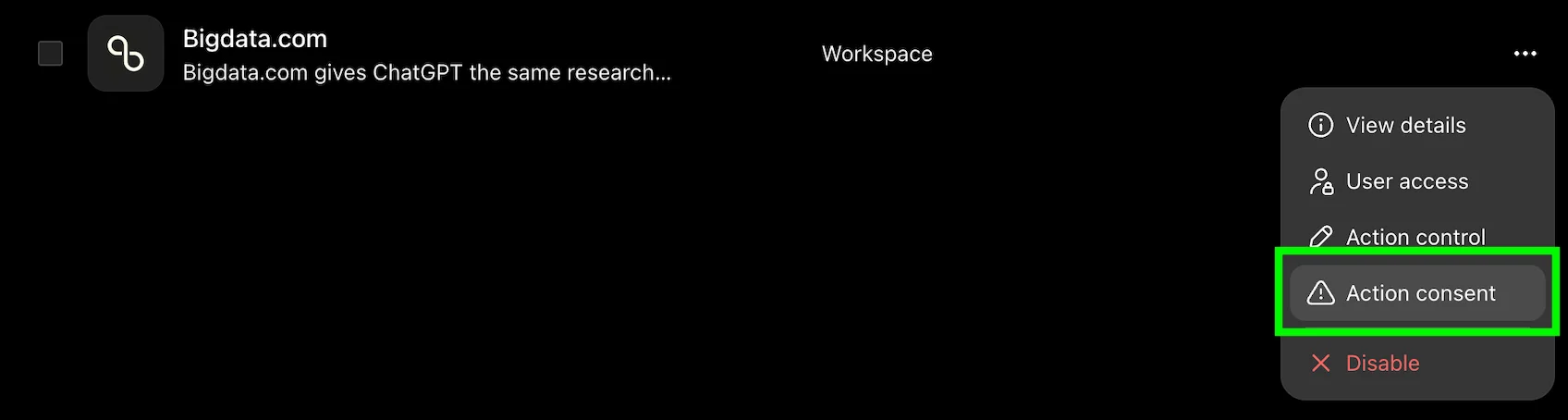
 Once enabled, to ensure the users within your Workspace have a smooth experience, go to the Bigdata.com App settings and click on **Action consent** option
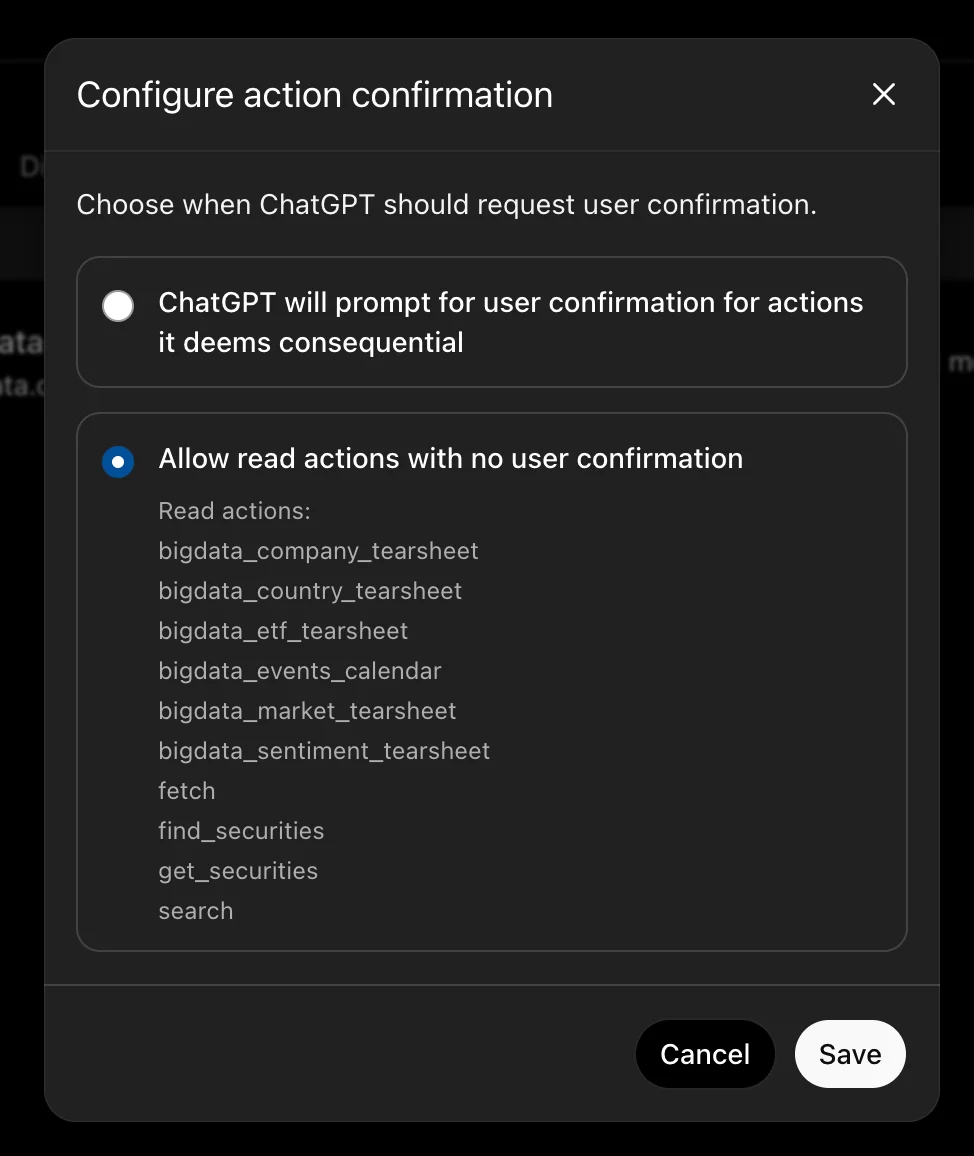
 Select the **Allow read actions with no user confirmation** option and click **Save**
 🥳🚀 **Done!** You should see the **Bigdata.com Official App** added, and ready to be individually configured by each user from your Team/Enterprise
## Using the Connector
Once the Bigdata.com App has been enabled at your Workspace, you can connect to it and start using Bigdata.com MCP tools in your ChatGPT conversations.
Open [ChatGPT](https://chatgpt.com) in your browser and navigate to **Settings** > **Apps**.
Click on **Add more** at the Apps gallery
🥳🚀 **Done!** You should see the **Bigdata.com Official App** added, and ready to be individually configured by each user from your Team/Enterprise
## Using the Connector
Once the Bigdata.com App has been enabled at your Workspace, you can connect to it and start using Bigdata.com MCP tools in your ChatGPT conversations.
Open [ChatGPT](https://chatgpt.com) in your browser and navigate to **Settings** > **Apps**.
Click on **Add more** at the Apps gallery
 Select **Bigdata.com** from the list of allowed Apps within your Workspace
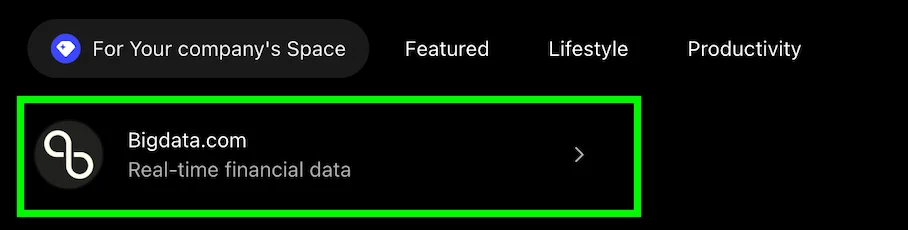 Click on **Connect** to login to **Bigdata.com**
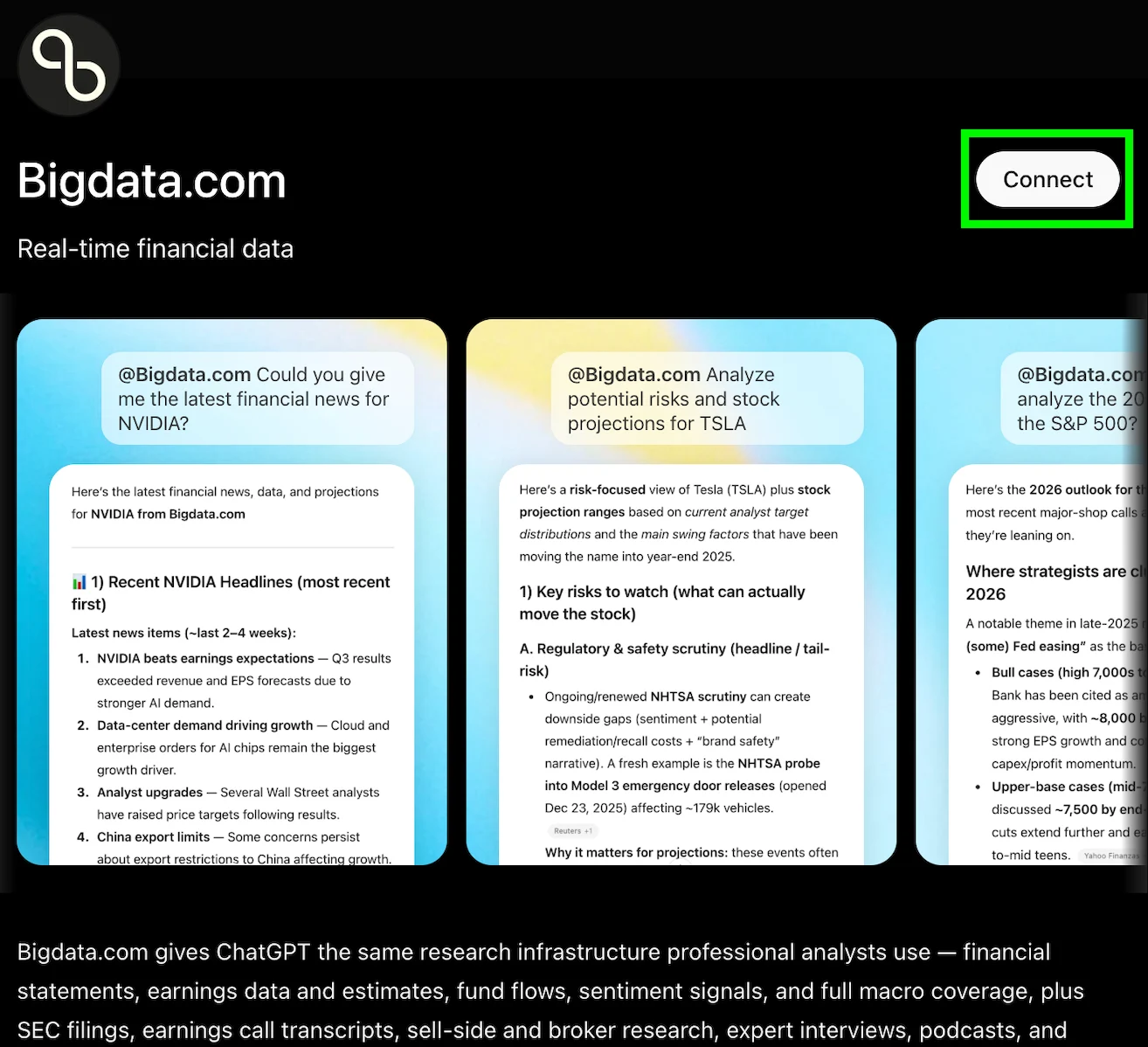 Once the browser redirects to Bigdata.com, you can log in using your Bigdata.com credentials, and the browser will redirect you back to ChatGPT after a successful login into the Bigdata.com App.
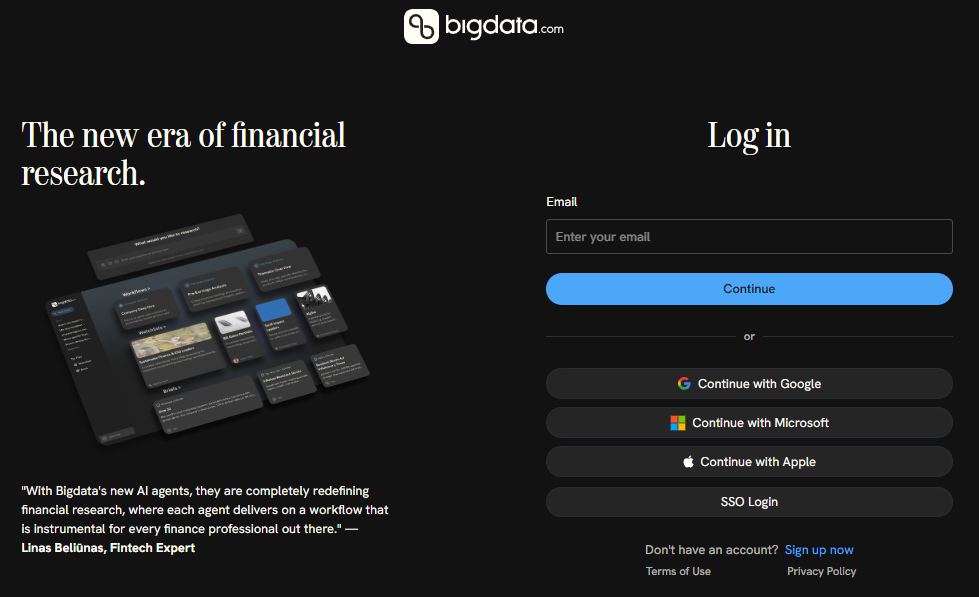 🥳🚀 You can now use Bigdata.com MCP tools in your conversations!
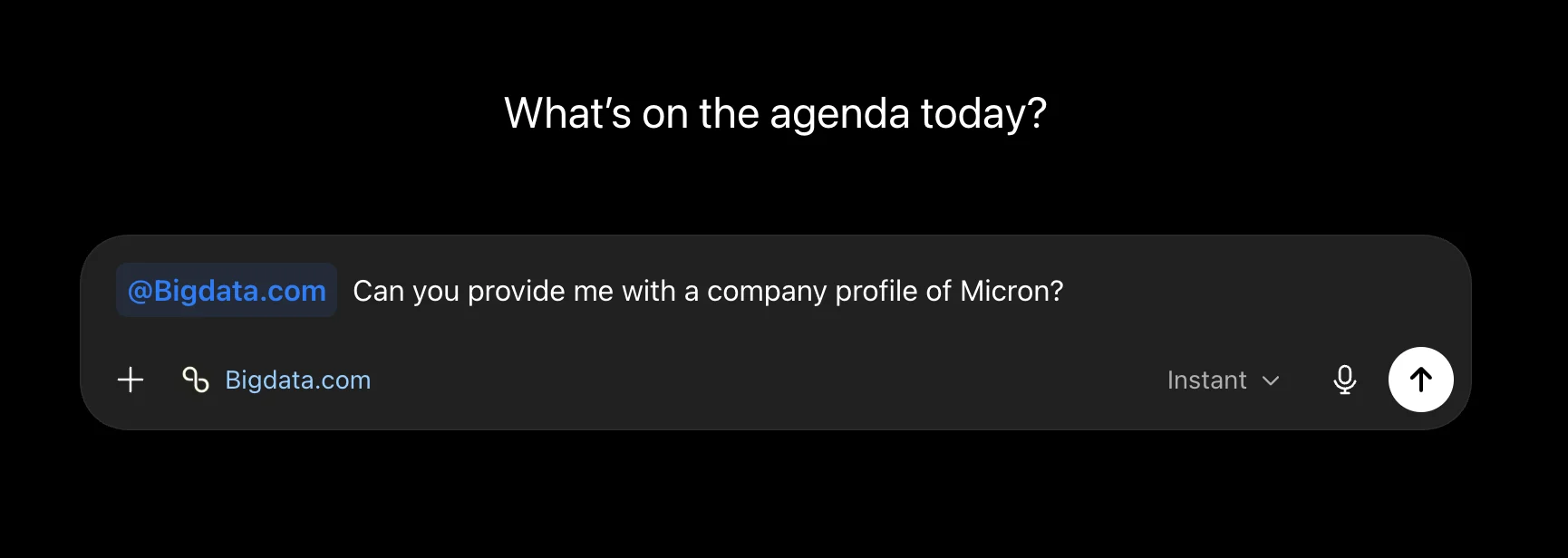 Question:
```
@Bigdata.com Can you provide me with a company profile of Micron?
```
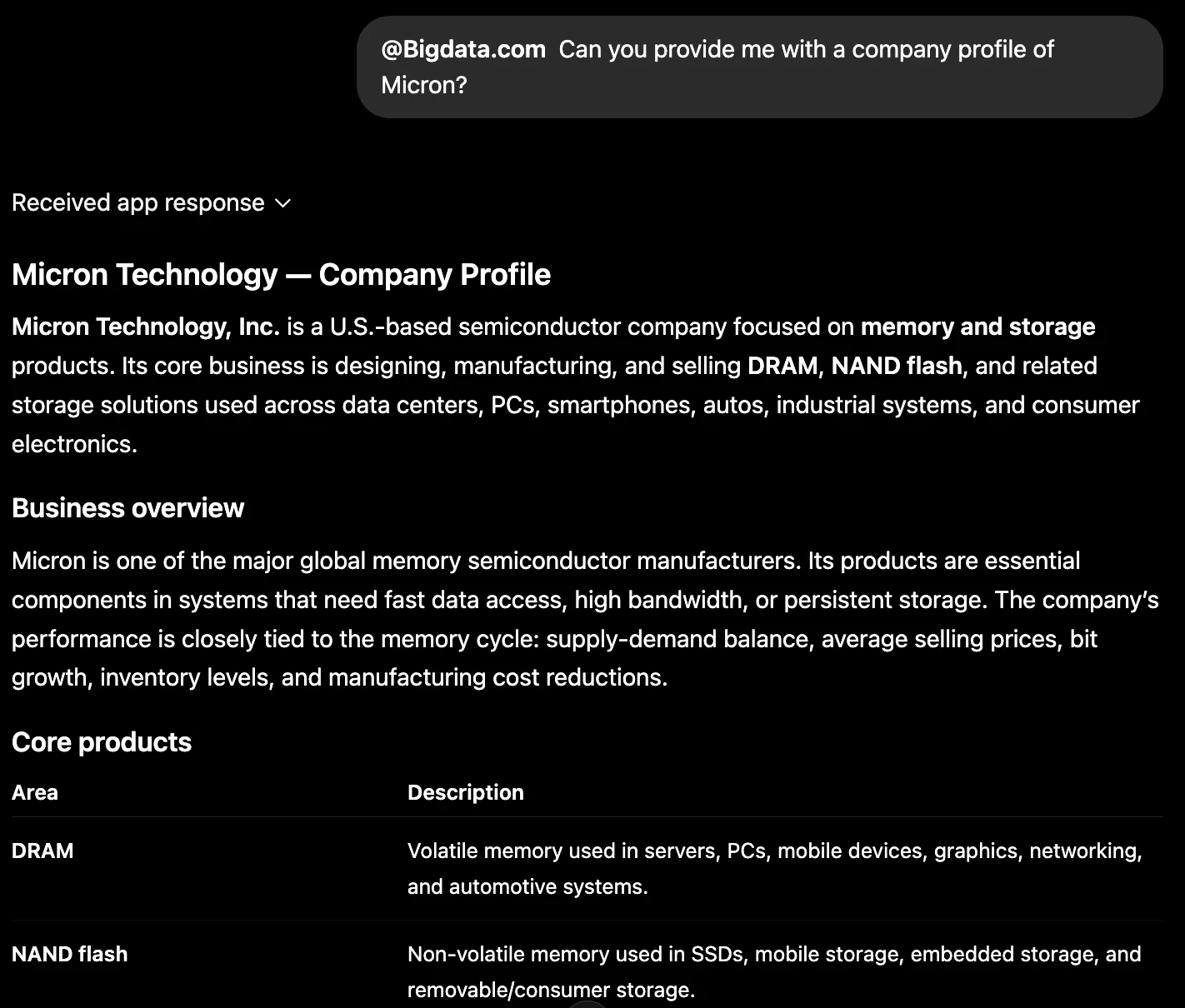
Answer:
Question:
```
@Bigdata.com Can you provide me with a company profile of Micron?
```
Answer:
 ## Troubleshooting
You can delete the custom connector and enable the official ChatGPT Bigdata.com App in your Workspace. They both point to the same Bigdata MCP server. ChatGPT does not allow two connectors with the same URL, so it's better to delete the custom one.
## Troubleshooting
You can delete the custom connector and enable the official ChatGPT Bigdata.com App in your Workspace. They both point to the same Bigdata MCP server. ChatGPT does not allow two connectors with the same URL, so it's better to delete the custom one.