> ## Documentation Index
> Fetch the complete documentation index at: https://docs.bigdata.com/llms.txt
> Use this file to discover all available pages before exploring further.
# Microsoft 365 Copilot MCP Integration
The official Bigdata.com connector is available in Microsoft 365 Copilot, Copilot Cowork and Copilot Studio, so company, market, and macro data comes straight into the conversation, with the source attached.
It is built on the Model Context Protocol (MCP) and works in three places: **Copilot Chat**, **Copilot Cowork**, and **Copilot Studio** custom agents.
🚀 Ready to bring the financial expertise of Bigdata.com to your Microsoft environment?
## Three ways to use Bigdata.com with Microsoft Copilot
| Where | Best for | Setup |
| :- | :- | :- |
| [**Copilot Chat**](#option-1-copilot-chat) | Quick answers backed by verified data, in the Copilot you already use | Connect from Settings → Sources |
| [**Copilot Cowork**](#option-2-copilot-cowork) | Deeper work, with a visible tool breakdown, sources, and Skills | Install from Customize |
| [**Copilot Studio**](#option-3-custom-agents-in-copilot-studio) | Custom agents built around your own workflows | Add Bigdata.com as an MCP tool in your agent |
## What you can ask for
| Capability | What you get |
| :- | :- |
| **Search** | News, filings, transcripts, podcasts, interviews, and research in one query |
| **Tearsheets** | Financials and analyst coverage for a company, holdings and risk for an ETF, consolidated data across a portfolio |
| **Market and country views** | A cross-asset market snapshot (energy, equities, FX, ETFs) and country economic snapshots |
| **Sentiment** | Real-time media sentiment for public companies |
| **Events calendar** | Corporate events and macroeconomic release dates |
| **Watchlists** | Create, view, edit, and delete watchlists of up to 100 companies |
| **Entity and security lookup** | Find companies, people, places, and products; resolve ISIN, CUSIP, and SEDOL identifiers |
| **Your private content** | List connectors, tags, and documents, fetch full text, and upload your own documents for indexing |
***
## Option 1: Copilot Chat
If you want Bigdata.com inside the standard Copilot experience, this is the quickest route. Once connected, Copilot uses Bigdata.com whenever your question calls for financial data.
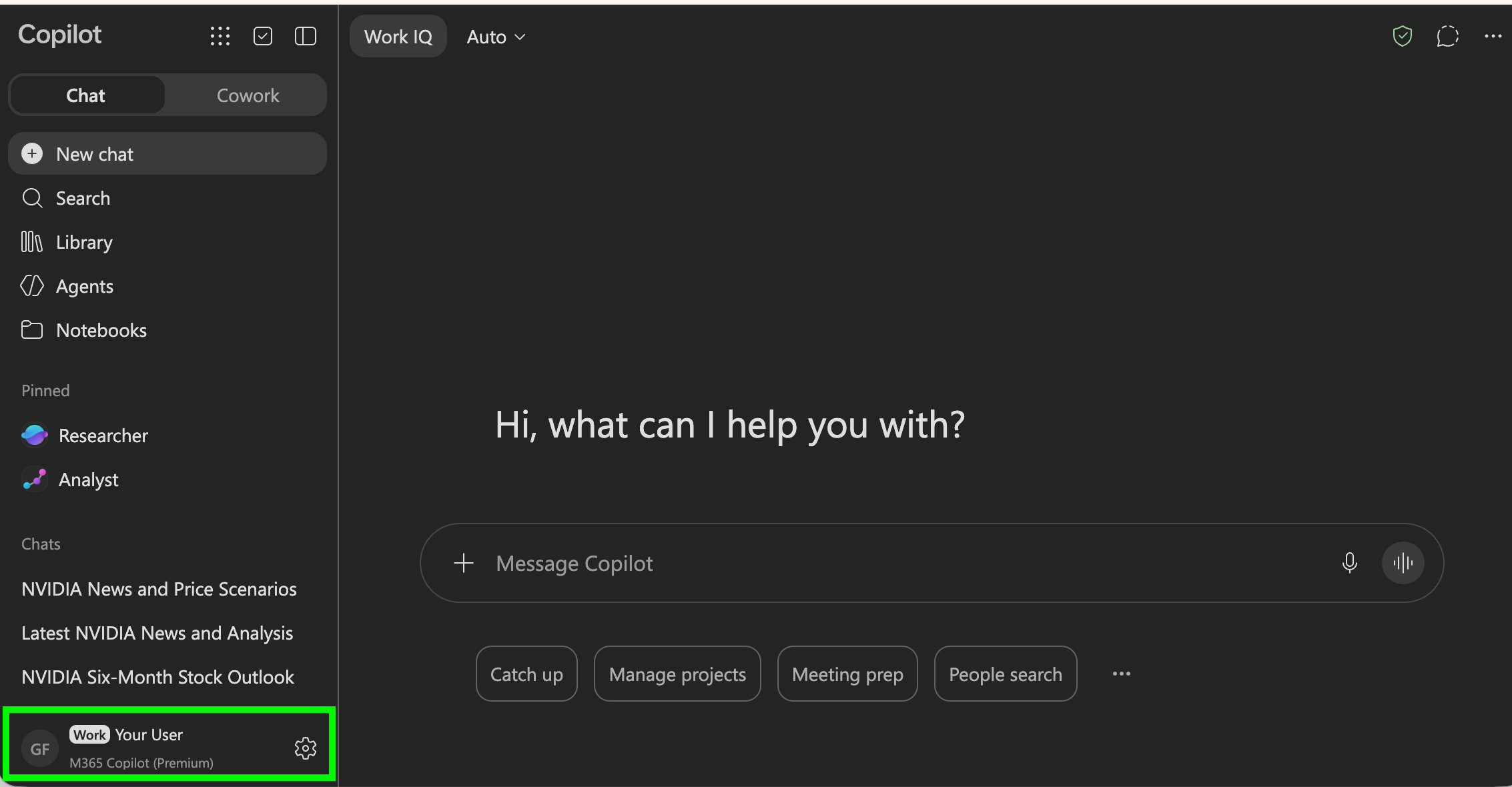
Go to [copilot.cloud.microsoft.com](https://copilot.cloud.microsoft.com).
Open **Settings and more**, then go to **Settings** and **Sources**.
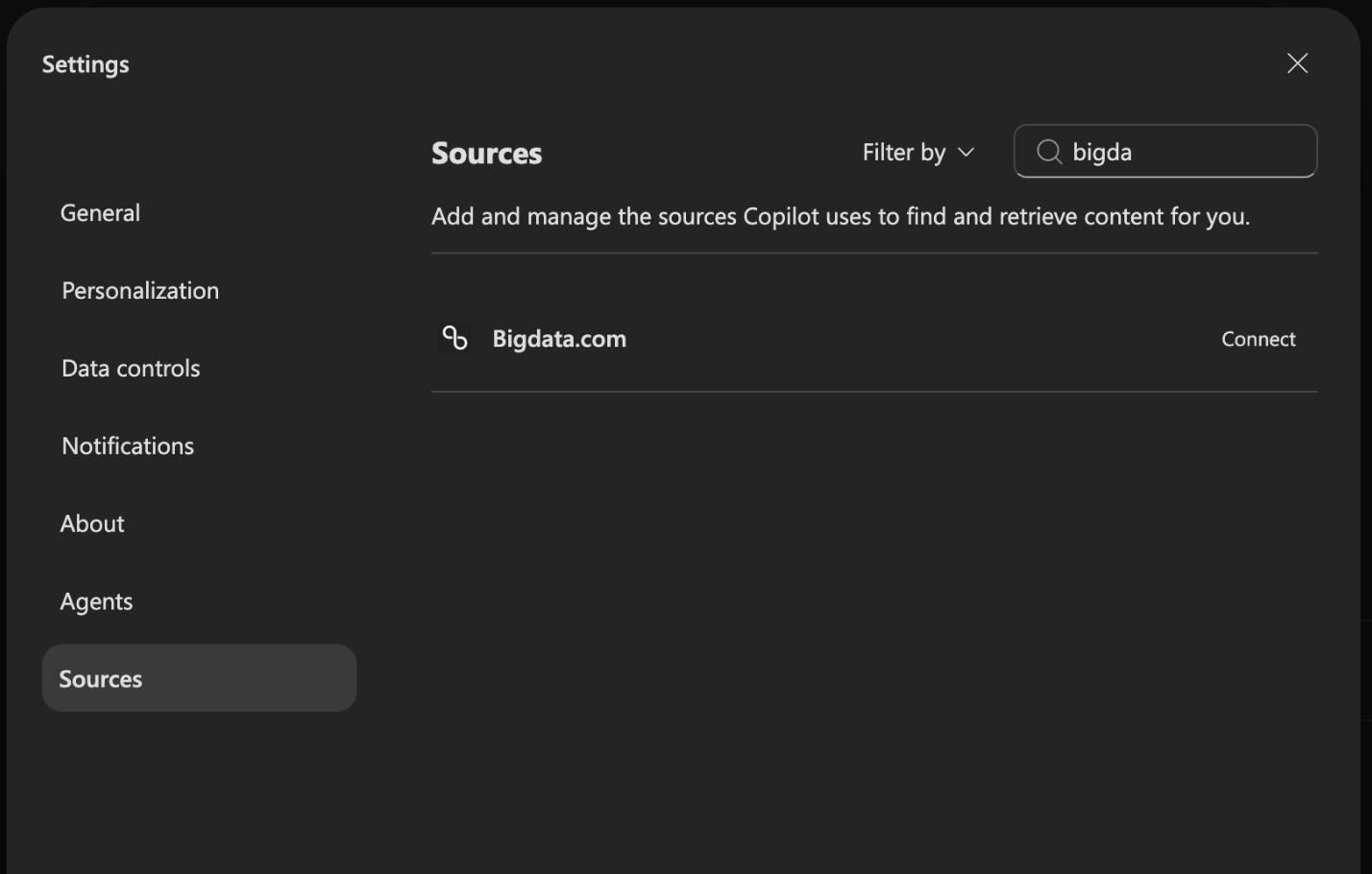
 Search for **Bigdata.com** and click **Connect**.
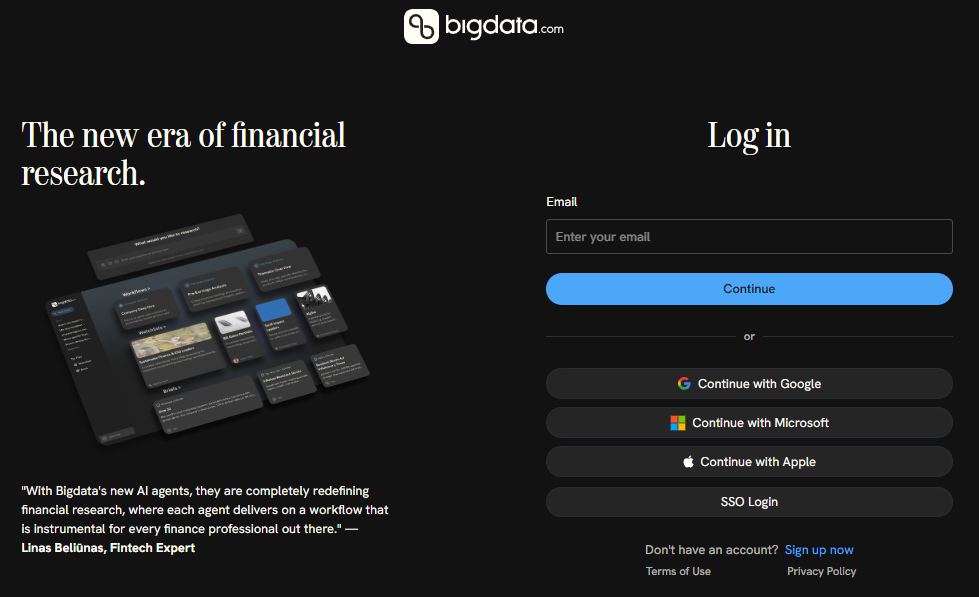
 Sign in to your Bigdata.com account to authorize access.
 🥳🚀 **Done!** Bigdata.com is connected in Copilot Chat and ready to ground your answers with verified financial data.
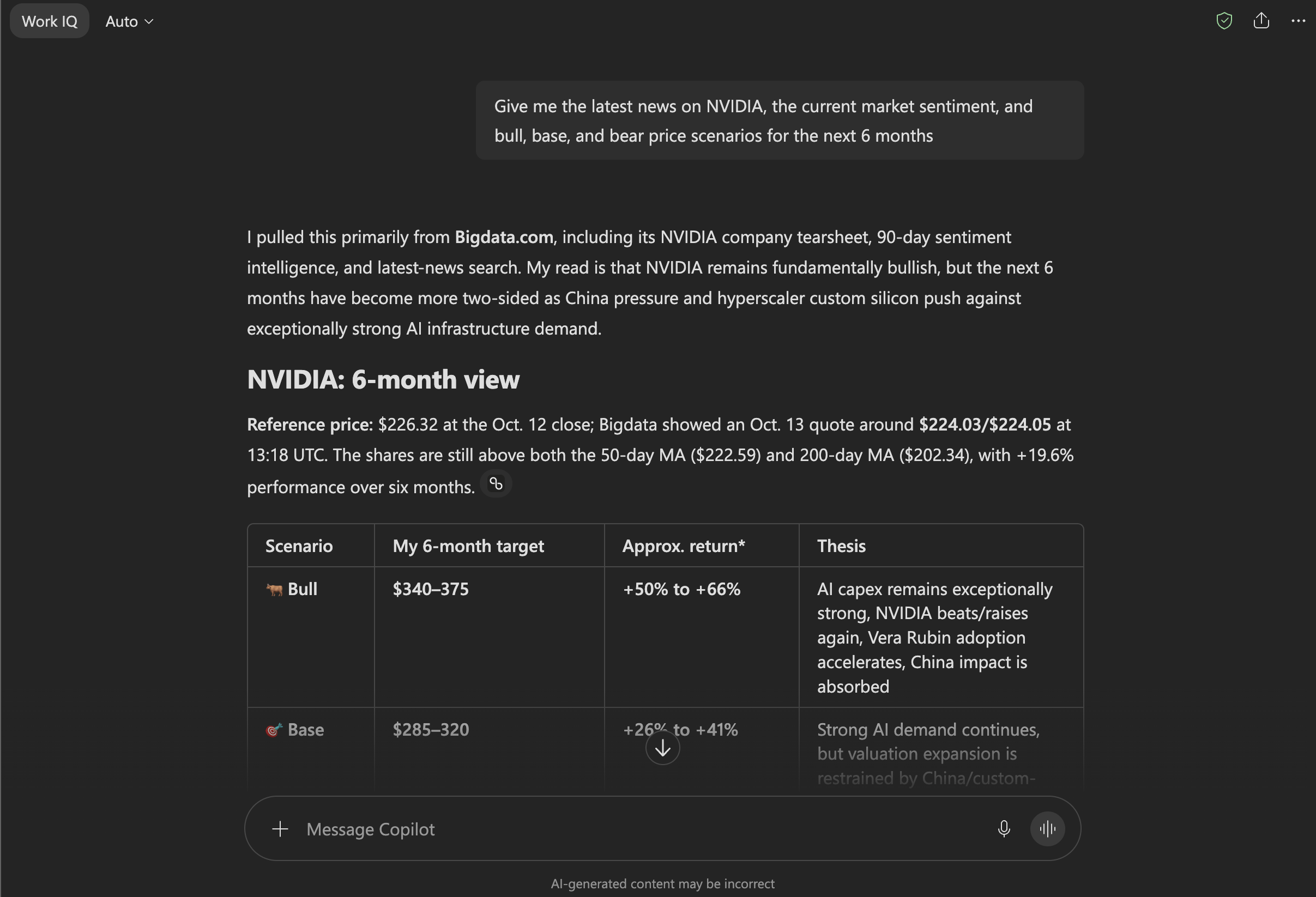
### Example in Copilot Chat
```
Give me the latest news on NVIDIA, the current market sentiment, and bull, base, and bear price scenarios for the next 6 months
```
🥳🚀 **Done!** Bigdata.com is connected in Copilot Chat and ready to ground your answers with verified financial data.
### Example in Copilot Chat
```
Give me the latest news on NVIDIA, the current market sentiment, and bull, base, and bear price scenarios for the next 6 months
```
 ***
## Option 2: Copilot Cowork
Cowork gives you more visibility into what happens behind an answer, including the breakdown of the tools used and the sources behind each figure. It also gets the best out of Bigdata.com Skills on top of the data.
Go to [copilot.cloud.microsoft.com/cowork](https://copilot.cloud.microsoft.com/cowork).
Open **Customize** and search for **Bigdata**.
***
## Option 2: Copilot Cowork
Cowork gives you more visibility into what happens behind an answer, including the breakdown of the tools used and the sources behind each figure. It also gets the best out of Bigdata.com Skills on top of the data.
Go to [copilot.cloud.microsoft.com/cowork](https://copilot.cloud.microsoft.com/cowork).
Open **Customize** and search for **Bigdata**.
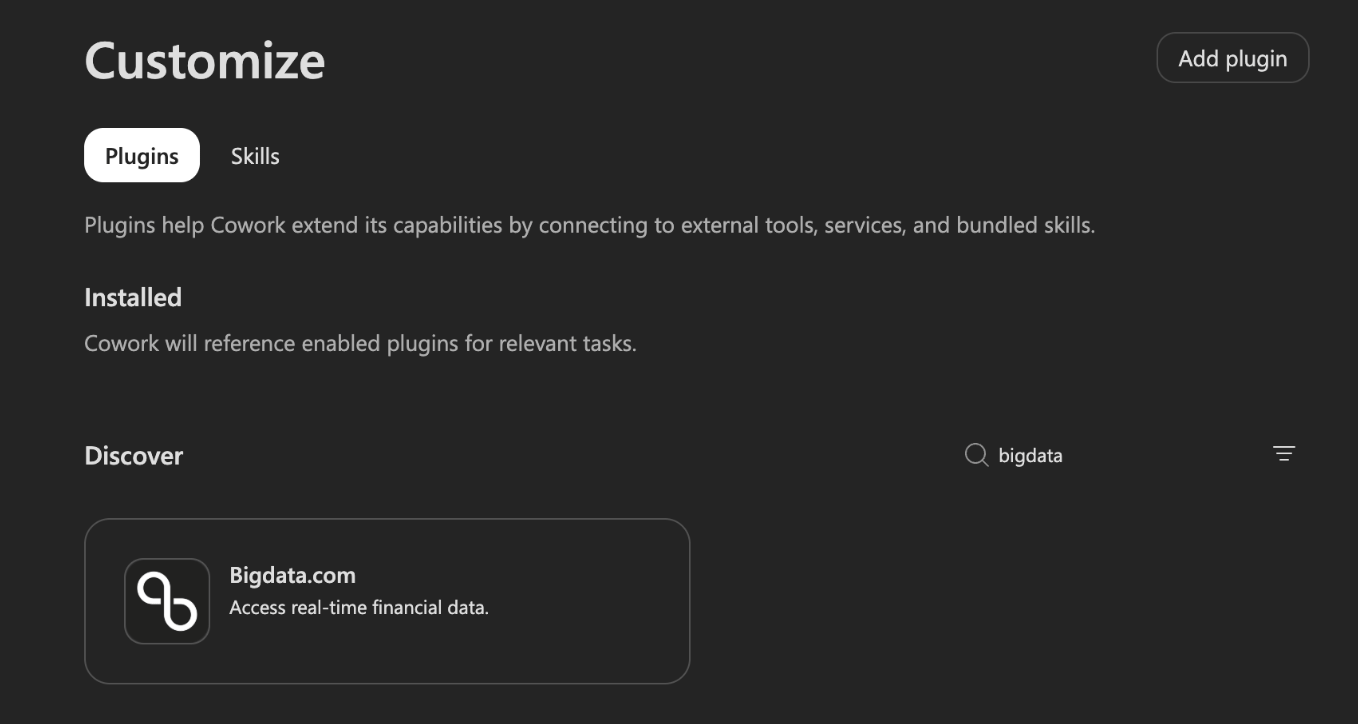 Press **Install**.
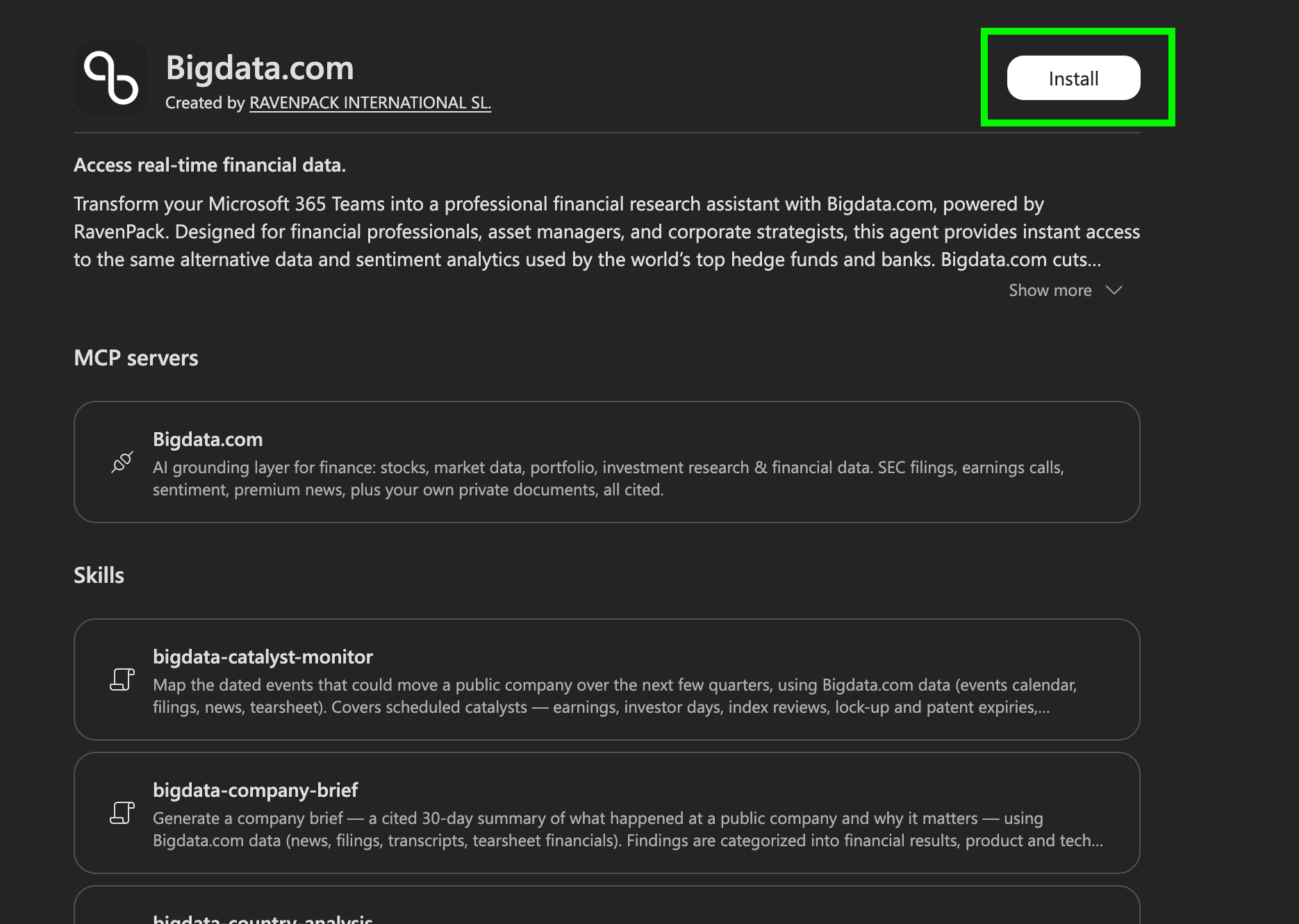 Sign in to your Bigdata.com account to authorize access.
🥳🚀 **Done!** Bigdata.com is installed in Copilot Cowork and ready for deeper research workflows.
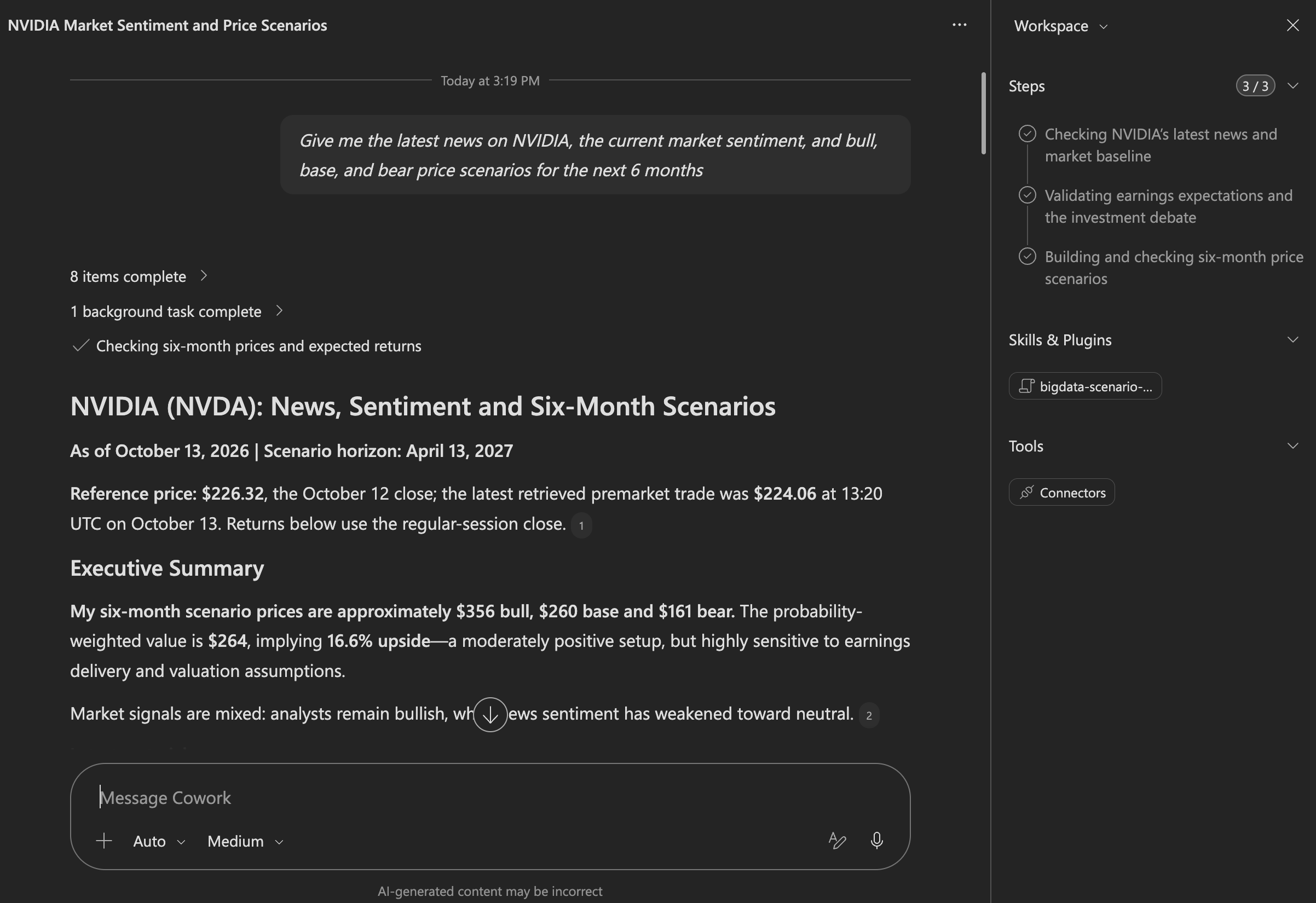
### Example in Copilot Cowork
```
Give me the latest news on NVIDIA, the current market sentiment, and bull, base, and bear price scenarios for the next 6 months
```
Sign in to your Bigdata.com account to authorize access.
🥳🚀 **Done!** Bigdata.com is installed in Copilot Cowork and ready for deeper research workflows.
### Example in Copilot Cowork
```
Give me the latest news on NVIDIA, the current market sentiment, and bull, base, and bear price scenarios for the next 6 months
```
 ***
## Option 3: Custom agents in Copilot Studio
If you need a custom agent built around your own process, Bigdata.com is supported in Copilot Studio. This guide walks you through setting up the official Bigdata.com Microsoft Tool on a new or existing Agent. Once configured, everyone in your organization can use it in Teams or Microsoft Copilot.
### Prerequisites
You need:
* Access to [Copilot Studio](https://copilotstudio.microsoft.com/)
* Appropriate Microsoft 365 subscription with Copilot Studio access
The configuration process requires admin access to Copilot Studio. Once configured, the agent can be shared with specific users, teammates, or your entire organization.
### Configuration Steps
If you want to create a new Agent from a blank template, start from **Step 1**. If you already have an Agent and want to connect it to the Bigdata MCP, jump to **Step 4**.
Go to [Copilot Studio](https://copilotstudio.microsoft.com/) and create a new agent:
1. From the menu on the left, go to **Agents**
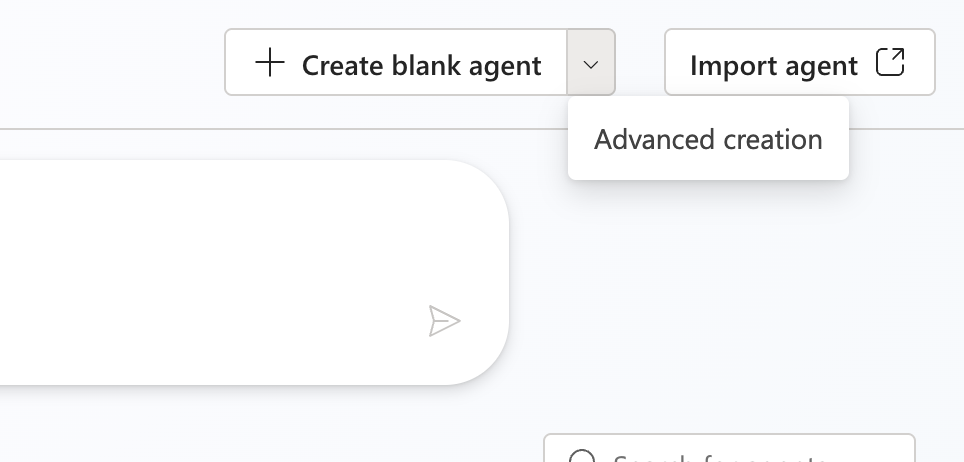
2. Click the arrow next to **+ Create blank agent** and select **Advanced creation** from the dropdown menu
***
## Option 3: Custom agents in Copilot Studio
If you need a custom agent built around your own process, Bigdata.com is supported in Copilot Studio. This guide walks you through setting up the official Bigdata.com Microsoft Tool on a new or existing Agent. Once configured, everyone in your organization can use it in Teams or Microsoft Copilot.
### Prerequisites
You need:
* Access to [Copilot Studio](https://copilotstudio.microsoft.com/)
* Appropriate Microsoft 365 subscription with Copilot Studio access
The configuration process requires admin access to Copilot Studio. Once configured, the agent can be shared with specific users, teammates, or your entire organization.
### Configuration Steps
If you want to create a new Agent from a blank template, start from **Step 1**. If you already have an Agent and want to connect it to the Bigdata MCP, jump to **Step 4**.
Go to [Copilot Studio](https://copilotstudio.microsoft.com/) and create a new agent:
1. From the menu on the left, go to **Agents**
2. Click the arrow next to **+ Create blank agent** and select **Advanced creation** from the dropdown menu
 3. In the next window, the **Default language** can be defined.
* Recommendation: **English (United States)**
In the next page, define the new agent's main attributes:
* **Name**: `Bigdata.com` (or any name you prefer)
* **Icon**: You can download the icon from here
* **Description**: `Access real-time financial data for market insights`
Once done with the agent's attributes, press the **Save** button from the top right corner.
3. In the next window, the **Default language** can be defined.
* Recommendation: **English (United States)**
In the next page, define the new agent's main attributes:
* **Name**: `Bigdata.com` (or any name you prefer)
* **Icon**: You can download the icon from here
* **Description**: `Access real-time financial data for market insights`
Once done with the agent's attributes, press the **Save** button from the top right corner.
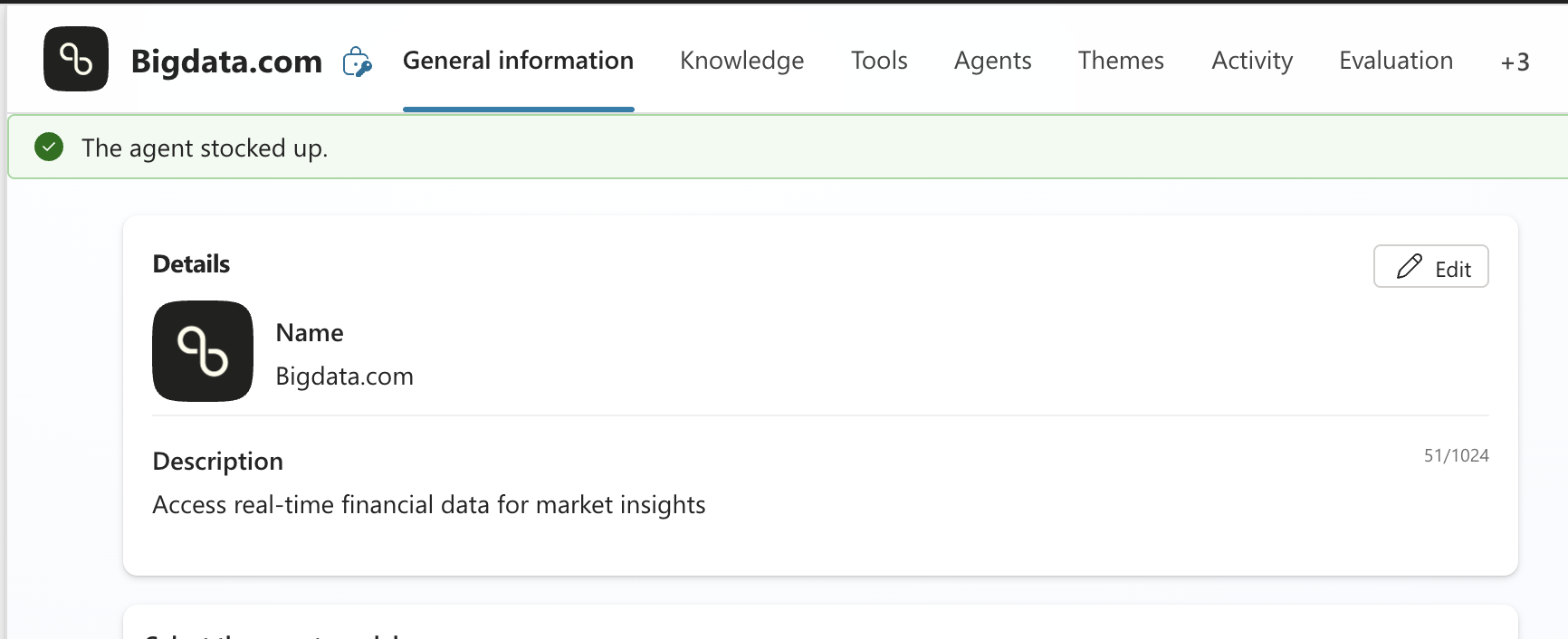 After creating your new agent, configure the following parameters within the same page:
* **Agent Model**: Depends on your internally enabled models. We suggest an advanced and versatile model (GPT-5 Chat, as of Oct 2026)
* **Instructions**: customize your agent according to your use case. We suggest getting started with the following set of instructions.
```
## Role
You are a financial research assistant for [Company name]. You help users research companies, markets, sectors, earnings and financial news using Bigdata.com.
## When to use Bigdata.com
- Use /Bigdata.com MCP for any question about companies, securities, markets, sectors, earnings, analyst estimates, corporate events or financial news, including follow-up questions.
- Do not answer these questions from general knowledge alone. If Bigdata.com returns nothing relevant, say so plainly instead of filling the gap.
- Answer general finance concepts (for example, "what is EBITDA") directly.
## Research depth
- Break the request into its parts (for example news, valuation, outlook, sentiment) and gather evidence for every part before writing.
- For company questions, combine structured data (financials, price, estimates, upcoming events) with news, filings and earnings call commentary. Do not rely on a single search.
- When the question involves outlook, valuation or performance, include the latest reported results, the company's own guidance, and its cash and debt position.
- Prefer primary evidence (filings, earnings calls, company announcements) over secondary coverage. Clearly flag paid or issuer-sponsored research.
- Flag any information older than 90 days that is used to describe the current situation.
## Analyst data
- Always state how many analysts are behind a rating or price target. If only one or two analysts cover the company, say so and do not call it a consensus.
- Give the date of the estimates and point out when targets are far from the current price.
## Outlooks and projections
- Never give a price range or forecast without showing how it was built.
- Present a bear, base and bull case. For each, state the key assumptions (for example revenue, margin, valuation multiple), the resulting value or range, and a probability. Probabilities must add up to 100%.
- Anchor every assumption in retrieved data: company guidance, analyst estimates, historical multiples or peer multiples. Show the calculation in one line where possible.
- State what would move the outcome from one case to another, and list the next dated events to watch.
- Label projections as illustrative scenarios, not predictions.
## Sentiment
- Explain sentiment in plain language: its direction, how it compares with the usual level for this company, and what is driving it.
- Explain the scale of any sentiment score before quoting it.
- Compare sentiment with price action, analyst activity and ownership changes, and say whether they point the same way.
## Answers
- Start with a direct answer in one to three sentences, then the supporting detail.
- Use one section per part of the question, and tables for numbers across periods, scenarios or companies.
- State the period, currency and units next to every figure.
- Keep reported facts, analyst views and your own interpretation clearly separate.
- Before answering, check that every claim follows from the data shown. Never describe a metric in a way its numbers contradict.
- If the retrieved data disagrees, show both values instead of choosing one silently.
- Reply in the language the user writes in.
- Do not give personal investment advice or buy and sell recommendations. You may summarise analyst ratings and price targets as reported.
## Closing line
End every answer with a blank line and this text in italics:
AI-generated content based on Bigdata.com data. Please verify important financial information.
```
For detailed guidelines, refer to [Microsoft's documentation on Agent Instructions](https://learn.microsoft.com/en-us/microsoft-copilot-studio/authoring-instructions)
The following parameters are optional and can be used to personalize your Agent:
* **Triggers**: Configure event triggers to allow your agent to automatically react when events occur in other systems (e.g., when a task is assigned in Microsoft Planner). For detailed instructions, refer to [Microsoft's documentation on event triggers](https://learn.microsoft.com/es-es/microsoft-copilot-studio/authoring-trigger-event)
* **Knowledge**: Add data, files, and other resources to substantiate and improve AI-generated responses. You can upload documents, connect to SharePoint, add public websites, or use other data sources to enhance your agent's knowledge base. For detailed instructions on configuring knowledge sources, refer to [Microsoft's documentation on knowledge sources](https://learn.microsoft.com/es-es/microsoft-copilot-studio/knowledge-copilot-studio)
* **Agents**: Connect your agent with other agents to extend functionality. You can create child agents within your current agent or connect to other Copilot Studio agents in your environment. For detailed instructions, refer to [Microsoft's documentation on adding other agents](https://learn.microsoft.com/es-es/microsoft-copilot-studio/authoring-add-other-agents)
* **Themes**: Add talking points to focus and guide how your agent responds. Themes allow you to define specific conversation flows and behaviors for different scenarios (e.g., Greeting, Goodbye, Start Over). You can create custom themes to handle particular user interactions or business processes
To allow the new agent to use Bigdata.com, configure a new tool:
1. Go to **Tools** from the top menu bar
2. Click **+ Add tool** button
3. Type **Bigdata.com** in the search bar and press the **Enter** key
4. Select the **Bigdata.com MCP** tool (You may see the name `Bigdata.com MCP endpoint`)
After creating your new agent, configure the following parameters within the same page:
* **Agent Model**: Depends on your internally enabled models. We suggest an advanced and versatile model (GPT-5 Chat, as of Oct 2026)
* **Instructions**: customize your agent according to your use case. We suggest getting started with the following set of instructions.
```
## Role
You are a financial research assistant for [Company name]. You help users research companies, markets, sectors, earnings and financial news using Bigdata.com.
## When to use Bigdata.com
- Use /Bigdata.com MCP for any question about companies, securities, markets, sectors, earnings, analyst estimates, corporate events or financial news, including follow-up questions.
- Do not answer these questions from general knowledge alone. If Bigdata.com returns nothing relevant, say so plainly instead of filling the gap.
- Answer general finance concepts (for example, "what is EBITDA") directly.
## Research depth
- Break the request into its parts (for example news, valuation, outlook, sentiment) and gather evidence for every part before writing.
- For company questions, combine structured data (financials, price, estimates, upcoming events) with news, filings and earnings call commentary. Do not rely on a single search.
- When the question involves outlook, valuation or performance, include the latest reported results, the company's own guidance, and its cash and debt position.
- Prefer primary evidence (filings, earnings calls, company announcements) over secondary coverage. Clearly flag paid or issuer-sponsored research.
- Flag any information older than 90 days that is used to describe the current situation.
## Analyst data
- Always state how many analysts are behind a rating or price target. If only one or two analysts cover the company, say so and do not call it a consensus.
- Give the date of the estimates and point out when targets are far from the current price.
## Outlooks and projections
- Never give a price range or forecast without showing how it was built.
- Present a bear, base and bull case. For each, state the key assumptions (for example revenue, margin, valuation multiple), the resulting value or range, and a probability. Probabilities must add up to 100%.
- Anchor every assumption in retrieved data: company guidance, analyst estimates, historical multiples or peer multiples. Show the calculation in one line where possible.
- State what would move the outcome from one case to another, and list the next dated events to watch.
- Label projections as illustrative scenarios, not predictions.
## Sentiment
- Explain sentiment in plain language: its direction, how it compares with the usual level for this company, and what is driving it.
- Explain the scale of any sentiment score before quoting it.
- Compare sentiment with price action, analyst activity and ownership changes, and say whether they point the same way.
## Answers
- Start with a direct answer in one to three sentences, then the supporting detail.
- Use one section per part of the question, and tables for numbers across periods, scenarios or companies.
- State the period, currency and units next to every figure.
- Keep reported facts, analyst views and your own interpretation clearly separate.
- Before answering, check that every claim follows from the data shown. Never describe a metric in a way its numbers contradict.
- If the retrieved data disagrees, show both values instead of choosing one silently.
- Reply in the language the user writes in.
- Do not give personal investment advice or buy and sell recommendations. You may summarise analyst ratings and price targets as reported.
## Closing line
End every answer with a blank line and this text in italics:
AI-generated content based on Bigdata.com data. Please verify important financial information.
```
For detailed guidelines, refer to [Microsoft's documentation on Agent Instructions](https://learn.microsoft.com/en-us/microsoft-copilot-studio/authoring-instructions)
The following parameters are optional and can be used to personalize your Agent:
* **Triggers**: Configure event triggers to allow your agent to automatically react when events occur in other systems (e.g., when a task is assigned in Microsoft Planner). For detailed instructions, refer to [Microsoft's documentation on event triggers](https://learn.microsoft.com/es-es/microsoft-copilot-studio/authoring-trigger-event)
* **Knowledge**: Add data, files, and other resources to substantiate and improve AI-generated responses. You can upload documents, connect to SharePoint, add public websites, or use other data sources to enhance your agent's knowledge base. For detailed instructions on configuring knowledge sources, refer to [Microsoft's documentation on knowledge sources](https://learn.microsoft.com/es-es/microsoft-copilot-studio/knowledge-copilot-studio)
* **Agents**: Connect your agent with other agents to extend functionality. You can create child agents within your current agent or connect to other Copilot Studio agents in your environment. For detailed instructions, refer to [Microsoft's documentation on adding other agents](https://learn.microsoft.com/es-es/microsoft-copilot-studio/authoring-add-other-agents)
* **Themes**: Add talking points to focus and guide how your agent responds. Themes allow you to define specific conversation flows and behaviors for different scenarios (e.g., Greeting, Goodbye, Start Over). You can create custom themes to handle particular user interactions or business processes
To allow the new agent to use Bigdata.com, configure a new tool:
1. Go to **Tools** from the top menu bar
2. Click **+ Add tool** button
3. Type **Bigdata.com** in the search bar and press the **Enter** key
4. Select the **Bigdata.com MCP** tool (You may see the name `Bigdata.com MCP endpoint`)
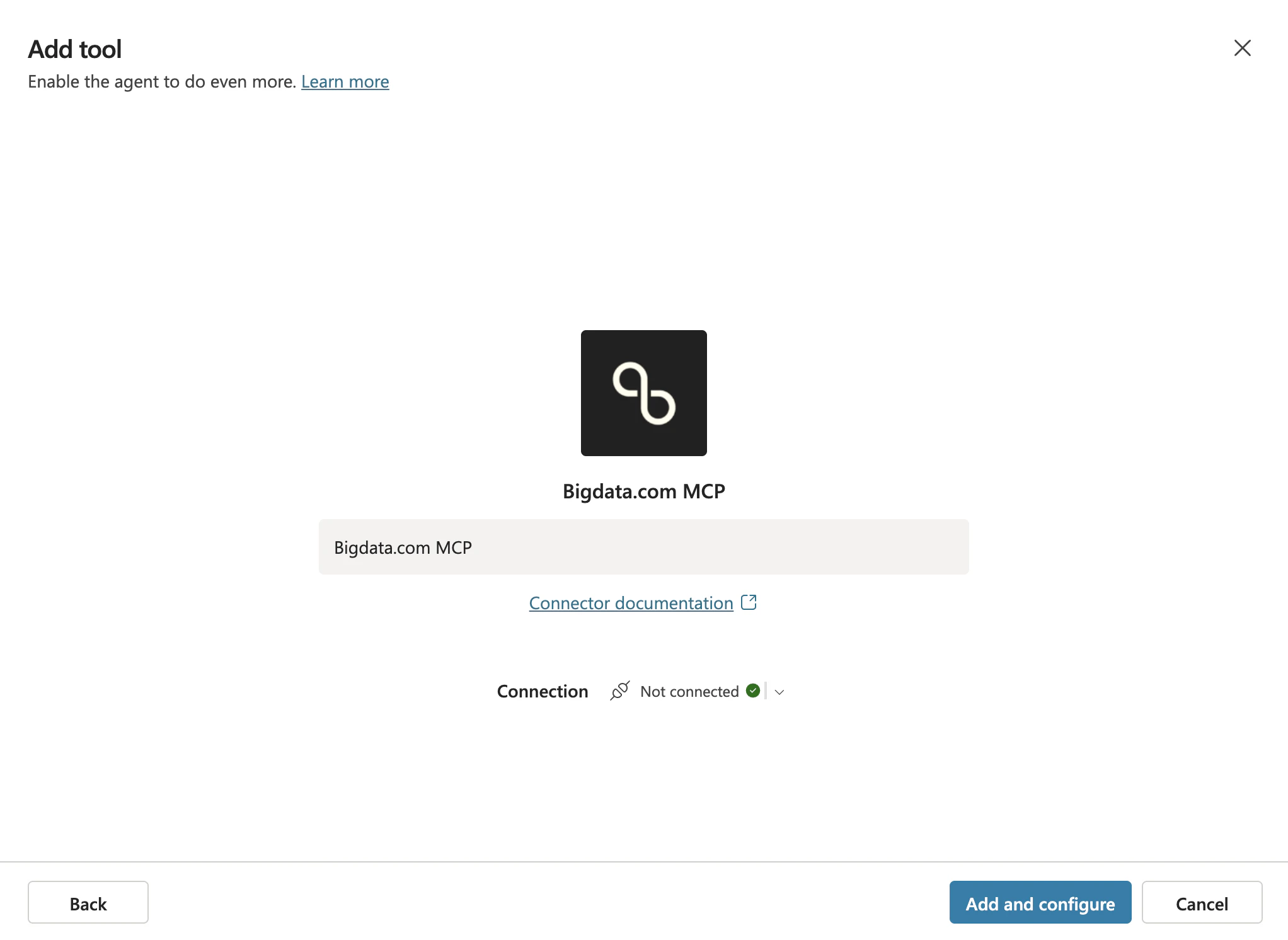
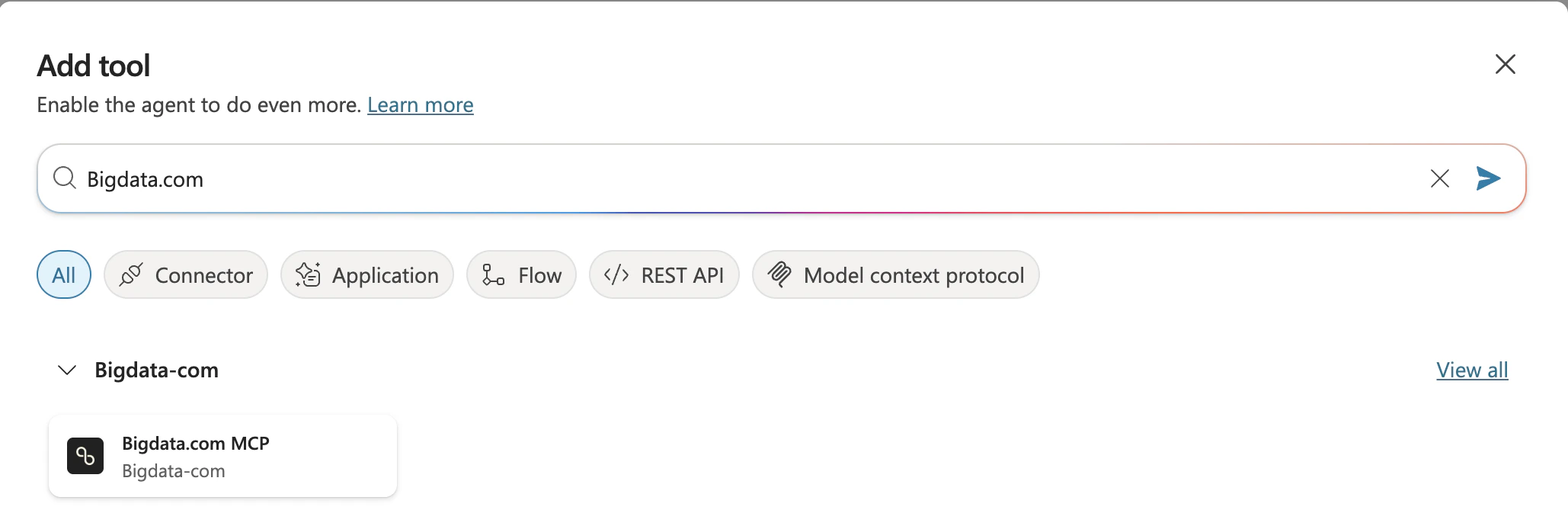 5. Click **Add and configure** button to complete the MCP tool setup
 ### Publishing the Agent
Once the agent is configured, publish it to make it available for other users or your entire organization.
If you followed the guide above, you should be in [Copilot Studio](https://copilotstudio.microsoft.com/) inside the settings of your Agent `Bigdata.com`. Otherwise, please click on it.
### Publishing the Agent
Once the agent is configured, publish it to make it available for other users or your entire organization.
If you followed the guide above, you should be in [Copilot Studio](https://copilotstudio.microsoft.com/) inside the settings of your Agent `Bigdata.com`. Otherwise, please click on it.
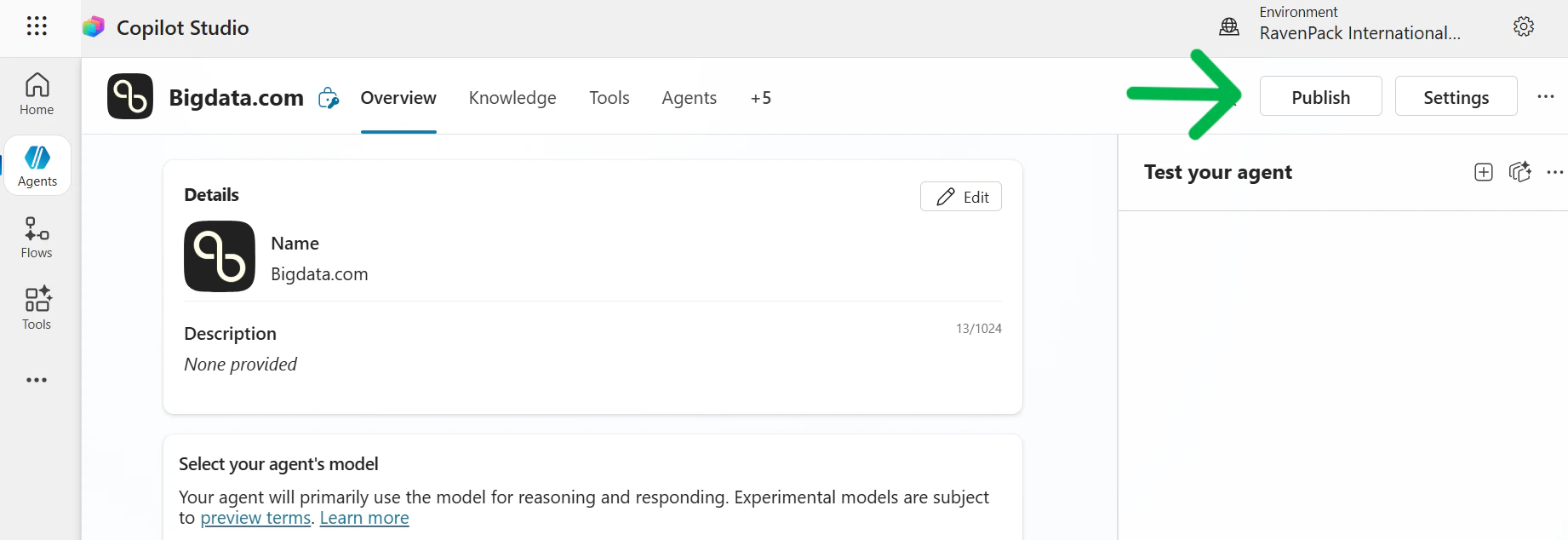 Press the **Publish** button from the top right corner (this task may take a few minutes)
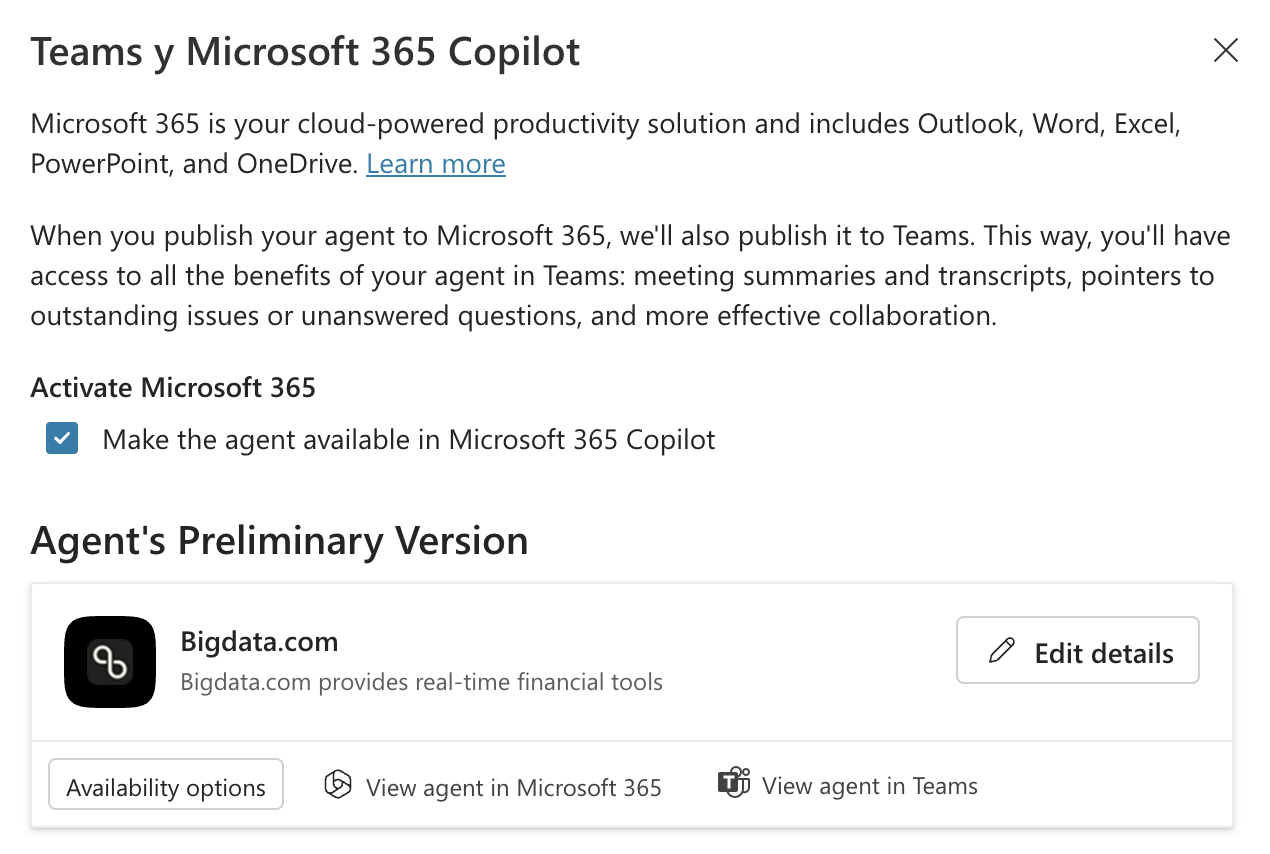
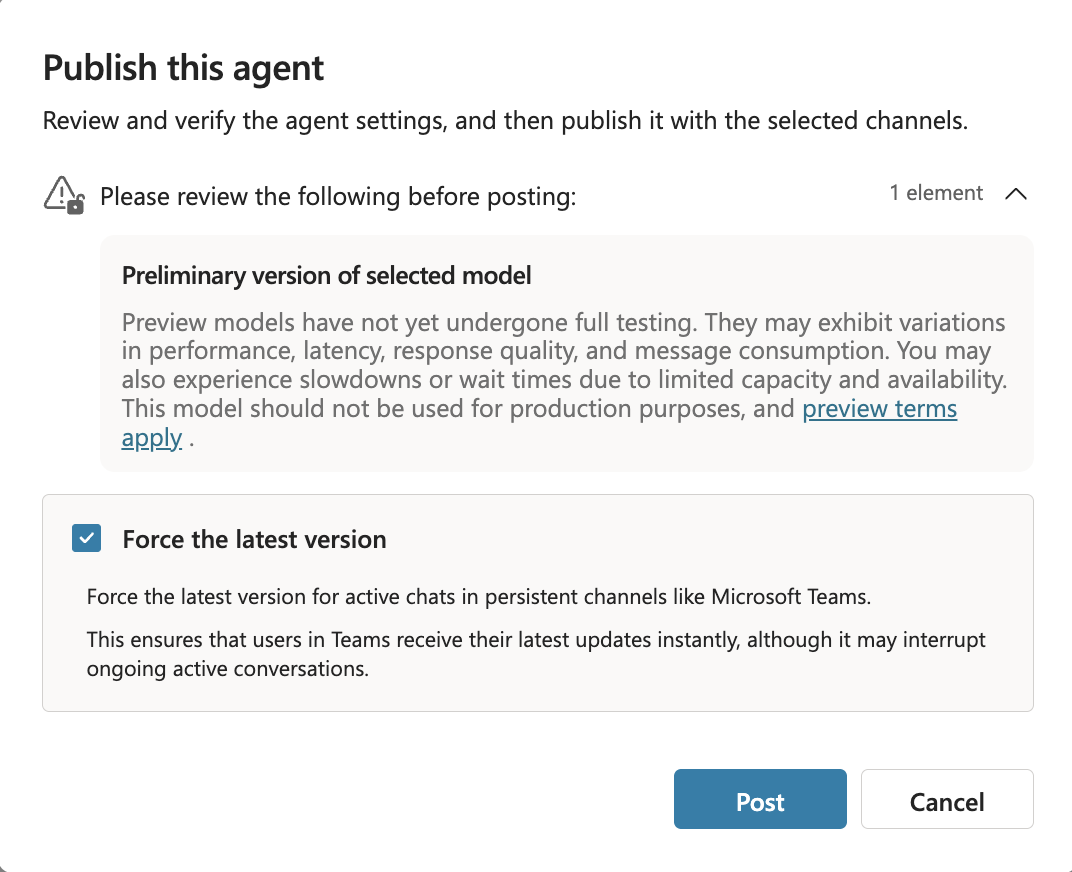 After publishing the Agent, configure the channels where it will be available:
1. Go to **Channels** from the top menu bar
2. Select the channel(s) where the Agent is expected to be available (for example "Teams & Microsoft 365 Copilot")
3. In the new window for the selected channel:
* Ensure **Activate Microsoft 365** checkbox is selected
* The appearance of the agent (icon, description, etc.) can be personalized in the **Edit details** section
4. Press the **Add channel** button
Configure who can access the agent:
1. Go to **Availability Options** where you can share it with:
* Specific people
* Teammates and shared users
* Everyone in your organization
2. After selecting an Availability Option, press the **Send for Admin approval** button
After publishing the Agent, configure the channels where it will be available:
1. Go to **Channels** from the top menu bar
2. Select the channel(s) where the Agent is expected to be available (for example "Teams & Microsoft 365 Copilot")
3. In the new window for the selected channel:
* Ensure **Activate Microsoft 365** checkbox is selected
* The appearance of the agent (icon, description, etc.) can be personalized in the **Edit details** section
4. Press the **Add channel** button
Configure who can access the agent:
1. Go to **Availability Options** where you can share it with:
* Specific people
* Teammates and shared users
* Everyone in your organization
2. After selecting an Availability Option, press the **Send for Admin approval** button
 To approve/reject the Agent to be published:
1. Go to [https://admin.microsoft.com/](https://admin.microsoft.com/)
2. Select **Agents** from the left menu, and **All agents**
3. Navigate to the **Requests** tab
4. The recently created agent should be listed
5. Select the Agent and press the **Publish** button right below the agent name
🥳🚀 Congratulations! Your Microsoft 365 Copilot agent is now published and connected to Bigdata.com.
### Using the Agent
Once the Bigdata.com agent has been configured and published, you can start using Bigdata.com MCP tools in your Microsoft Copilot conversations.
Open Microsoft Copilot in your preferred channel (Teams, Microsoft 365, etc.) where the agent has been made available.
To approve/reject the Agent to be published:
1. Go to [https://admin.microsoft.com/](https://admin.microsoft.com/)
2. Select **Agents** from the left menu, and **All agents**
3. Navigate to the **Requests** tab
4. The recently created agent should be listed
5. Select the Agent and press the **Publish** button right below the agent name
🥳🚀 Congratulations! Your Microsoft 365 Copilot agent is now published and connected to Bigdata.com.
### Using the Agent
Once the Bigdata.com agent has been configured and published, you can start using Bigdata.com MCP tools in your Microsoft Copilot conversations.
Open Microsoft Copilot in your preferred channel (Teams, Microsoft 365, etc.) where the agent has been made available.
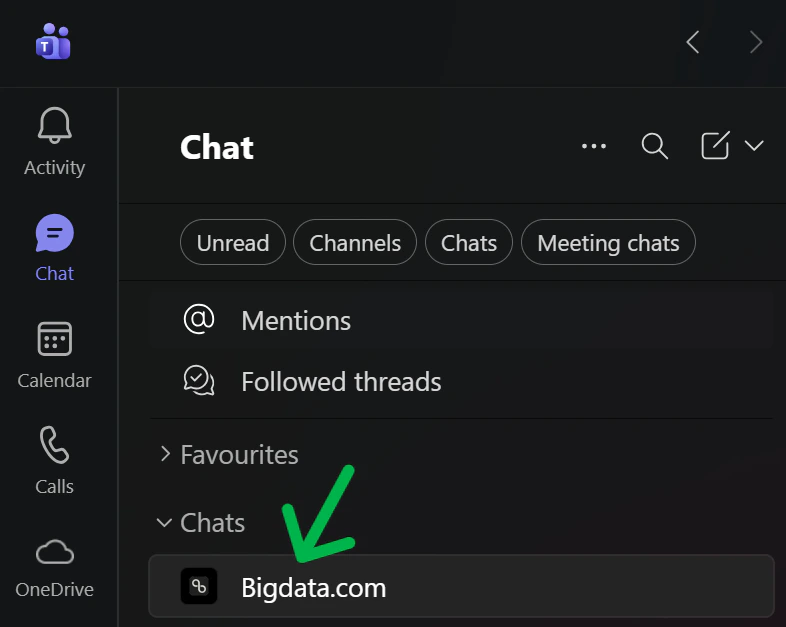 Begin a conversation with the Bigdata.com agent and ask questions about financial data, market insights, or any other Bigdata.com capabilities.
Prompt examples:
* [Company Brief](/mcp-reference/prompt-examples/finance/company-brief)
* [Investment Memo](/mcp-reference/prompt-examples/finance/investment-memo)
* [Earnings Preview](/mcp-reference/prompt-examples/finance/earnings-call-preview)
* [Earnings Q\&A](/mcp-reference/prompt-examples/finance/earnings-questions-and-answers)
You can now use the [Microsoft official Bigdata.com MCP](https://learn.microsoft.com/en-gb/connectors/bigdatacom/?utm_source=docs#-available-tools) tools in your Microsoft Copilot conversations!
This documentation is built and hosted on [Mintlify](https://mintlify.com), a developer documentation platform.
Begin a conversation with the Bigdata.com agent and ask questions about financial data, market insights, or any other Bigdata.com capabilities.
Prompt examples:
* [Company Brief](/mcp-reference/prompt-examples/finance/company-brief)
* [Investment Memo](/mcp-reference/prompt-examples/finance/investment-memo)
* [Earnings Preview](/mcp-reference/prompt-examples/finance/earnings-call-preview)
* [Earnings Q\&A](/mcp-reference/prompt-examples/finance/earnings-questions-and-answers)
You can now use the [Microsoft official Bigdata.com MCP](https://learn.microsoft.com/en-gb/connectors/bigdatacom/?utm_source=docs#-available-tools) tools in your Microsoft Copilot conversations!
This documentation is built and hosted on [Mintlify](https://mintlify.com), a developer documentation platform.