> ## Documentation Index
> Fetch the complete documentation index at: https://docs.bigdata.com/llms.txt
> Use this file to discover all available pages before exploring further.
# Microsoft Copilot MCP Integration
This guide will walk you through setting up the official Bigdata.com Microsoft Tool on a new or existing Agent. Once configured, everyone in your organization can use it in Teams or Microsoft Copilot.
🚀 Ready to bring the financial expertise of Bigdata.com to your Microsoft environment?
## Prerequisites
You need:
* Access to [Copilot Studio](https://copilotstudio.microsoft.com/)
* Appropriate Microsoft 365 subscription with Copilot Studio access
The configuration process requires admin access to Copilot Studio. Once configured, the agent can be shared with specific users, teammates, or your entire organization.
## Configuration Steps
If you want to create a new Agent from a blank template, start from **Step 1**. If you already have an Agent and want to connect it to the Bigdata MCP, jump to **Step 4**.
Go to [Copilot Studio](https://copilotstudio.microsoft.com/) and create a new agent:
1. From the menu on the left, go to **Agents**
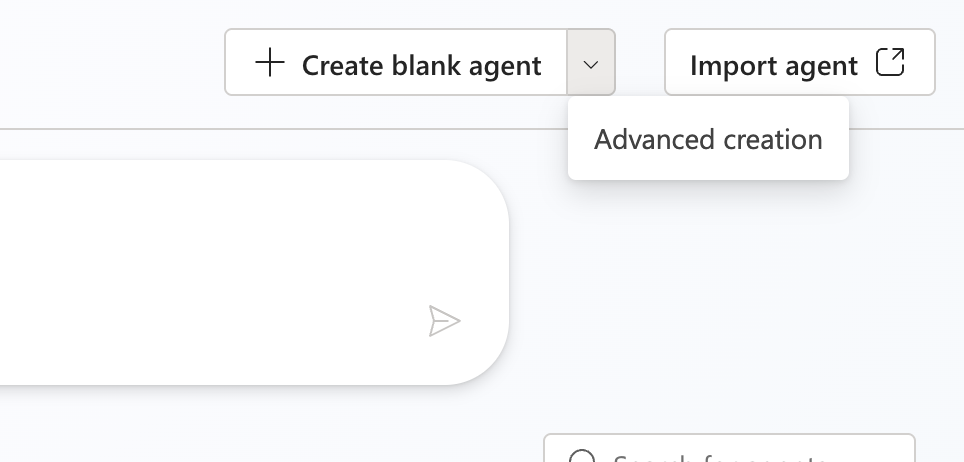
2. Click the arrow next to **+ Create blank agent** and select **Advanced creation** from the dropdown menu
 3. In the next window, the **Default language** can be defined.
* Recommendation: **English (United States)**
In the next page, define the new agent's main attributes:
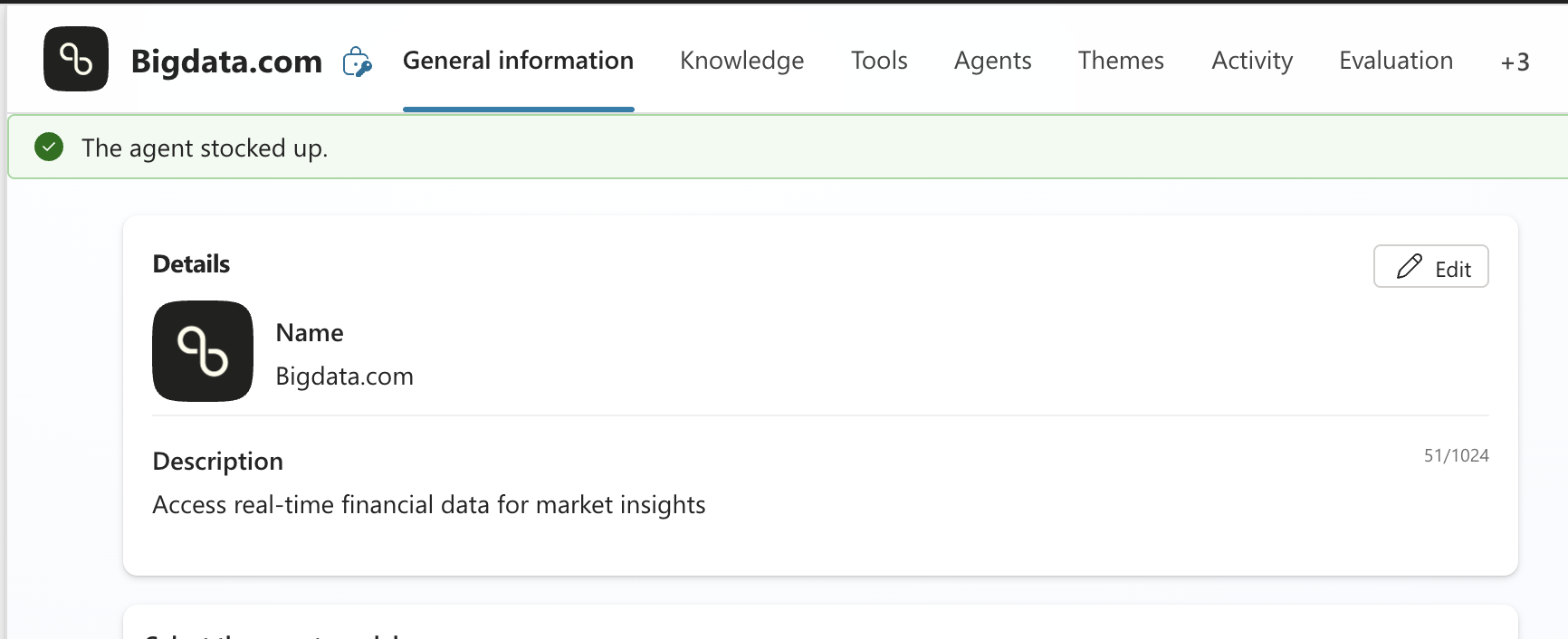
* **Name**: `Bigdata.com` (or any name you prefer)
* **Icon**: You can download the icon from here
* **Description**: `Access real-time financial data for market insights`
Once done with the agent's attributes, press the **Save** button from the top right corner.
3. In the next window, the **Default language** can be defined.
* Recommendation: **English (United States)**
In the next page, define the new agent's main attributes:
* **Name**: `Bigdata.com` (or any name you prefer)
* **Icon**: You can download the icon from here
* **Description**: `Access real-time financial data for market insights`
Once done with the agent's attributes, press the **Save** button from the top right corner.
 After creating your new agent, configure the following parameters within the same page:
* **Agent Model**: Depends on your internally enabled models. We suggest an advanced and versatile model (GPT-5 Auto, as of Dec 2025)
The following parameters are optional and can be used to personalize your Agent:
* **Triggers**: Configure event triggers to allow your agent to automatically react when events occur in other systems (e.g., when a task is assigned in Microsoft Planner). For detailed instructions, refer to [Microsoft's documentation on event triggers](https://learn.microsoft.com/es-es/microsoft-copilot-studio/authoring-trigger-event)
* **Instructions**: Describe what you want this agent to do, their tone, and their rules. This is where you define the agent's behavior and how it should interact with users when accessing Bigdata.com financial data. For detailed guidelines, rfer to [Microsoft's documentation on Agent Instructions](https://learn.microsoft.com/en-us/microsoft-copilot-studio/authoring-instructions)
* **Knowledge**: Add data, files, and other resources to substantiate and improve AI-generated responses. You can upload documents, connect to SharePoint, add public websites, or use other data sources to enhance your agent's knowledge base. For detailed instructions on configuring knowledge sources, refer to [Microsoft's documentation on knowledge sources](https://learn.microsoft.com/es-es/microsoft-copilot-studio/knowledge-copilot-studio)
* **Agents**: Connect your agent with other agents to extend functionality. You can create child agents within your current agent or connect to other Copilot Studio agents in your environment. For detailed instructions, refer to [Microsoft's documentation on adding other agents](https://learn.microsoft.com/es-es/microsoft-copilot-studio/authoring-add-other-agents)
* **Themes**: Add talking points to focus and guide how your agent responds. Themes allow you to define specific conversation flows and behaviors for different scenarios (e.g., Greeting, Goodbye, Start Over). You can create custom themes to handle particular user interactions or business processes
To allow the new agent to use Bigdata.com, configure a new tool:
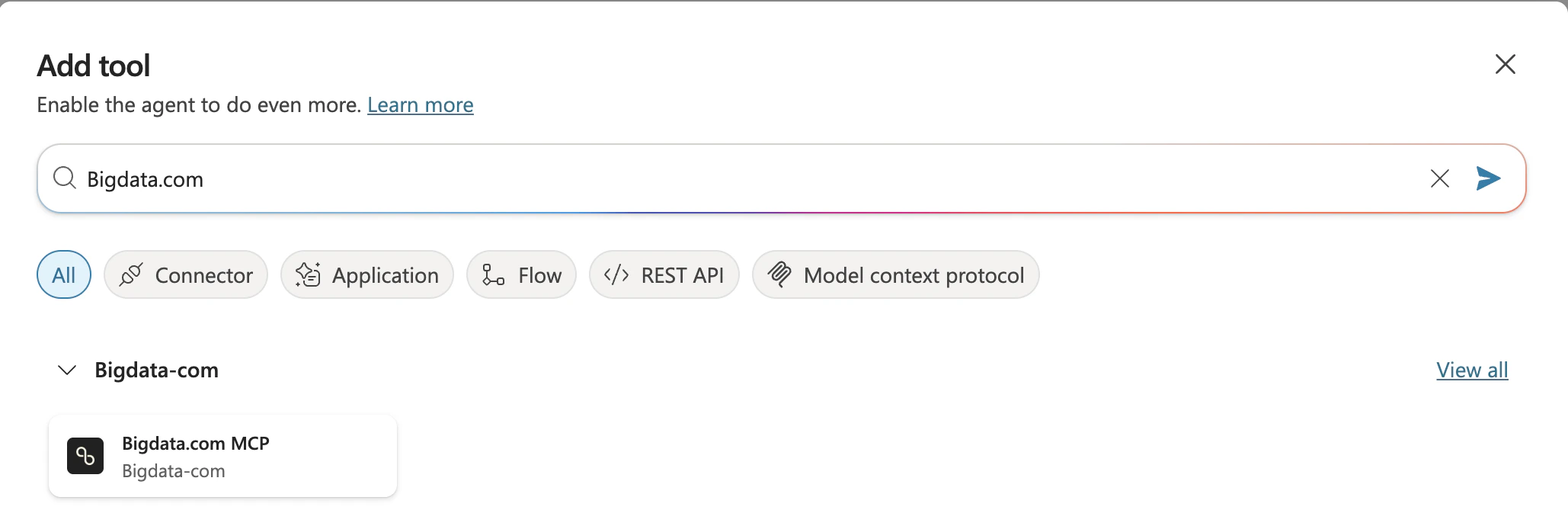
1. Go to **Tools** from the top menu bar
2. Click **+ Add tool** button
3. Type **Bigdata.com** in the search bar and press the **Enter** key
4. Select the **Bigdata.com MCP** tool (You may see the name `Bigdata.com MCP endpoint`)
After creating your new agent, configure the following parameters within the same page:
* **Agent Model**: Depends on your internally enabled models. We suggest an advanced and versatile model (GPT-5 Auto, as of Dec 2025)
The following parameters are optional and can be used to personalize your Agent:
* **Triggers**: Configure event triggers to allow your agent to automatically react when events occur in other systems (e.g., when a task is assigned in Microsoft Planner). For detailed instructions, refer to [Microsoft's documentation on event triggers](https://learn.microsoft.com/es-es/microsoft-copilot-studio/authoring-trigger-event)
* **Instructions**: Describe what you want this agent to do, their tone, and their rules. This is where you define the agent's behavior and how it should interact with users when accessing Bigdata.com financial data. For detailed guidelines, rfer to [Microsoft's documentation on Agent Instructions](https://learn.microsoft.com/en-us/microsoft-copilot-studio/authoring-instructions)
* **Knowledge**: Add data, files, and other resources to substantiate and improve AI-generated responses. You can upload documents, connect to SharePoint, add public websites, or use other data sources to enhance your agent's knowledge base. For detailed instructions on configuring knowledge sources, refer to [Microsoft's documentation on knowledge sources](https://learn.microsoft.com/es-es/microsoft-copilot-studio/knowledge-copilot-studio)
* **Agents**: Connect your agent with other agents to extend functionality. You can create child agents within your current agent or connect to other Copilot Studio agents in your environment. For detailed instructions, refer to [Microsoft's documentation on adding other agents](https://learn.microsoft.com/es-es/microsoft-copilot-studio/authoring-add-other-agents)
* **Themes**: Add talking points to focus and guide how your agent responds. Themes allow you to define specific conversation flows and behaviors for different scenarios (e.g., Greeting, Goodbye, Start Over). You can create custom themes to handle particular user interactions or business processes
To allow the new agent to use Bigdata.com, configure a new tool:
1. Go to **Tools** from the top menu bar
2. Click **+ Add tool** button
3. Type **Bigdata.com** in the search bar and press the **Enter** key
4. Select the **Bigdata.com MCP** tool (You may see the name `Bigdata.com MCP endpoint`)
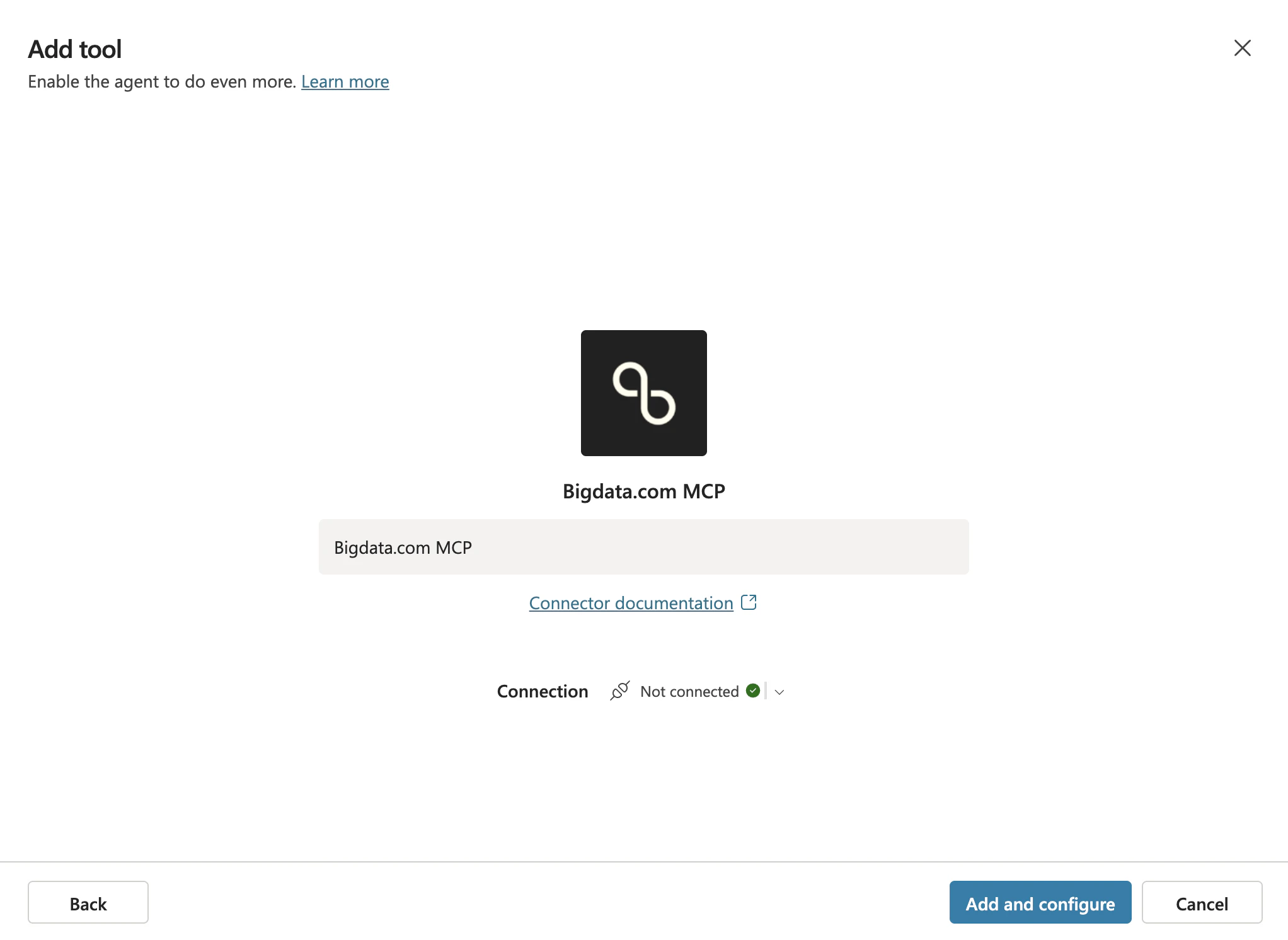
 5. Click **Add and configure** button to complete the MCP tool setup
 ## Publishing the Agent
Once the agent is configured, publish it to make it available for other users or your entire organization.
If you followed the guide above, you should be in [Copilot Studio](https://copilotstudio.microsoft.com/) inside the settings of your Agent `Bigdata.com`. Otherwise, please click on it.
## Publishing the Agent
Once the agent is configured, publish it to make it available for other users or your entire organization.
If you followed the guide above, you should be in [Copilot Studio](https://copilotstudio.microsoft.com/) inside the settings of your Agent `Bigdata.com`. Otherwise, please click on it.
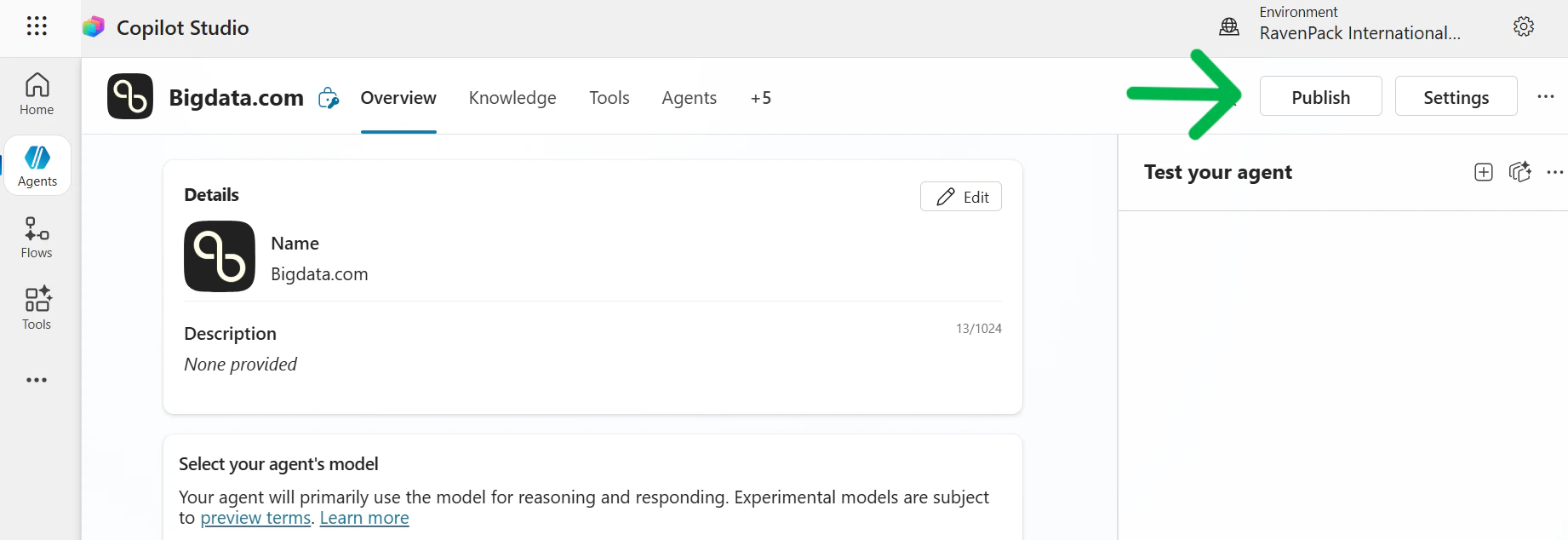 Press the **Publish** button from the top right corner (this task may take a few minutes)
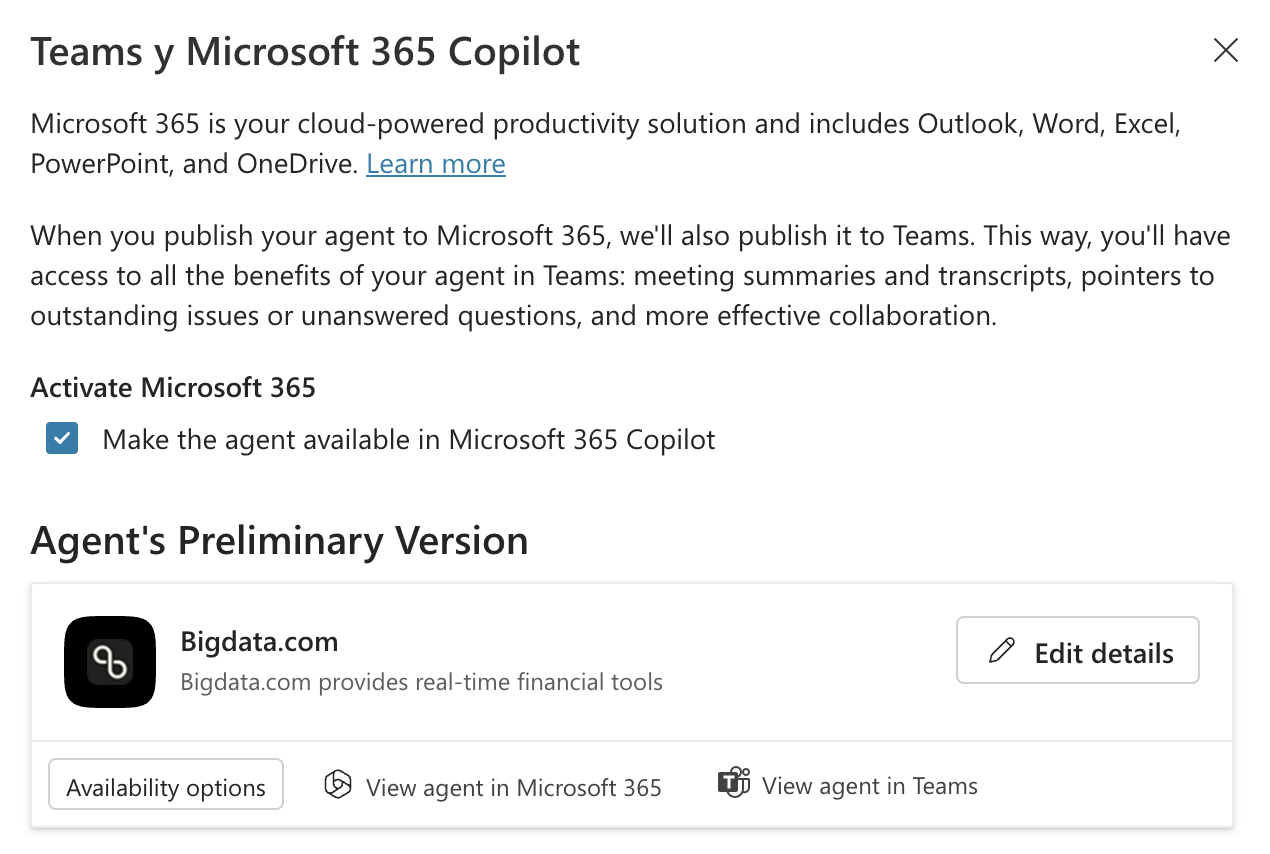
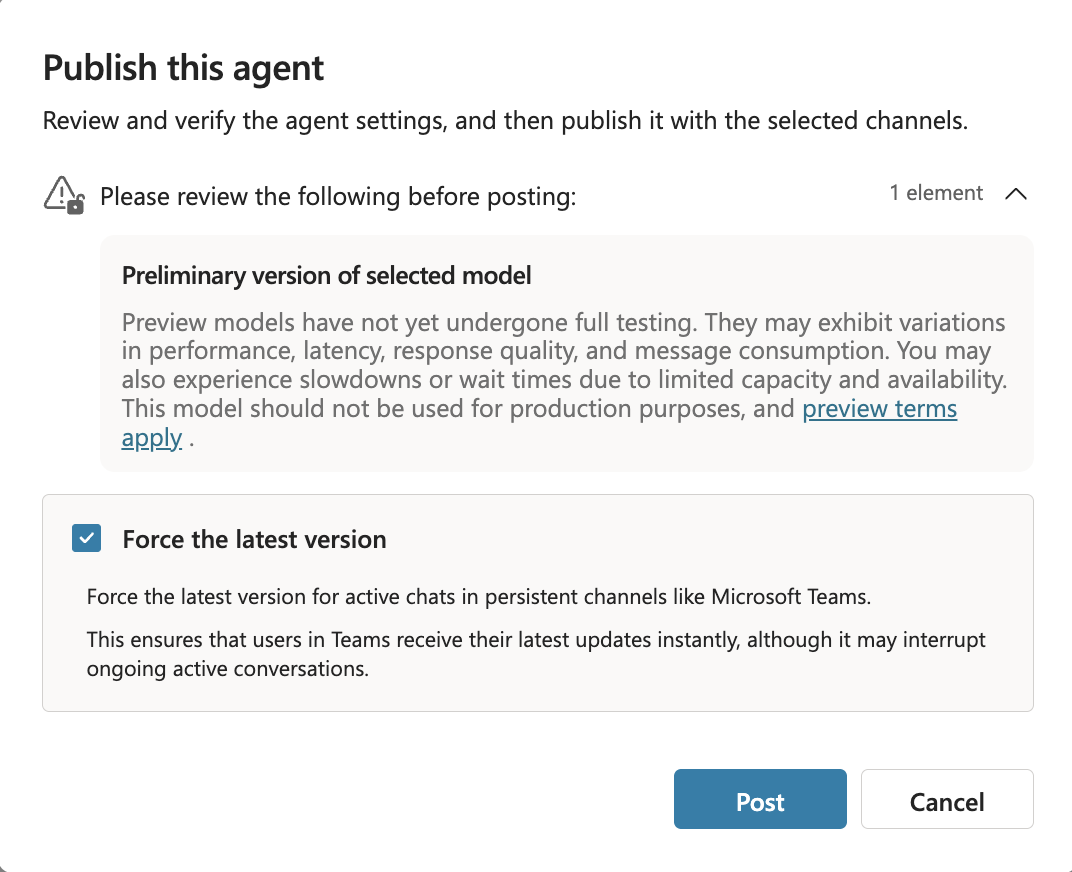 After publishing the Agent, configure the channels where it will be available:
1. Go to **Channels** from the top menu bar
2. Select the channel(s) where the Agent is expected to be available (for example "Teams & Microsoft 365 Copilot")
3. In the new window for the selected channel:
* Ensure **Activate Microsoft 365** checkbox is selected
* The appearance of the agent (icon, description, etc.) can be personalized in the **Edit details** section
4. Press the **Add channel** button
Configure who can access the agent:
1. Go to **Availability Options** where you can share it with:
* Specific people
* Teammates and shared users
* Everyone in your organization
2. After selecting an Availability Option, press the **Send for Admin approval** button
After publishing the Agent, configure the channels where it will be available:
1. Go to **Channels** from the top menu bar
2. Select the channel(s) where the Agent is expected to be available (for example "Teams & Microsoft 365 Copilot")
3. In the new window for the selected channel:
* Ensure **Activate Microsoft 365** checkbox is selected
* The appearance of the agent (icon, description, etc.) can be personalized in the **Edit details** section
4. Press the **Add channel** button
Configure who can access the agent:
1. Go to **Availability Options** where you can share it with:
* Specific people
* Teammates and shared users
* Everyone in your organization
2. After selecting an Availability Option, press the **Send for Admin approval** button
 To approve/reject the Agent to be published:
1. Go to [https://admin.microsoft.com/](https://admin.microsoft.com/)
2. Select **Agents** from the left menu, and **All agents**
3. Navigate to the **Requests** tab
4. The recently created agent should be listed
5. Select the Agent and press the **Publish** button right below the agent name
🥳🚀 Congratulations! Your Microsoft 365 Copilot agent is now published and connected to Bigdata.com.
## Using the Agent
Once the Bigdata.com agent has been configured and published, you can start using Bigdata.com MCP tools in your Microsoft Copilot conversations.
Open Microsoft Copilot in your preferred channel (Teams, Microsoft 365, etc.) where the agent has been made available.
To approve/reject the Agent to be published:
1. Go to [https://admin.microsoft.com/](https://admin.microsoft.com/)
2. Select **Agents** from the left menu, and **All agents**
3. Navigate to the **Requests** tab
4. The recently created agent should be listed
5. Select the Agent and press the **Publish** button right below the agent name
🥳🚀 Congratulations! Your Microsoft 365 Copilot agent is now published and connected to Bigdata.com.
## Using the Agent
Once the Bigdata.com agent has been configured and published, you can start using Bigdata.com MCP tools in your Microsoft Copilot conversations.
Open Microsoft Copilot in your preferred channel (Teams, Microsoft 365, etc.) where the agent has been made available.
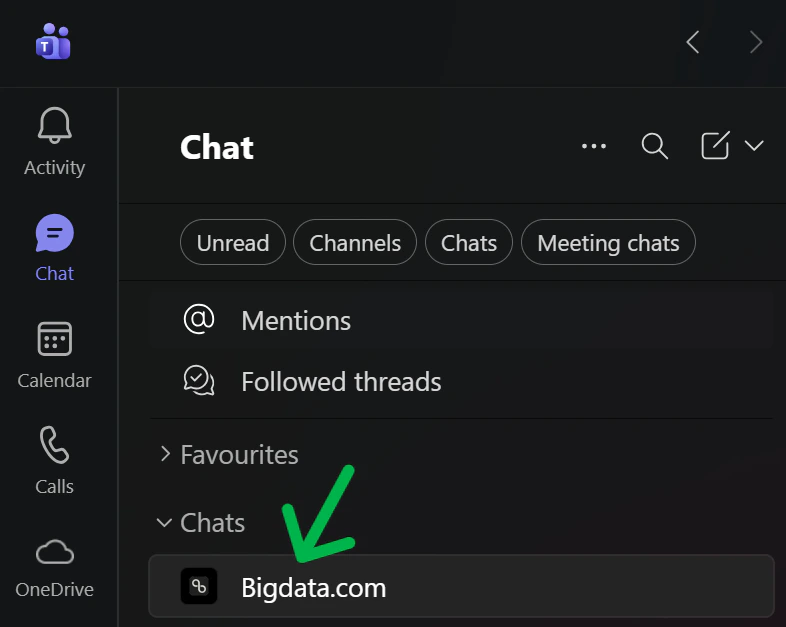 Begin a conversation with the Bigdata.com agent and ask questions about financial data, market insights, or any other Bigdata.com capabilities.
Prompt examples:
* [Company Brief](/mcp-reference/prompt-examples/finance/company-brief)
* [Investment Memo](/mcp-reference/prompt-examples/finance/investment-memo)
* [Earnings Preview](/mcp-reference/prompt-examples/finance/earnings-call-preview)
* [Earnings Q\&A](/mcp-reference/prompt-examples/finance/earnings-questions-and-answers)
You can now use the [Microsoft official Bigdata.com MCP](https://learn.microsoft.com/en-gb/connectors/bigdatacom/?utm_source=docs#-available-tools) tools in your Microsoft Copilot conversations!
Begin a conversation with the Bigdata.com agent and ask questions about financial data, market insights, or any other Bigdata.com capabilities.
Prompt examples:
* [Company Brief](/mcp-reference/prompt-examples/finance/company-brief)
* [Investment Memo](/mcp-reference/prompt-examples/finance/investment-memo)
* [Earnings Preview](/mcp-reference/prompt-examples/finance/earnings-call-preview)
* [Earnings Q\&A](/mcp-reference/prompt-examples/finance/earnings-questions-and-answers)
You can now use the [Microsoft official Bigdata.com MCP](https://learn.microsoft.com/en-gb/connectors/bigdatacom/?utm_source=docs#-available-tools) tools in your Microsoft Copilot conversations!