> ## Documentation Index
> Fetch the complete documentation index at: https://docs.bigdata.com/llms.txt
> Use this file to discover all available pages before exploring further.
# FactSet Internal Tools
> Retrieve FactSet data through the official Bigdata.com MCP tools so your agent pulls from the provider you already subscribe to.
## Overview
If your organization already subscribes to [FactSet](https://www.factset.com), Bigdata.com can customize its tools to return FactSet data through the official Bigdata.com MCP, instead of coming from the default provider. Your agent keeps the same workflow while pulling structured financial data directly from FactSet.
✅ **Continuity**: Retrieve all the data linked to a company even after it changes its name or ticker, so your history stays complete.
✅ **Completeness**: The Bigdata.com tool provides more company insights that FactSet does not cover, like job hiring trends and company sentiment. If you connect the internal FactSet, you guarantee leveraging the best of both worlds without the Agent getting confused.
See the [Internal Tools Introduction](/mcp-reference/tools/internal/internal-tools-introduction) for how this fits into automating your multi-provider reporting flows.
## Configuration steps
**Prerequisite:** You already have a FactSet subscription, and [bigdata@support.com](mailto:bigdata@support.com) has enabled that package in your Bigdata.com organization subscription.
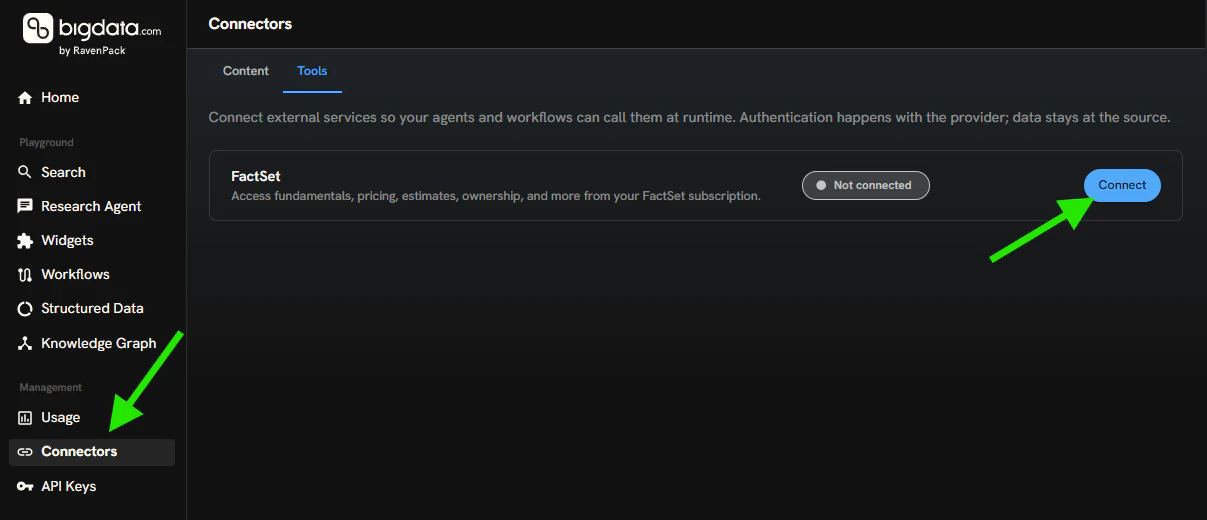
Go to the [Developer Platform > Connectors](https://platform.bigdata.com/connectors), select the `Tools` tab, and click `Connect`.
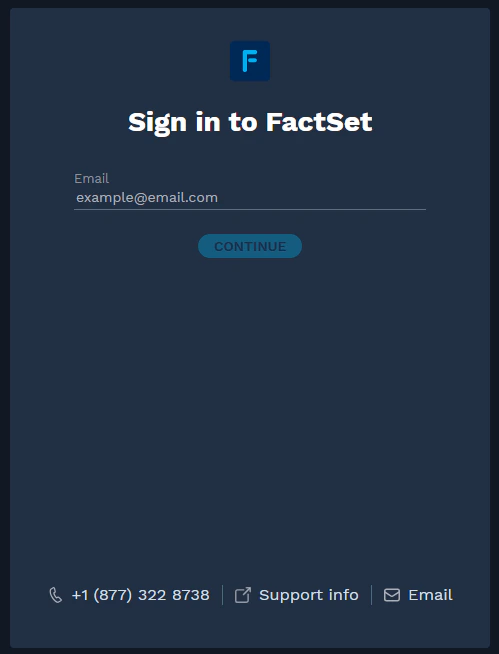
 The browser will redirect you to FactSet to sign in so the Bigdata.com tools can query the FactSet APIs.
 After a successful login, the FactSet tool will appear as `Connected`.
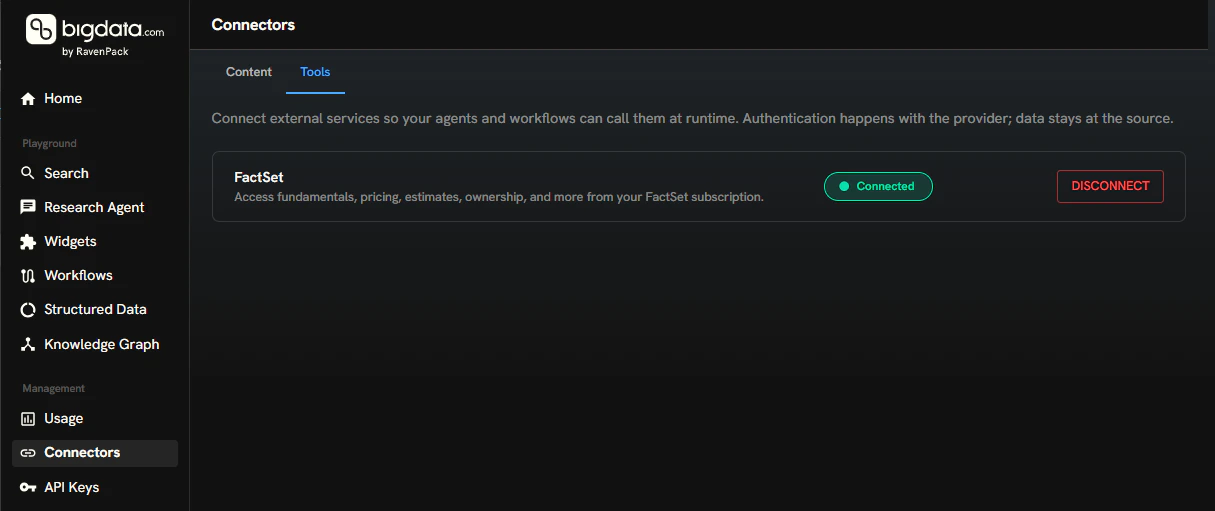 Ask your Agent a question that requires FactSet data, for example:
```text theme={null}
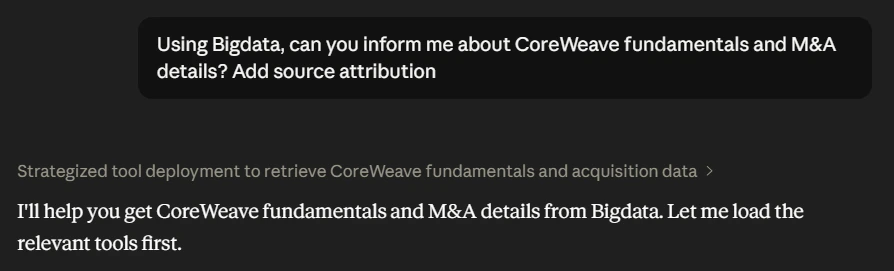
Using Bigdata, can you inform me about CoreWeave fundamentals and M&A details? Add source attribution.
```
Ask your Agent a question that requires FactSet data, for example:
```text theme={null}
Using Bigdata, can you inform me about CoreWeave fundamentals and M&A details? Add source attribution.
```
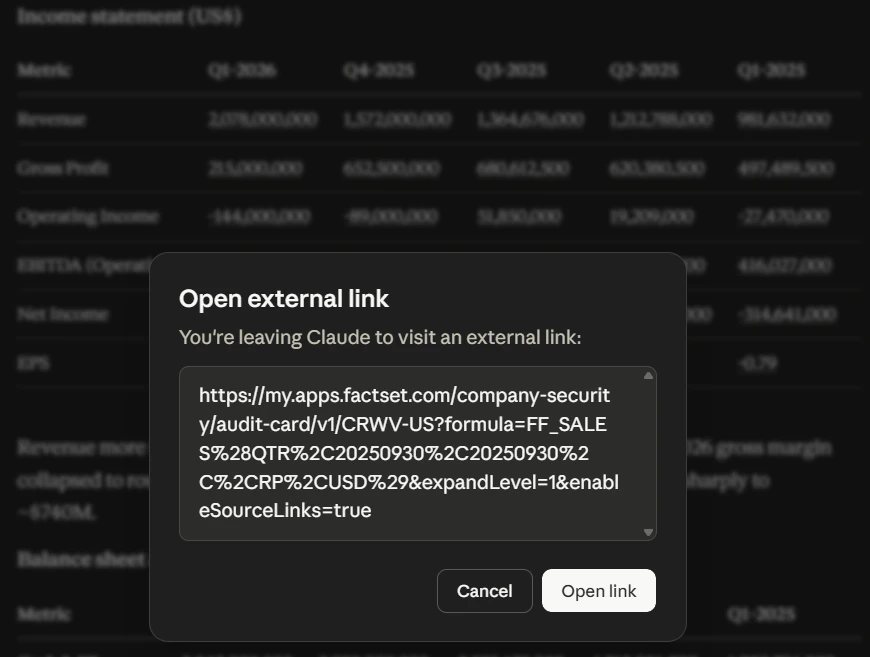
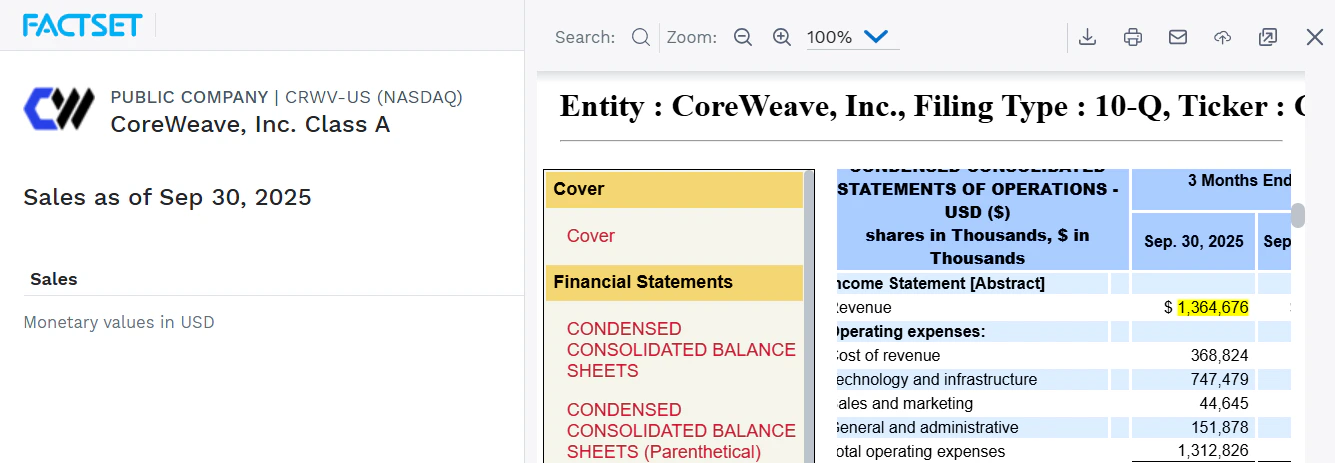
 The response will contain the numbers with a FactSet source link.
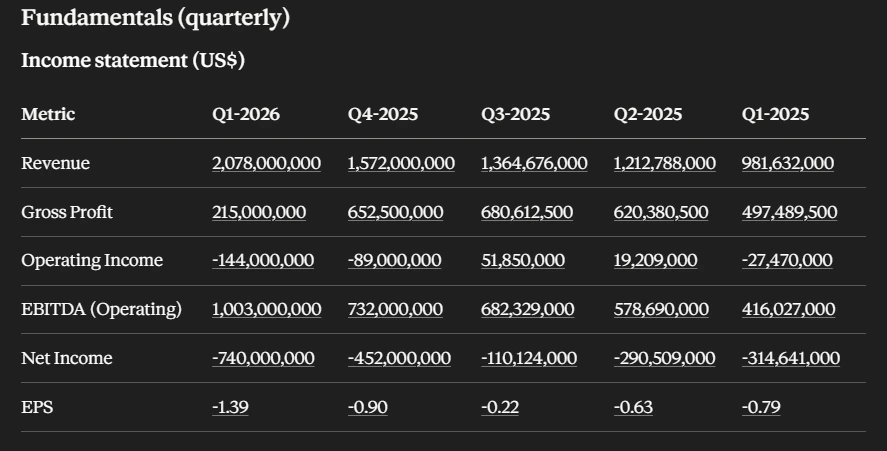 When you click on any of the numbers, the browser will redirect you to the source file.