> ## Documentation Index
> Fetch the complete documentation index at: https://docs.bigdata.com/llms.txt
> Use this file to discover all available pages before exploring further.

# Install Bigdata plugin

> Plugin with Skills for financial research analysts.

Bigdata plugin is officially supported in **Claude** and **ChatGPT**. Click on the platform below to open the plugin details page, then click on `Install`

<CardGroup cols={2}>
  <Card title="Claude" icon="https://mintcdn.com/ravenpackinternational/C9tmBbS6ZVK6rvY-/images/logos/claude.svg?fit=max&auto=format&n=C9tmBbS6ZVK6rvY-&q=85&s=a2f4cbd01c129d550cb08f47fd7e94c6" href="https://claude.ai/directory/plugins/bigdata-com%40knowledge-work-plugins" width="24" height="24" data-path="images/logos/claude.svg">
    Official Bigdata plugin
  </Card>

  <Card title="ChatGPT" icon="https://mintcdn.com/ravenpackinternational/C9tmBbS6ZVK6rvY-/images/logos/chatgpt.svg?fit=max&auto=format&n=C9tmBbS6ZVK6rvY-&q=85&s=d2ff5882688b778d84dd620c1148056e" href="https://chatgpt.com/plugins/plugin_asdk_app_69491eceef3c8191beb70788b7840429" width="320" height="320" data-path="images/logos/chatgpt.svg">
    Official Bigdata plugin
  </Card>
</CardGroup>

Other platforms can add the plugin from source using the public repository:

```
https://github.com/Bigdata-com/bigdata-plugins-marketplace
```

## Installation guides

This page contains some installation guides for the Bigdata plugin. If you would like us to document another integration, email us at [support@bigdata.com](mailto:support@bigdata.com).

<Tabs>
  <Tab title="Claude">
    <Steps>
      <Step title="Find the plugin">
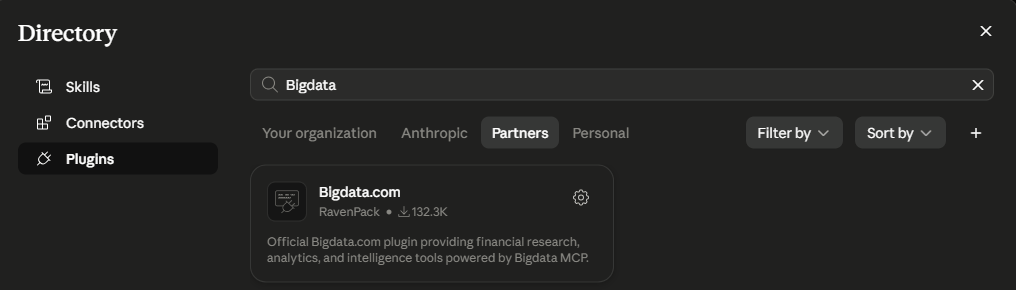
        Click [here](https://claude.ai/directory/plugins/bigdata-com%40knowledge-work-plugins) or find it in Claude via Customize > Plugins > Browse. Click on `Partners` and type Bigdata.
        <img alt="Bigdata plugin" src="https://mintcdn.com/ravenpackinternational/C9tmBbS6ZVK6rvY-/images/mcp/plugins/claude/find-bigdata-plugin-in-claude.png?fit=max&auto=format&n=C9tmBbS6ZVK6rvY-&q=85&s=aff9a40939abf17fb31a26544be24ea6" width="750" data-path="images/mcp/plugins/claude/find-bigdata-plugin-in-claude.png" />
      </Step>

      <Step title="Install the plugin">
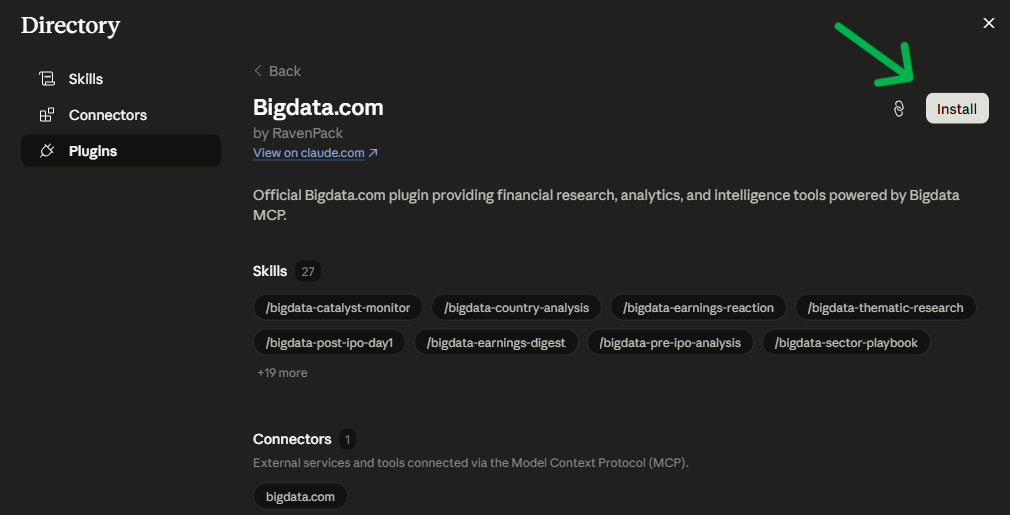
        Click on **Install** at the Bigdata plugin page displayed above.
        <img alt="Bigdata plugin installed" src="https://mintcdn.com/ravenpackinternational/C9tmBbS6ZVK6rvY-/images/mcp/plugins/claude/install-bigdata-plugin-in-claude.png?fit=max&auto=format&n=C9tmBbS6ZVK6rvY-&q=85&s=049a3b84f6c87093b7c9860c5da36800" width="700" data-path="images/mcp/plugins/claude/install-bigdata-plugin-in-claude.png" />
      </Step>

      <Step title="Try it out">
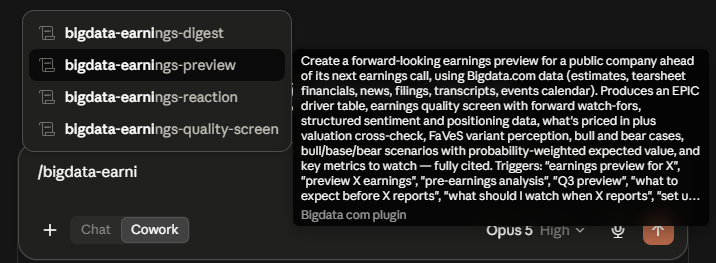
        You're all set! Open a new chat and type for example `/bigdata-earnings-preview IBM`. Starting with `/` will display all the available skills.
        <img alt="Plugin skill example" src="https://mintcdn.com/ravenpackinternational/C9tmBbS6ZVK6rvY-/images/mcp/plugins/claude/bigdata-earnings-preview.png?fit=max&auto=format&n=C9tmBbS6ZVK6rvY-&q=85&s=814785a69bb5f117dea5e3ac73d6a62f" width="700" data-path="images/mcp/plugins/claude/bigdata-earnings-preview.png" />
      </Step>
    </Steps>
  </Tab>

  <Tab title="VS Code">
    <Steps>
      <Step title="Add Plugin Marketplace">
        Press **Ctrl+Shift+P** (or **Cmd+Shift+P** on Mac) to open the Command Palette, and search for `Install Plugin from Source`

        <img alt="VS Code plugin marketplace setup" src="https://mintcdn.com/ravenpackinternational/sRfxm3HR8wijX0FB/images/mcp/plugins/vs-code/vs-code-setup-plugin-marketplace.png?fit=max&auto=format&n=sRfxm3HR8wijX0FB&q=85&s=447c19a2349a0a1ca0e5261f61597af4" width="599" height="107" data-path="images/mcp/plugins/vs-code/vs-code-setup-plugin-marketplace.png" />

        Enter the Bigdata official plugin marketplace:

        ```
        https://github.com/Bigdata-com/bigdata-plugins-marketplace
        ```

        <img alt="Add Bigdata plugin marketplace" src="https://mintcdn.com/ravenpackinternational/sRfxm3HR8wijX0FB/images/mcp/plugins/vs-code/vs-code-add-bigdata-marketplace.png?fit=max&auto=format&n=sRfxm3HR8wijX0FB&q=85&s=7c893b93e78915a625285dc853ce717a" width="595" height="72" data-path="images/mcp/plugins/vs-code/vs-code-add-bigdata-marketplace.png" />
      </Step>

      <Step title="Install the Plugin">
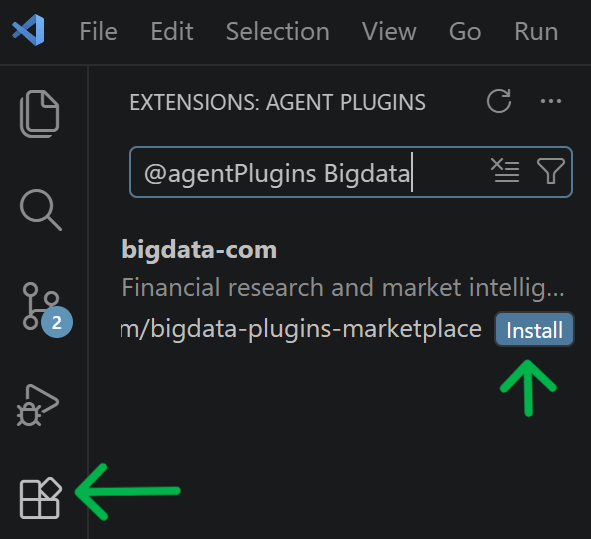
        Click the **Extensions** icon in the left sidebar, search for `@agentPlugins` and press Enter

        Then continue typing **Bigdata** to find the plugin and click Install.
        <img alt="Bigdata plugin installation" src="https://mintcdn.com/ravenpackinternational/C9tmBbS6ZVK6rvY-/images/mcp/plugins/vs-code/bigdata-plugin-vs-code.png?fit=max&auto=format&n=C9tmBbS6ZVK6rvY-&q=85&s=44a44376eb829e831f391325211d219f" width="400" data-path="images/mcp/plugins/vs-code/bigdata-plugin-vs-code.png" />
      </Step>

      <Step title="Trust the Repository">
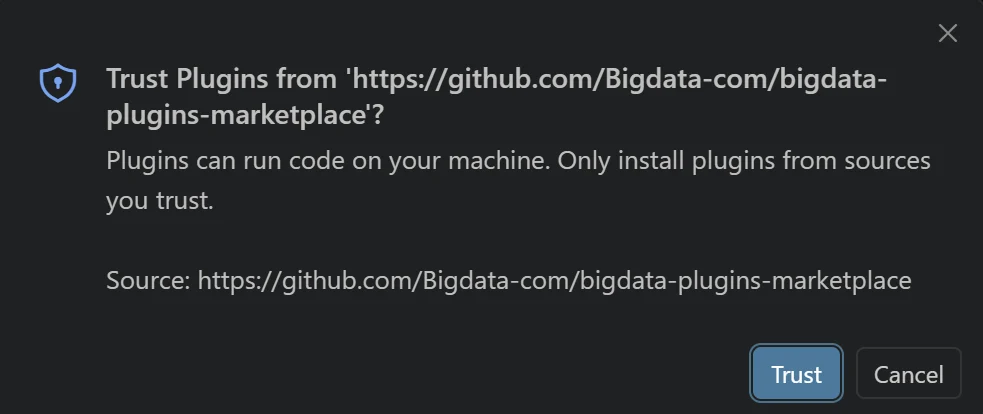
        When prompted, click **Trust** to trust the official Bigdata plugins repository.

        The official repository is:

        * `https://github.com/Bigdata-com/bigdata-plugins-marketplace`
        <img alt="Trust the Bigdata plugin repository" src="https://mintcdn.com/ravenpackinternational/sRfxm3HR8wijX0FB/images/mcp/plugins/vs-code/bigdata-plugin-repo-trust.png?fit=max&auto=format&n=sRfxm3HR8wijX0FB&q=85&s=d8d266669e17dc527b3105da8b647a90" width="600" data-path="images/mcp/plugins/vs-code/bigdata-plugin-repo-trust.png" />
      </Step>
    </Steps>

    ## Configuration

    <Steps>
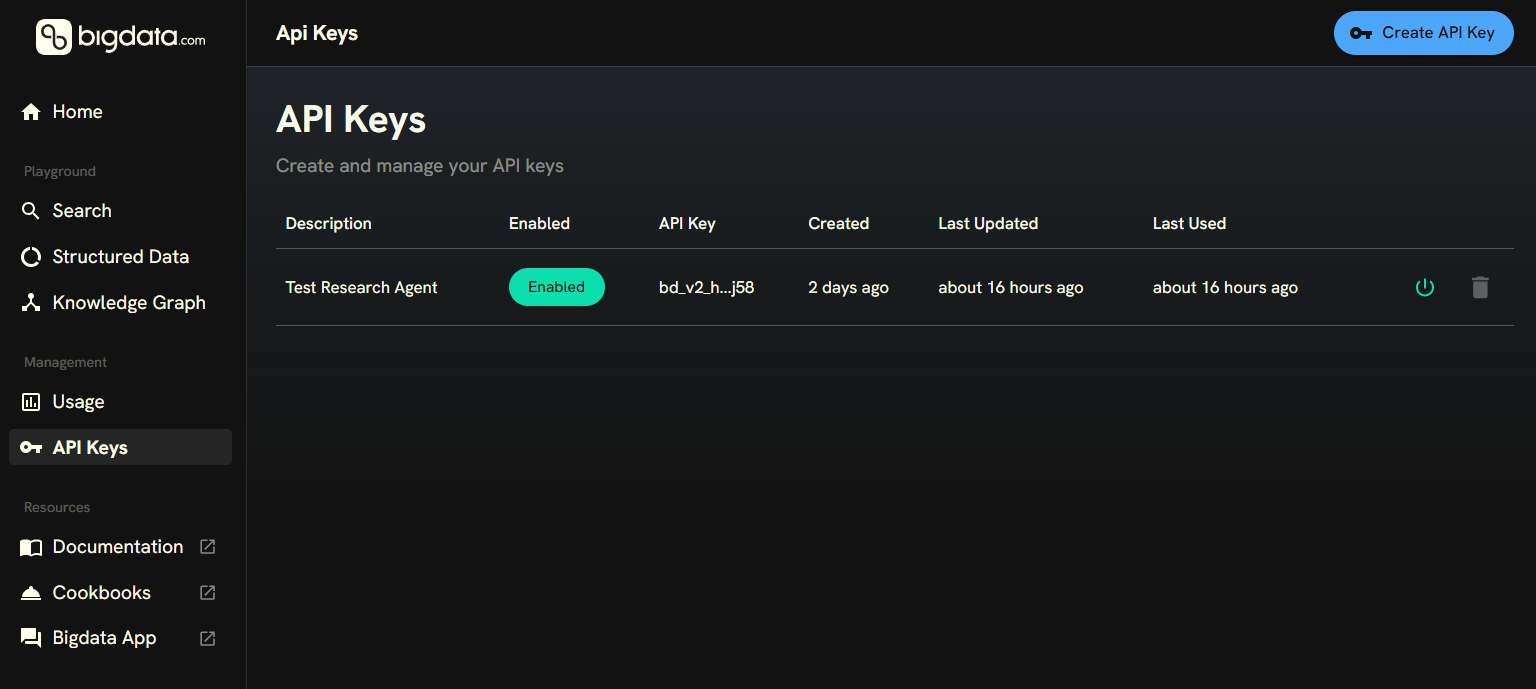
      <Step title="Create a Bigdata API Key">
        You can create your API Key in the [Developer Platform > API Keys](https://platform.bigdata.com/api-keys).
        <img src="https://mintcdn.com/ravenpackinternational/f62VnqoeoLD7OgQl/images/authentication/api_key_settings.png?fit=max&auto=format&n=f62VnqoeoLD7OgQl&q=85&s=cf16d5701fa628a8ec548137caa2fa18" alt="Developer Platform > API Keys" data-og-width="1536" width="1536" data-og-height="689" height="689" data-path="images/authentication/api_key_settings.png" data-optimize="true" data-opv="3" srcset="https://mintcdn.com/ravenpackinternational/f62VnqoeoLD7OgQl/images/authentication/api_key_settings.png?w=280&fit=max&auto=format&n=f62VnqoeoLD7OgQl&q=85&s=8cc7a63e03af48aaa3cb5d1f4d697128 280w, https://mintcdn.com/ravenpackinternational/f62VnqoeoLD7OgQl/images/authentication/api_key_settings.png?w=560&fit=max&auto=format&n=f62VnqoeoLD7OgQl&q=85&s=1c74493718b528caf178749e536dc404 560w, https://mintcdn.com/ravenpackinternational/f62VnqoeoLD7OgQl/images/authentication/api_key_settings.png?w=840&fit=max&auto=format&n=f62VnqoeoLD7OgQl&q=85&s=53a485901a8d4ea94b9d1c689d9255c4 840w, https://mintcdn.com/ravenpackinternational/f62VnqoeoLD7OgQl/images/authentication/api_key_settings.png?w=1100&fit=max&auto=format&n=f62VnqoeoLD7OgQl&q=85&s=62c0768c1fbdcf18d17f9331b381ad4c 1100w, https://mintcdn.com/ravenpackinternational/f62VnqoeoLD7OgQl/images/authentication/api_key_settings.png?w=1650&fit=max&auto=format&n=f62VnqoeoLD7OgQl&q=85&s=ef7be32d0790f9e1a1a9b2f03a8fe709 1650w, https://mintcdn.com/ravenpackinternational/f62VnqoeoLD7OgQl/images/authentication/api_key_settings.png?w=2500&fit=max&auto=format&n=f62VnqoeoLD7OgQl&q=85&s=1311b4ec9fe05b5d341614768ceed10f 2500w" />

        <Tip>
          Ideally, store the API Key in your password manager, so you can access it in the future.
        </Tip>
      </Step>

      <Step title="Configure the MCP Server">
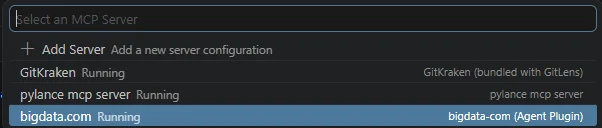
        Press **Ctrl+Shift+P** (or **Cmd+Shift+P** on Mac) to open the Command Palette, type **"MCP: List Servers"** and press Enter

        <img alt="MCP List Servers command" src="https://mintcdn.com/ravenpackinternational/sRfxm3HR8wijX0FB/images/mcp/plugins/vs-code/vs-code-mcp-list.png?fit=max&auto=format&n=sRfxm3HR8wijX0FB&q=85&s=e38746f35952257698e74e3c15345d19" width="610" height="69" data-path="images/mcp/plugins/vs-code/vs-code-mcp-list.png" />

        From the list, select or navigate to **"bigdata.com"**
        <img alt="Bigdata.com MCP server" src="https://mintcdn.com/ravenpackinternational/sRfxm3HR8wijX0FB/images/mcp/plugins/vs-code/vs-code-bigdata-mcp.png?fit=max&auto=format&n=sRfxm3HR8wijX0FB&q=85&s=d7285f8484cd4df143a553beac9e64b3" width="602" height="128" data-path="images/mcp/plugins/vs-code/vs-code-bigdata-mcp.png" />

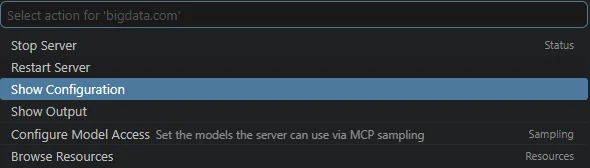
        Click **"Show Configuration"**

        <img alt="Show MCP configuration" src="https://mintcdn.com/ravenpackinternational/sRfxm3HR8wijX0FB/images/mcp/plugins/vs-code/vs-code-show-configuration.png?fit=max&auto=format&n=sRfxm3HR8wijX0FB&q=85&s=2dfe48e3674790a9202be9a009195e92" width="590" height="168" data-path="images/mcp/plugins/vs-code/vs-code-show-configuration.png" />

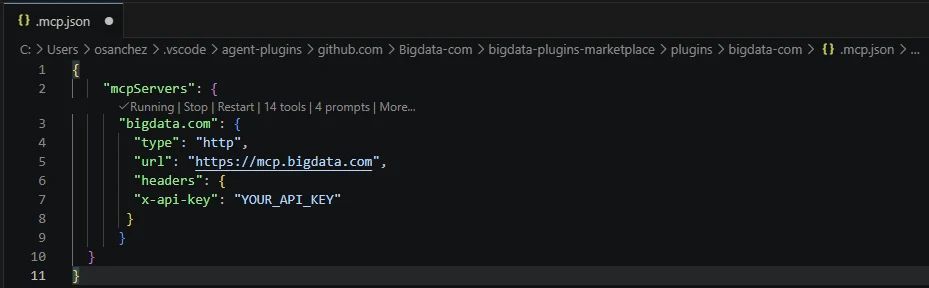
        And finally, edit the configuration file to add a header with your Bigdata API Key

        ```json theme={null}
        "headers": {
            "x-api-key": "YOUR_API_KEY"
           }
        ```
        <img alt="Add API key to MCP headers" src="https://mintcdn.com/ravenpackinternational/sRfxm3HR8wijX0FB/images/mcp/plugins/vs-code/vs-code-mcp-headers.png?fit=max&auto=format&n=sRfxm3HR8wijX0FB&q=85&s=e0d4b2cffb6e5cf5d3bd48627052c78c" width="750" data-path="images/mcp/plugins/vs-code/vs-code-mcp-headers.png" />
      </Step>
    </Steps>

    ## Running Your First Analysis

    Once configured, you can immediately start running financial research workflows.

    ### Example: Generate an Earnings Call Preview

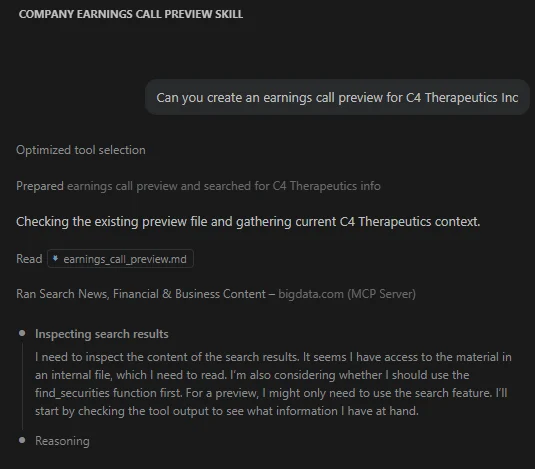
    In the VS Code Chat panel, type:

    ```
    Can you create an earnings call preview for C4 Therapeutics Inc?
    ```

    VS Code Chat will automatically identify the right **Skill** to help you create an Earnings Call Preview report.
    <img alt="Trigger earnings call skill" src="https://mintcdn.com/ravenpackinternational/sRfxm3HR8wijX0FB/images/mcp/plugins/vs-code/vs-code-trigger-earnings-call-skill.png?fit=max&auto=format&n=sRfxm3HR8wijX0FB&q=85&s=5f5dec1cdef15297d3a04189f756fb62" width="535" height="469" data-path="images/mcp/plugins/vs-code/vs-code-trigger-earnings-call-skill.png" />

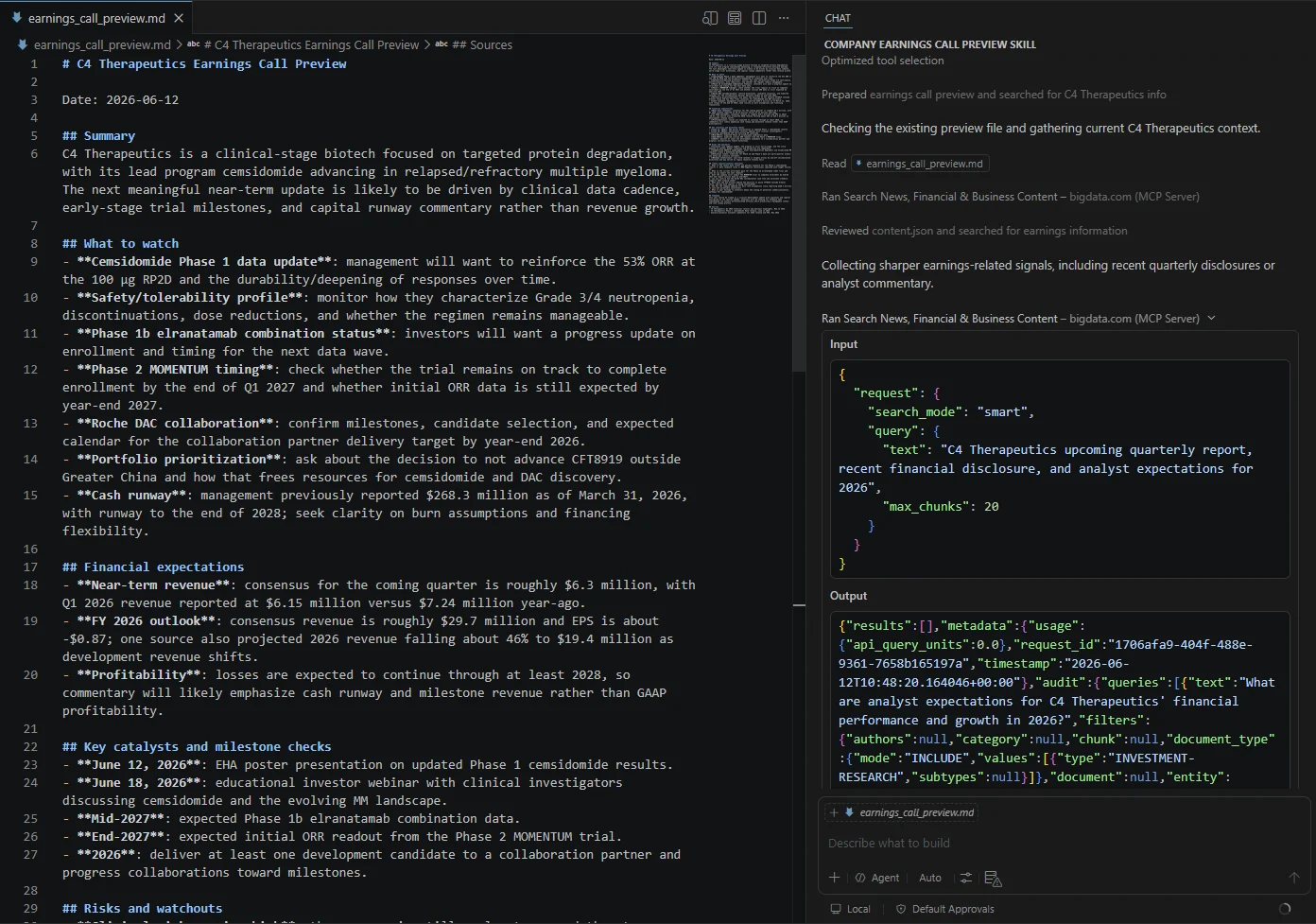
    The plugin will search using the Bigdata MCP tools and generate your report with full source attribution.
    <img alt="Generated earnings report" src="https://mintcdn.com/ravenpackinternational/sRfxm3HR8wijX0FB/images/mcp/plugins/vs-code/vs-code-report-generated.png?fit=max&auto=format&n=sRfxm3HR8wijX0FB&q=85&s=c25f597e2448e60b9cabfa0062c68947" width="1392" height="977" data-path="images/mcp/plugins/vs-code/vs-code-report-generated.png" />
  </Tab>
</Tabs>