> ## Documentation Index
> Fetch the complete documentation index at: https://docs.bigdata.com/llms.txt
> Use this file to discover all available pages before exploring further.
# Build your own MCP
> Implement your own MCP to power your AI agents with Bigdata Research Tools workflows.
## Why It Matters
MCP (Model Context Protocol) has become the standard way for integrating pre-made workflows into AI agents. By integrating Bigdata Research Tools with MCP, users can now seamlessly incorporate the advanced workflows into their AI-driven investment analysis workflows.
While we provide a ready-to-use [MCP search service](/mcp-reference/introduction) that offers powerful similarity search capabilities across transcripts, news, filings, and uploaded documents, we also believe in the immense value of customization. Every organization has unique workflows, specific data requirements, and distinct analytical needs that can be best served through tailored MCP implementations.
## A Real-World Use Case
This cookbook demonstrates how to build your own MCP with three practical examples that showcase the power of customization:
1. **Watchlist Manager** - Create and manage custom company watchlists for targeted analysis
2. **Thematic Screener** - Screen companies against specific investment themes using advanced AI workflows
3. **Concurrent Search** - Execute multiple search queries simultaneously for comprehensive and fast data retrieval
We'll walk through creating a local MCP server that hosts these tools and show how to configure it with your preferred AI client. **You'll need one of the following MCP-compatible clients to follow along:**
* **[ChatGPT Plus](https://chat.openai.com/)**
* **[Claude Desktop](https://www.anthropic.com/)**
* **[Cursor](https://cursor.com/download)**
Each client offers unique strengths, and we'll demonstrate how to leverage them to generate different examples using your custom MCP tools. You can jump directly to your preferred client:
* [ChatGPT Plus Integration](#chatgpt-integration)
* [Claude Desktop Integration](#claude-desktop-integration)
* [Cursor Integration](#cursor-integration)
**Ready to get started? Let's dive in!**

## Prerequisites
To run the run the custom MCP, you can choose between two options:
* 💻 **GitHub cookbook**
* Use this if you prefer working locally or in a custom environment.
* Follow the setup and execution instructions in the [`README.md`](https://github.com/Bigdata-com/bigdata-cookbook/tree/main/Build_Your_Own_MCP/README.md).
* API keys are required:
* Option 1: Follow the key setup process described in the [`README.md`](https://github.com/Bigdata-com/bigdata-cookbook/blob/main/Thematic_Screener/README.md)
* Option 2: Refer to this guide: [How to initialise environment variables](https://docs.bigdata.com/how-to-guides/how_to_prerequisites#initialise-environment-variables)
* ❗ When using this method, you must manually add the OpenAI API key:
```python theme={null}
# OpenAI credentials
OPENAI_API_KEY = ""
```
* 🐳 **Docker Installation** - [Docker installation](https://github.com/Bigdata-com/bigdata-cookbook/tree/main/Build_Your_Own_MCP/README.md#docker-installation-and-usage) provides an alternative setup method with containerized deployment, simplifying the environment configuration for those preferring Docker-based solutions.
## Setup and Imports
Below is the Python code required for setting up our environment and importing necessary libraries. We will take advantage of the `uv` tool to run our script in an isolated environment, using their [script dependencies](https://docs.astral.sh/uv/guides/scripts/#declaring-script-dependencies).
Here the main configuration is changing the `LLM_MODEL` variable to select the LLM model you want to use for the thematic screener. If you only plan to utilize the other tools, you can skip this step.
The second configuration is the `TRANSPORT` variable, which can be set to either `"sse"` (Server-Sent Events) or `"streamable-http"`. The `"sse"` option is the only one supported by ChatGPT's developer mode, while `"streamable-http"` offers better compatibility with various clients, including Claude and Cursor.
For more details on how to configure each LLM provider, follow this [https://github.com/Bigdata-com/bigdata-research-tools?tab=readme-ov-file#llm-integration](https://github.com/Bigdata-com/bigdata-research-tools?tab=readme-ov-file#llm-integration)
```python build_your_mcp.py icon="python" [expandable] theme={null}
#!/usr/bin/env -S uv run --script
#
# /// script
# requires-python = ">=3.12"
# dependencies = ["mcp[cli]==1.11.0", "bigdata-research-tools==0.20.1", "nest-asyncio==1.6.0", "python-dotenv==1.1.1"]
# ///
import os
from datetime import datetime
from mcp.server.fastmcp import FastMCP
from bigdata_research_tools.watchlists import (
create_watchlist as create_watchlist_internal,
fuzzy_find_watchlist_by_name,
)
from bigdata_research_tools.workflows.thematic_screener import (
ThematicScreener,
DocumentType,
)
from bigdata_client import Bigdata
import nest_asyncio
nest_asyncio.apply()
# Select your LLM model here
LLM_MODEL = "openai::gpt-4o-mini"
# LLM_MODEL = "azure::gpt-4o-mini"
# LLM_MODEL = "bedrock::anthropic.claude-3-sonnet-20240229-v1:0"
# Use streamable-http for better compatibility with various clients, unless you want to connect to ChatGPT developer mode
TRANSPORT: Literal["sse", "streamable-http"] = "streamable-http"
# ... rest of the code follows ...
```
## Configure and start the MCP server
Next, we will configure and start the MCP server. The server will host the tools we are going to use in the use cases: Thematic Screener, a Bigdata.com search tool and a watchlist management tool.
How to run and configure the screener is explained in more details in the [Thematic Screener documentation](/use-cases/research-tools/screeners).
```python build_your_mcp.py icon="python" [expandable] theme={null}
# ... Imports and setup from previous code snippet ...
# Create an MCP server
mcp = FastMCP("Demo", stateless_http=True, json_response=True, host="0.0.0.0")
# Initialize Bigdata client
BIGDATA = Bigdata()
# Add an addition tool
@mcp.tool()
def create_watchlist(watchlist_name: str, companies: list[str]):
"""Create a watchlist for the given companies."""
return create_watchlist_internal(watchlist_name, companies, BIGDATA)
@mcp.tool()
def screen_companies(
watchlist_name: str, main_theme: str, fiscal_year: int, focus: str = ""
):
"""Screen companies in a watchlist for a given theme and fiscal year. This will return
a JSON string with the results."""
# Find the watchlist by name
watchlist = fuzzy_find_watchlist_by_name(watchlist_name, BIGDATA)
if not watchlist:
return {"error": f"Watchlist '{watchlist_name}' not found."}
# Extract companies from the watchlist
companies = BIGDATA.knowledge_graph.get_entities(watchlist.items)
# Configure and run the thematic screener
them = ThematicScreener(
llm_model=LLM_MODEL,
main_theme=main_theme,
focus=focus,
companies=companies,
start_date=datetime(fiscal_year - 1, 1, 1),
end_date=datetime(fiscal_year + 1, 12, 31),
document_type=DocumentType.TRANSCRIPTS,
fiscal_year=fiscal_year,
)
result = them.screen_companies(
document_limit=20,
batch_size=10,
frequency="3M",
)
# Extract and return the relevant data as JSON
return str(result["df_company"].to_json(orient="records"))
@mcp.tool()
def bigdata_search(queries: list[str]):
"""Run a search on bigdata for the given queries and return the results."""
search_results = run_search(
[Similarity(query) for query in queries],
date_ranges=AbsoluteDateRange(datetime(1970, 1, 1), datetime(2025, 12, 31)),
bigdata=BIGDATA,
)
results = {}
for i, _ in enumerate(search_results):
results[queries[i]] = []
for result in search_results[i]:
results[queries[i]].append(
{
"title": result.headline,
"content": "".join([p.text for p in result.chunks]),
"timestamp": result.timestamp,
"url": result.url,
}
)
return results
if __name__ == "__main__":
assert "BIGDATA_API_KEY" in os.environ, (
"Please set the BIGDATA_API_KEY environment variable."
)
mcp.run(transport=TRANSPORT)
```
Now that it is configured, you can run the MCP server with:
```bash theme={null}
$ uv run build_your_mcp.py
INFO: Started server process [369464]
INFO: Waiting for application startup.
INFO StreamableHTTP session manager started
INFO: Application startup complete.
INFO: Uvicorn running on http://0.0.0.0:8000 (Press CTRL+C to quit)
```
## ChatGPT Integration
### Connecting to the MCP server from ChatGPT
Custom MCP integration only works with ChatGPT Plus or Pro subscriptions in developer mode. Also, ChatGPT requires MCP servers to be accessible over the internet, so make sure your server is publicly accessible.
To enable developer mode in ChatGPT, follow these steps from the [official webpage](https://chatgpt.com):
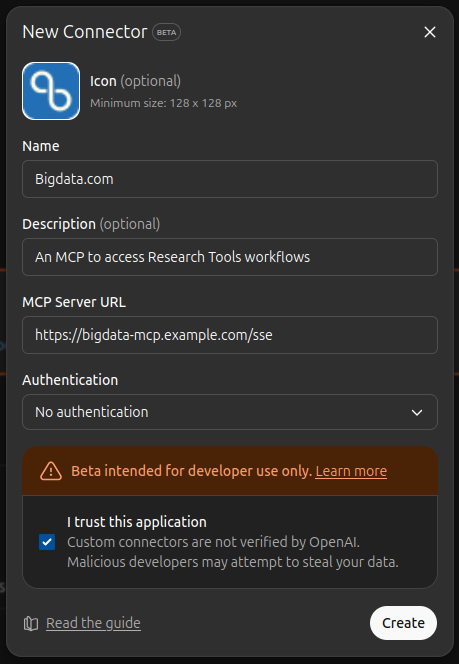
1. Enable `Settings > Connectors > Advanced settings > Developer mode`.
2. Now, create a connector in `Settings > Connectors > Create` and fill the details. Remember the MCP must use the `sse` transport.
 ### Generating a Dynamic Dashboard
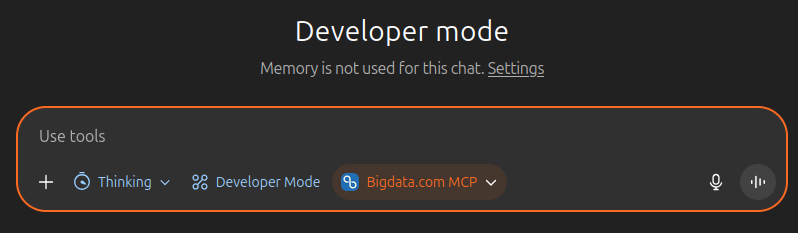
On the main ChatGPT interface, you can now prompt your agent to generate a dashboard with data from the premium sources available in Bigdata.com. First, enable developer mode and thinking mode in the prompt and select the source we have created before.
### Generating a Dynamic Dashboard
On the main ChatGPT interface, you can now prompt your agent to generate a dashboard with data from the premium sources available in Bigdata.com. First, enable developer mode and thinking mode in the prompt and select the source we have created before.
 Now, let's run it using this prompt as an example:
```text theme={null}
Generate a colorful dashboard on a clear background
(with "Powered by Bigdata.com" as a subtitle) representing
the main developments in the narrative evolution of the visa
fees in US from September 2025. Highlight comments from main
players. Identify companies more exposed to these new rules.
Use ONLY Bigdata search through MCP and ground all
information and facts with references. Make sure all
facts are grounded with the proper date and source when
you hover over it.
```
You may need to approve the agent's access to the necessary tools and data sources.
### Example Outputs
Conversation on developer mode with ChatGPT 5 Thinking.
Dashboard generated by ChatGPT 5 Thinking.
## Claude Desktop Integration
### Connecting to the MCP server from Claude Desktop
Make sure your local MCP server is running on
Now, let's run it using this prompt as an example:
```text theme={null}
Generate a colorful dashboard on a clear background
(with "Powered by Bigdata.com" as a subtitle) representing
the main developments in the narrative evolution of the visa
fees in US from September 2025. Highlight comments from main
players. Identify companies more exposed to these new rules.
Use ONLY Bigdata search through MCP and ground all
information and facts with references. Make sure all
facts are grounded with the proper date and source when
you hover over it.
```
You may need to approve the agent's access to the necessary tools and data sources.
### Example Outputs
Conversation on developer mode with ChatGPT 5 Thinking.
Dashboard generated by ChatGPT 5 Thinking.
## Claude Desktop Integration
### Connecting to the MCP server from Claude Desktop
Make sure your local MCP server is running on [http://localhost:8000](http://localhost:8000) before configuring Claude Desktop.
Node.js must be installed on your operating system for the MCP integration to work with Claude Desktop.
**Windows users**: Install Node.js in a folder with a name that does not contain spaces. By default, the installation wizard will install it in `C:\Program Files\nodejs\npx.cmd`, which includes a space in the path. Instead, create a folder without a space in the name and install it there, for instance, in `C:\program_files\`
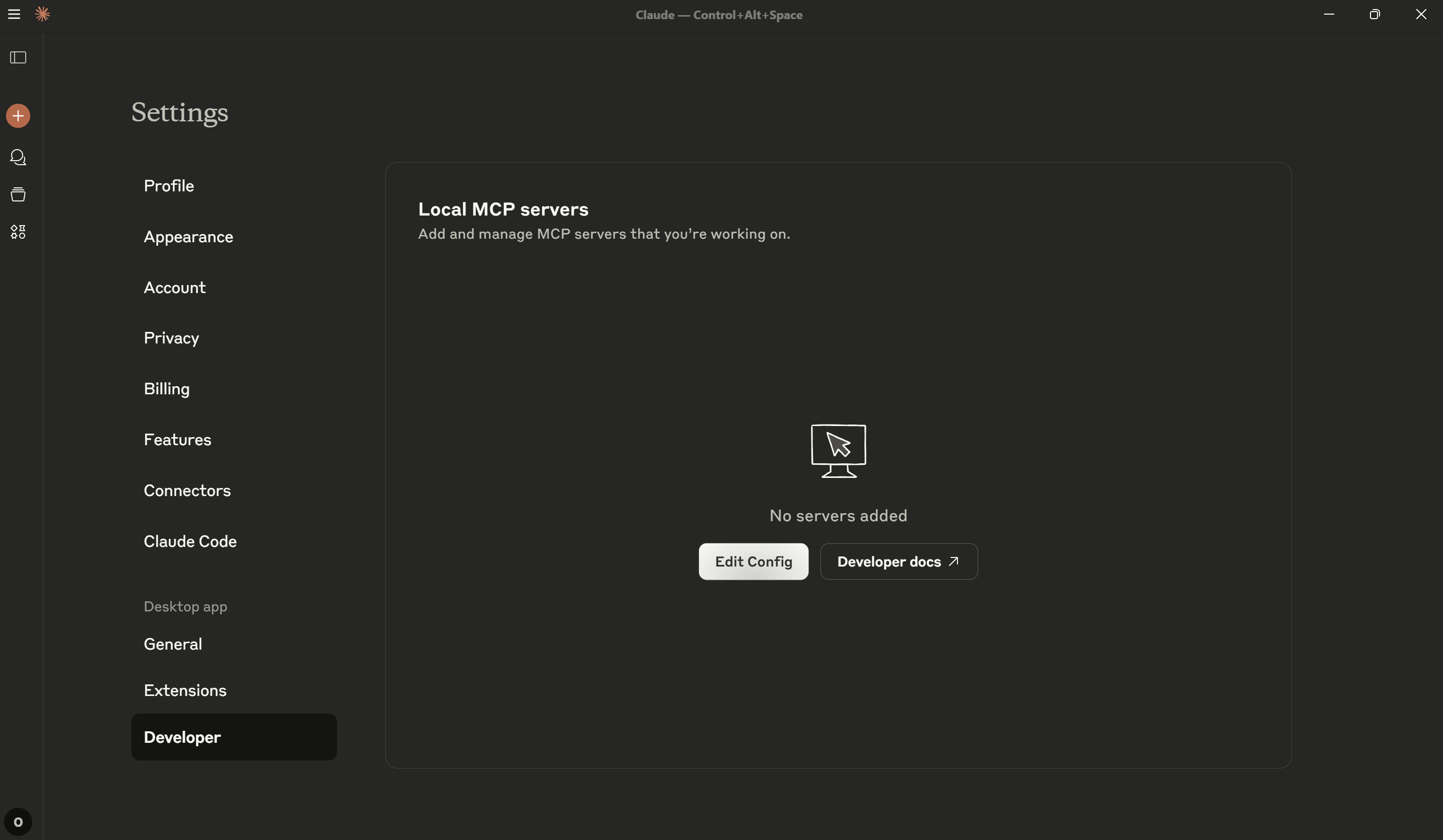
Open Claude Desktop Settings, click on `Developer` and then on `Edit Config` to open the configuration file `claude_desktop_config.json`.
 Copy and paste the below configuration for your custom MCP server:
```
{
"mcpServers": {
"bigdata-custom-mcp": {
"command": "npx",
"args": [
"mcp-remote",
"http://localhost:8000/mcp/"
]
}
}
}
```
To finalize, you need to restart Claude Desktop. Ensure that you terminate Claude Desktop properly. When you open it again, click on your Avatar and `Settings` to see the running custom MCP tools.
You may need to approve Claude's access to the MCP tools when first using them.
### Generating Claude Artifacts
Now that the MCP server is running and connected to Claude Desktop, you can leverage the custom tools to generate interactive Claude Artifacts. These artifacts can include dynamic dashboards, network diagrams, and comprehensive analysis reports.
You can prompt Claude to use the available tools for complex workflows. Here are examples of the types of interactive artifacts you can generate:
#### Example 1: Market Analysis Dashboard
```
Generate a dashboard representing the main developments in the narrative evolution of visa fees in the US from September 2024. Highlight comments from main players and identify companies more exposed to these new rules. Use Bigdata search through the MCP and ground all information and facts with references. Ensure all facts are grounded with proper date and source citations. Add "Powered by Bigdata" at the top.
```
#### Example 2: Conflict Analysis
```
Create an interactive dashboard analyzing the Ukraine-Russia conflict's impact on global markets. Focus on energy sector disruptions, supply chain effects, and financial market volatility. Use Bigdata MCP for data collection and ensure all sources are properly cited.
```
#### Example 3: Network Analysis
```
Create an interactive network diagram illustrating the companies participating in the European Future Combat Air System (FCAS). Generate classifications by system component and country. Use Bigdata MCP to gather the data.
All facts (including dates) must be cited using the format: "Bigdata – {source} (date)".
```
## Cursor Integration
### Connecting to the MCP server from Cursor
In Cursor, go to `File > Preferences > Cursor Preferences > MCP > New MCP Server` and add the following configuration:
```json theme={null}
"mcp-thematic-screener": {
"url": "http://localhost:8000/mcp/"
}
```
After saving, you should see the new server in the list of MCP servers, with the list of available tools.
Copy and paste the below configuration for your custom MCP server:
```
{
"mcpServers": {
"bigdata-custom-mcp": {
"command": "npx",
"args": [
"mcp-remote",
"http://localhost:8000/mcp/"
]
}
}
}
```
To finalize, you need to restart Claude Desktop. Ensure that you terminate Claude Desktop properly. When you open it again, click on your Avatar and `Settings` to see the running custom MCP tools.
You may need to approve Claude's access to the MCP tools when first using them.
### Generating Claude Artifacts
Now that the MCP server is running and connected to Claude Desktop, you can leverage the custom tools to generate interactive Claude Artifacts. These artifacts can include dynamic dashboards, network diagrams, and comprehensive analysis reports.
You can prompt Claude to use the available tools for complex workflows. Here are examples of the types of interactive artifacts you can generate:
#### Example 1: Market Analysis Dashboard
```
Generate a dashboard representing the main developments in the narrative evolution of visa fees in the US from September 2024. Highlight comments from main players and identify companies more exposed to these new rules. Use Bigdata search through the MCP and ground all information and facts with references. Ensure all facts are grounded with proper date and source citations. Add "Powered by Bigdata" at the top.
```
#### Example 2: Conflict Analysis
```
Create an interactive dashboard analyzing the Ukraine-Russia conflict's impact on global markets. Focus on energy sector disruptions, supply chain effects, and financial market volatility. Use Bigdata MCP for data collection and ensure all sources are properly cited.
```
#### Example 3: Network Analysis
```
Create an interactive network diagram illustrating the companies participating in the European Future Combat Air System (FCAS). Generate classifications by system component and country. Use Bigdata MCP to gather the data.
All facts (including dates) must be cited using the format: "Bigdata – {source} (date)".
```
## Cursor Integration
### Connecting to the MCP server from Cursor
In Cursor, go to `File > Preferences > Cursor Preferences > MCP > New MCP Server` and add the following configuration:
```json theme={null}
"mcp-thematic-screener": {
"url": "http://localhost:8000/mcp/"
}
```
After saving, you should see the new server in the list of MCP servers, with the list of available tools.
 ### Generating Thematic Screening Reports
Now that the MCP server is running and connected to Cursor, let's prompt our agent to generate a thematic screening report and write it as a markdown file.
First, we want the agent to create a watchlist with the companies we want to screen. Then, we will ask the agent to screen the companies in this watchlist for a specific theme and fiscal year. Let's use this prompt as an example:
```text theme={null}
Create a watchlist called Next Generation Defense
with the following companies: 3M Co., Accenture PLC,
Alphabet Inc., BAE Systems PLC, Cisco Systems Inc.,
Elbit System Ltd., Gen Digital Inc., General Dynamics
Corp., GM (General Motors Co.), and IBM Corp. Then,
screen the companies in this watchlist for the theme
Next Generation Defense for fiscal year 2024. Finally,
write a markdown report with the results in the file
named `next_generation_defense_report.md`.
```
You may need to approve the agent's access to the necessary tools and data sources.
### Example Generated Report
Here's a sample of the markdown report that Cursor can generate:
#### Next Generation Defense — 2024 Watchlist Screening
* **Watchlist**: Next Generation Defense
* **Fiscal Year**: 2024
* **Theme**: Next Generation Defense
##### Summary
Below are the screening results for the requested watchlist, sorted by Composite Score (descending). Higher Composite Scores indicate broader and/or deeper alignment to the theme across tracked capability areas.
##### Results
| Company | Ticker | Industry | Composite Score | Autonomous Systems | Cyber Training Programs | Cyber Warfare Strategies | Defensive Cyber Measures | Directed Energy Weapons | Encryption Technologies | Incident Response Solutions | Natural Language Processing | Space-Based Surveillance | Supply Chain Resilience | Swarming Drones | Threat Intelligence | Training Simulation Systems |
| ----------------------- | ------ | ------------------------- | --------------: | -----------------: | ----------------------: | -----------------------: | -----------------------: | ----------------------: | ----------------------: | --------------------------: | --------------------------: | -----------------------: | ----------------------: | --------------: | ------------------: | --------------------------: |
| Cisco Systems Inc. | CSCO | Computer Services | 16 | 1 | 0 | 7 | 0 | 0 | 1 | 4 | 1 | 0 | 0 | 0 | 2 | 0 |
| GM (General Motors Co.) | GM | Automobiles | 9 | 9 | 0 | 0 | 0 | 0 | 0 | 0 | 0 | 0 | 0 | 0 | 0 | 0 |
| Elbit Systems Ltd. | ESLT | Defense | 8 | 0 | 0 | 0 | 2 | 3 | 0 | 1 | 0 | 0 | 0 | 1 | 0 | 1 |
| Alphabet Inc. | GOOGL | Internet Services | 8 | 3 | 0 | 0 | 0 | 0 | 0 | 0 | 1 | 0 | 0 | 0 | 4 | 0 |
| BAE Systems PLC | BA | Defense | 7 | 3 | 0 | 0 | 0 | 0 | 0 | 0 | 0 | 1 | 0 | 3 | 0 | 0 |
| Accenture PLC | ACN | Business Support Services | 6 | 0 | 1 | 2 | 2 | 0 | 0 | 1 | 0 | 0 | 0 | 0 | 0 | 0 |
| Gen Digital Inc. | GEN | Software | 4 | 0 | 0 | 3 | 0 | 0 | 0 | 0 | 0 | 0 | 0 | 0 | 1 | 0 |
| General Dynamics Corp. | GD | Defense | 1 | 0 | 0 | 0 | 0 | 0 | 0 | 0 | 0 | 0 | 1 | 0 | 0 | 0 |
##### No detected signals (FY2024)
* 3M Co.
* IBM Corp.
##### Notes
* The results reflect signals mapped to Next Generation Defense capability areas for FY2024, aggregated into a Composite Score per company.
* Companies with no detected FY2024 signals are listed separately above.
### Generating Thematic Screening Reports
Now that the MCP server is running and connected to Cursor, let's prompt our agent to generate a thematic screening report and write it as a markdown file.
First, we want the agent to create a watchlist with the companies we want to screen. Then, we will ask the agent to screen the companies in this watchlist for a specific theme and fiscal year. Let's use this prompt as an example:
```text theme={null}
Create a watchlist called Next Generation Defense
with the following companies: 3M Co., Accenture PLC,
Alphabet Inc., BAE Systems PLC, Cisco Systems Inc.,
Elbit System Ltd., Gen Digital Inc., General Dynamics
Corp., GM (General Motors Co.), and IBM Corp. Then,
screen the companies in this watchlist for the theme
Next Generation Defense for fiscal year 2024. Finally,
write a markdown report with the results in the file
named `next_generation_defense_report.md`.
```
You may need to approve the agent's access to the necessary tools and data sources.
### Example Generated Report
Here's a sample of the markdown report that Cursor can generate:
#### Next Generation Defense — 2024 Watchlist Screening
* **Watchlist**: Next Generation Defense
* **Fiscal Year**: 2024
* **Theme**: Next Generation Defense
##### Summary
Below are the screening results for the requested watchlist, sorted by Composite Score (descending). Higher Composite Scores indicate broader and/or deeper alignment to the theme across tracked capability areas.
##### Results
| Company | Ticker | Industry | Composite Score | Autonomous Systems | Cyber Training Programs | Cyber Warfare Strategies | Defensive Cyber Measures | Directed Energy Weapons | Encryption Technologies | Incident Response Solutions | Natural Language Processing | Space-Based Surveillance | Supply Chain Resilience | Swarming Drones | Threat Intelligence | Training Simulation Systems |
| ----------------------- | ------ | ------------------------- | --------------: | -----------------: | ----------------------: | -----------------------: | -----------------------: | ----------------------: | ----------------------: | --------------------------: | --------------------------: | -----------------------: | ----------------------: | --------------: | ------------------: | --------------------------: |
| Cisco Systems Inc. | CSCO | Computer Services | 16 | 1 | 0 | 7 | 0 | 0 | 1 | 4 | 1 | 0 | 0 | 0 | 2 | 0 |
| GM (General Motors Co.) | GM | Automobiles | 9 | 9 | 0 | 0 | 0 | 0 | 0 | 0 | 0 | 0 | 0 | 0 | 0 | 0 |
| Elbit Systems Ltd. | ESLT | Defense | 8 | 0 | 0 | 0 | 2 | 3 | 0 | 1 | 0 | 0 | 0 | 1 | 0 | 1 |
| Alphabet Inc. | GOOGL | Internet Services | 8 | 3 | 0 | 0 | 0 | 0 | 0 | 0 | 1 | 0 | 0 | 0 | 4 | 0 |
| BAE Systems PLC | BA | Defense | 7 | 3 | 0 | 0 | 0 | 0 | 0 | 0 | 0 | 1 | 0 | 3 | 0 | 0 |
| Accenture PLC | ACN | Business Support Services | 6 | 0 | 1 | 2 | 2 | 0 | 0 | 1 | 0 | 0 | 0 | 0 | 0 | 0 |
| Gen Digital Inc. | GEN | Software | 4 | 0 | 0 | 3 | 0 | 0 | 0 | 0 | 0 | 0 | 0 | 0 | 1 | 0 |
| General Dynamics Corp. | GD | Defense | 1 | 0 | 0 | 0 | 0 | 0 | 0 | 0 | 0 | 0 | 1 | 0 | 0 | 0 |
##### No detected signals (FY2024)
* 3M Co.
* IBM Corp.
##### Notes
* The results reflect signals mapped to Next Generation Defense capability areas for FY2024, aggregated into a Composite Score per company.
* Companies with no detected FY2024 signals are listed separately above.