

Overview
The Bigdata Content API lets you manage and query private content that you or your organization uploads to Bigdata. After enrichment, documents are indexed by default so they are available for the Search and Research Agent. You can skip indexing or long-term storage on direct upload withno_index and no_store.
You can onboard content in two ways:
- Connectors API: For asynchronous, unsupervised, or automated workflows where content is not directly accessible by the user (e.g. email inbox, broker investment research feeds, SharePoint). You configure a connector and the service ingests the content from that source.
- Direct upload (POST /documents): For clients that manage their own corpus and want to build the ingestion workflow manually. You request a pre-signed URL and document id; you upload each file via PUT to that URL, then use the id to poll for enrichment status. The workflow uploads your document and enriches it (extraction, structure and annotation of the content). By default it also indexes the document for Search and Research Agent. Optional
no_indexandno_storeflags skip indexing or retain the file for only 24 hours. See Processing options.
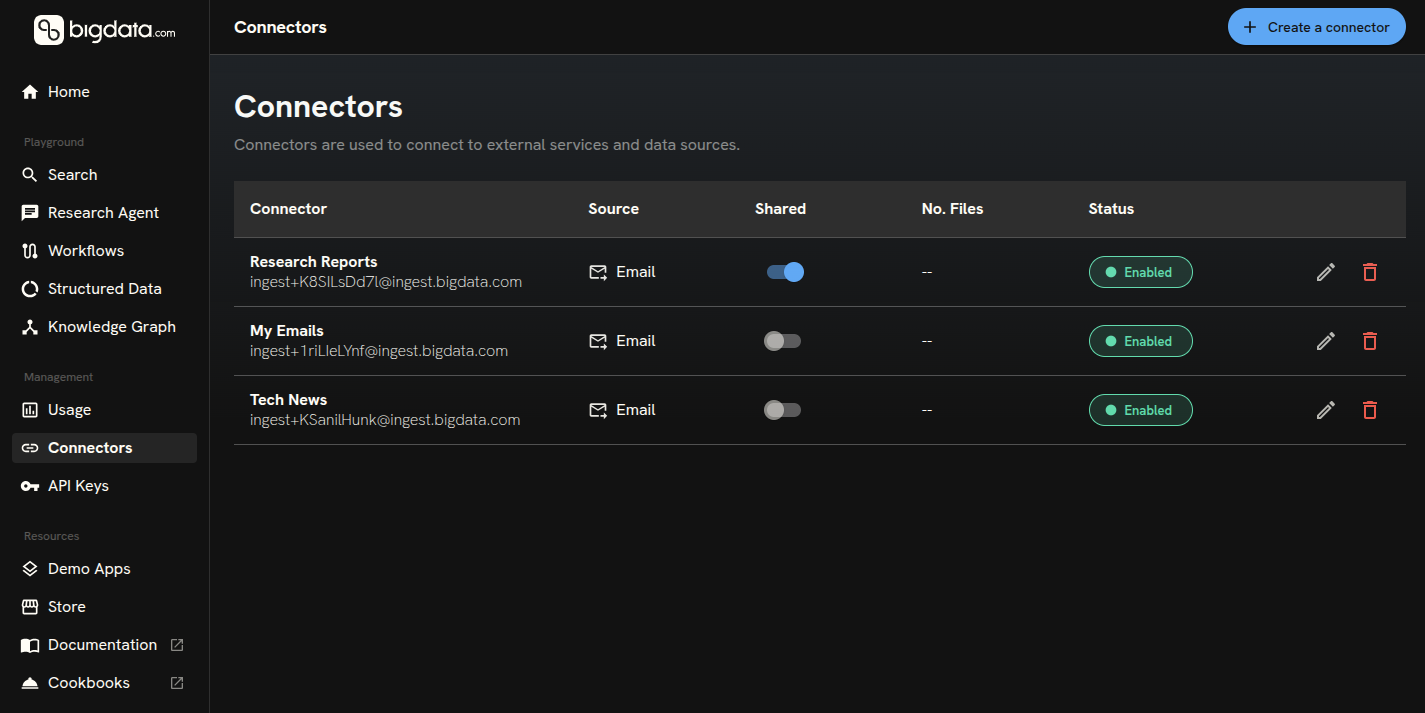
Connectors
Connectors are for ingestion that is asynchronous, unsupervised, or part of a workflow where content is not directly in the user’s hands, for example, an email inbox, a broker investment research feed, or a SharePoint library.- You create a connector with a type, label, and type-specific configuration. Supported types include Email Inbox, Investment research, and Microsoft SharePoint.
- For Email, the API returns an inbox address; you forward messages from allowed senders to that address. Set up automatic forwarding rules in your email client to start building your corpus, Bigdata will ingest and process content automatically.
- For Investment research, provide broker credentials when you create the connector. Bigdata then syncs research documents from the broker for you. You can retrigger a sync with a
date_limitwhen you need to refresh from a given date. Ingested documents are tagged with the broker name and classified using Bigdata’s document taxonomy, so you can filter and search them consistently alongside the rest of Bigdata corpus. - For Microsoft SharePoint, use the same create endpoint with
"type": "sharepoint"andconfigcontaining onlysession_id: a token for the session authenticated via OAuth. For how to obtainsession_id, contact support@bigdata.com. As an alternative, follow the steps in Bigdata Connectors Management.
- Content arriving through the connector is turned into documents you can manage and use via Search and Research Agent Services.
- Optionally set
enrichmentswhen you create the connector to configure the processing pipeline to apply extra enrichment steps to every document ingested through it. See Enrichments.
- Create connector: Register a new ingestion source. We recommend using Bigdata Connectors Management for a simple guided setup.
- List connectors: List all connectors you can access; use connector IDs to filter documents or to update, delete, or call sync.
- Get connector: Fetch full details for one connector (config, share settings, timestamps).
- Update connector: Change label, description, sharing, or config when supported.
- Trigger connector sync: Queue another synchronization for an investment_research connector (POST with
date_limitYYYY-MM-DDto resync from that date onward) or a sharepoint connector (POST with an empty body{}). - Delete connector: Soft-delete (archive) a connector by default—it stops ingesting new content but existing documents remain. Use
?force_delete=trueto trigger a hard delete: all files related to the connector are deleted asynchronously, then the connector is removed from the database.
Documents
Documents are the items Bigdata has uploaded and enriched, whether they came from a connector (e.g. email, SharePoint) or from direct upload. By default they are also indexed for search and analysis. Direct upload is intended for clients that manage their corpus and want to build the ingestion workflow from scratch: you choose what to send, when, and with what metadata (file name, tags, sharing, enrichments, processing options). The main focus is enrichment: once you upload the file (PUT to the pre-signed URL), Bigdata enriches it (extraction, structure and annotation of the content). By default it then indexes the document for Search and Research Agent. Optionally setenrichments when you are uploading the file to configure extra pipeline steps. See Enrichments. Optionally set no_index or no_store to skip indexing or long-term retention. See Processing options. Once you get the pre-signed URL and document id; PUT the file to that URL, then use the id with Get document metadata to poll for status until processing is complete.
The following operations apply to all documents, whether they were ingested via a connector or direct upload:
- List documents: Paginated list of documents you can access. Supports filtering and sorting (including
originvaluesemail,investment_research,sharepoint, andfile_upload); each item includes a content ID for use with the other document endpoints. - Get document metadata: Return metadata for one document by content ID (status, file name, connector, tags, enrichments, usage, timestamps). Use this to check processing status before downloading content.
- Update document metadata: Change which tags are assigned to a document and whether the document is shared with your organization.
- Get annotated document: Return a time-limited pre-signed URL. GET that URL to download private document content as structured JSON (metadata, title, body blocks, entities, sentences with sentiment). Use for search indexing, entity extraction, or structured display.
- Get original document: Return a time-limited pre-signed URL. GET that URL to download the private document’s original file in its native format (e.g. .eml, .pdf).
- Delete document: Remove a document from the platform. Deletes the original document, annotated version, and chunks from the vector database.
broker:Broker Name for investment research. You can also define custom tags and attach them to documents after upload.
Tags
Tags help you organize and filter documents in Search Service and Research Agent.- List tags: List tags visible to your organization (including connector-generated tags), with document counts. Use optional
prefixto narrow results (for examplebroker:,from:, orto:). - Create tag: Create a custom tag by name. The response includes an
idyou use when updating document metadata. - Delete tag: Deletes a custom tag by ID. Any documents linked with this tag will have the association removed.
tags array of tag IDs (not names). The array replaces the document’s current tags, so you can extend or reduce the set by sending the full list you want. Every ID must exist; otherwise the API returns 400 with INVALID_TAGS_ERROR. You can combine tag updates with share_with_org in the same request to change organization-wide visibility.
Enrichments
Enrichments configure the processing pipeline to apply additional steps to your content. You can set them per document on direct upload or per connector on Create connector (applied to every document ingested through that connector). Pass anenrichments array of enrichment names in the request body.
You can request one or more enrichments in the same request:
enrichments_requested: The enrichments you asked for (on upload or via the connector).enrichments_applied: The enrichments that completed successfully. Compare the two arrays to see what is still pending or was not applied.
Processing options
On direct upload, two optional boolean flags control whether the document is indexed and how long it is retained. Both default to omitted/false (enrich, store, and index).
You can set both flags to
true. no_store already skips indexing, so no_index has no additional effect in that case.
These flags apply only to direct upload (POST /contents/v1/documents). Connector-ingested documents are still stored and indexed.
Typical flow
Using connectors (async / unsupervised):- Create a connector (e.g. email) with type, label, and config; for email, use the returned inbox address to forward messages.
- Optionally check that content has been enriched and indexed by listing your recent documents.
- Use your content in the Search or Research Agent Service (e.g. filter by Emails in the playgrounds below).
- Call Enrich document with metadata (file name, tags, sharing, and optional
no_index/no_store); use the returned URL to PUT the file (upload it). - Poll Get document metadata with the returned id to check
statusuntil processing is complete (completed). See Get document metadata in the API reference. If you setno_store, download the annotated or original file within 24 hours of completion. - Use indexed content in the Search or Research Agent Service (e.g. filter by My Files in the playgrounds below). Documents uploaded with
no_indexorno_storeare not searchable.
Search Service Playground
Search across your private content and other sources. In the playground, open the source selector and choose My Files to limit results to your uploaded documents.
Research Agent Playground
Run research over your private content and real-time data. In the playground, use the source selector and filter by My Files to ground answers in your documents.
Authentication and reference
All endpoints require an API key sent in theX-API-KEY header. See Authentication for details.
Use the API reference (endpoints listed in this section) for request/response schemas, parameters, and examples. You can try the API from the Developer Platform playgrounds.