

Overview
This guide shows how a Portfolio Manager with a Claude subscription can use Claude Cowork to automate a daily research workflow. A scheduled task runs early each morning to identify the top 5 topics that could impact the financial market, assess their relevance to every company in your portfolio, and deliver individual PDF briefs, all before the trading day begins.Requirements
- A Claude Pro or Team subscription with access to Claude Cowork
-
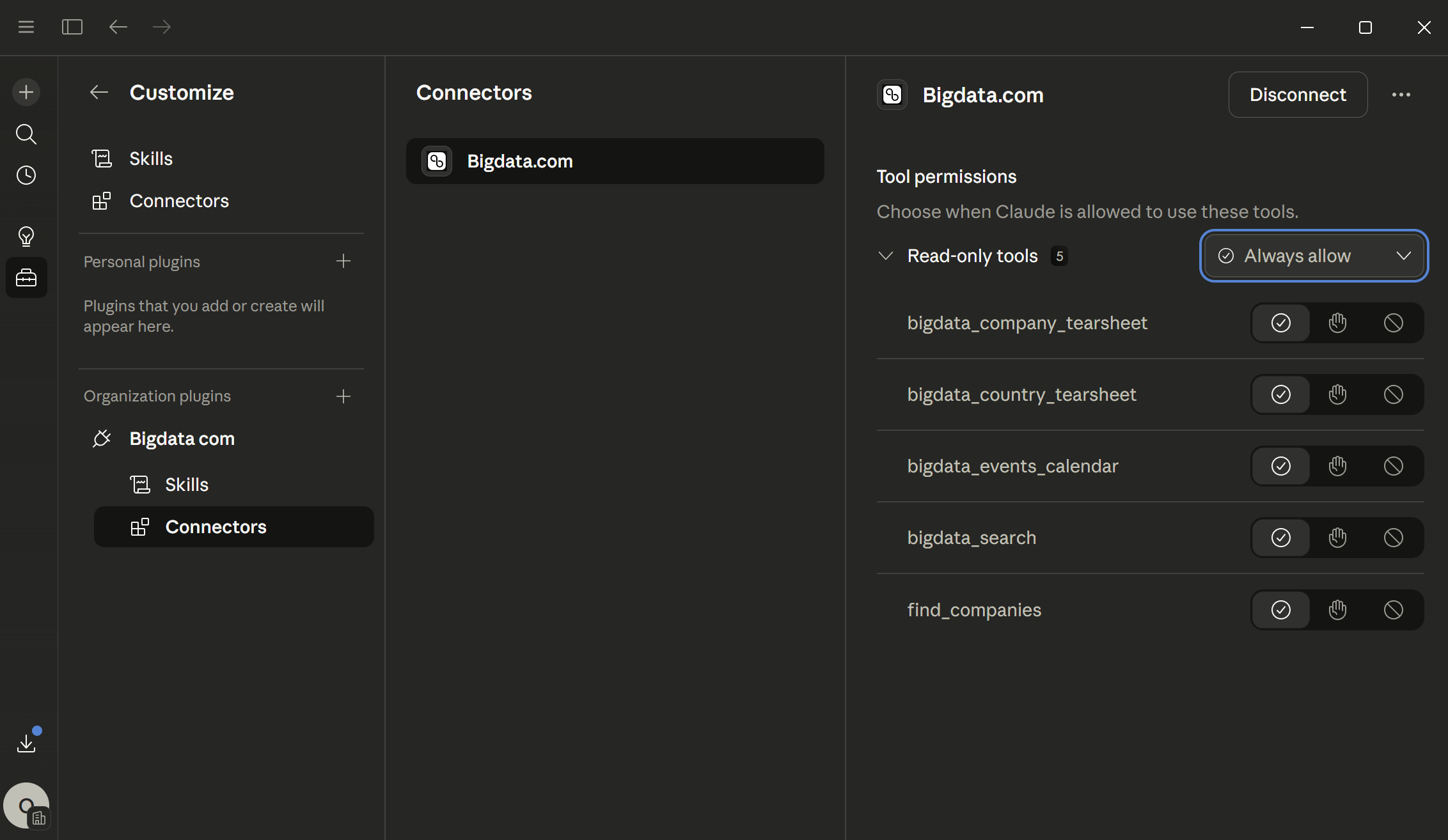
Bigdata Plugin connector enabled in your Cowork environment.
What you will build
By the end of this guide you will have a fully automated daily task that: ✅ Searches for the top 5 financial news topics from the last 24 hours using Bigdata.com✅ Assesses how each topic could impact each company (impact score and confidence level)
✅ Generates a PDF report per company with detailed analysis and inline attribution
✅ Updates your portfolio spreadsheet with a summary of the results
Step 1: Portfolio spreadsheet
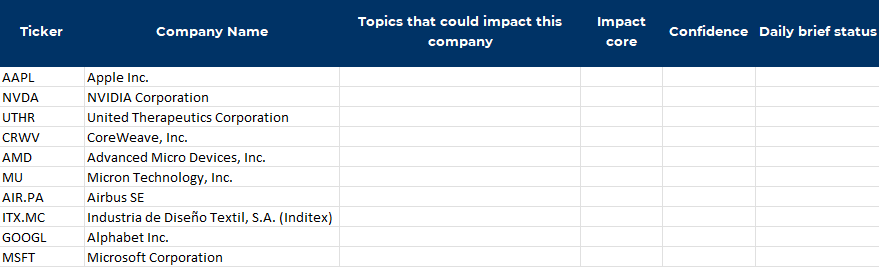
Create an Excel file listing the companies you want to monitor. You can download the template spreadsheet from the link below:Download portfolio template
my_portfolio_YYYY_MM_DD-HH_MM.xlsx
Step 2: Create the scheduled task
Open Claude Cowork and create a new scheduled task by clicking + New task: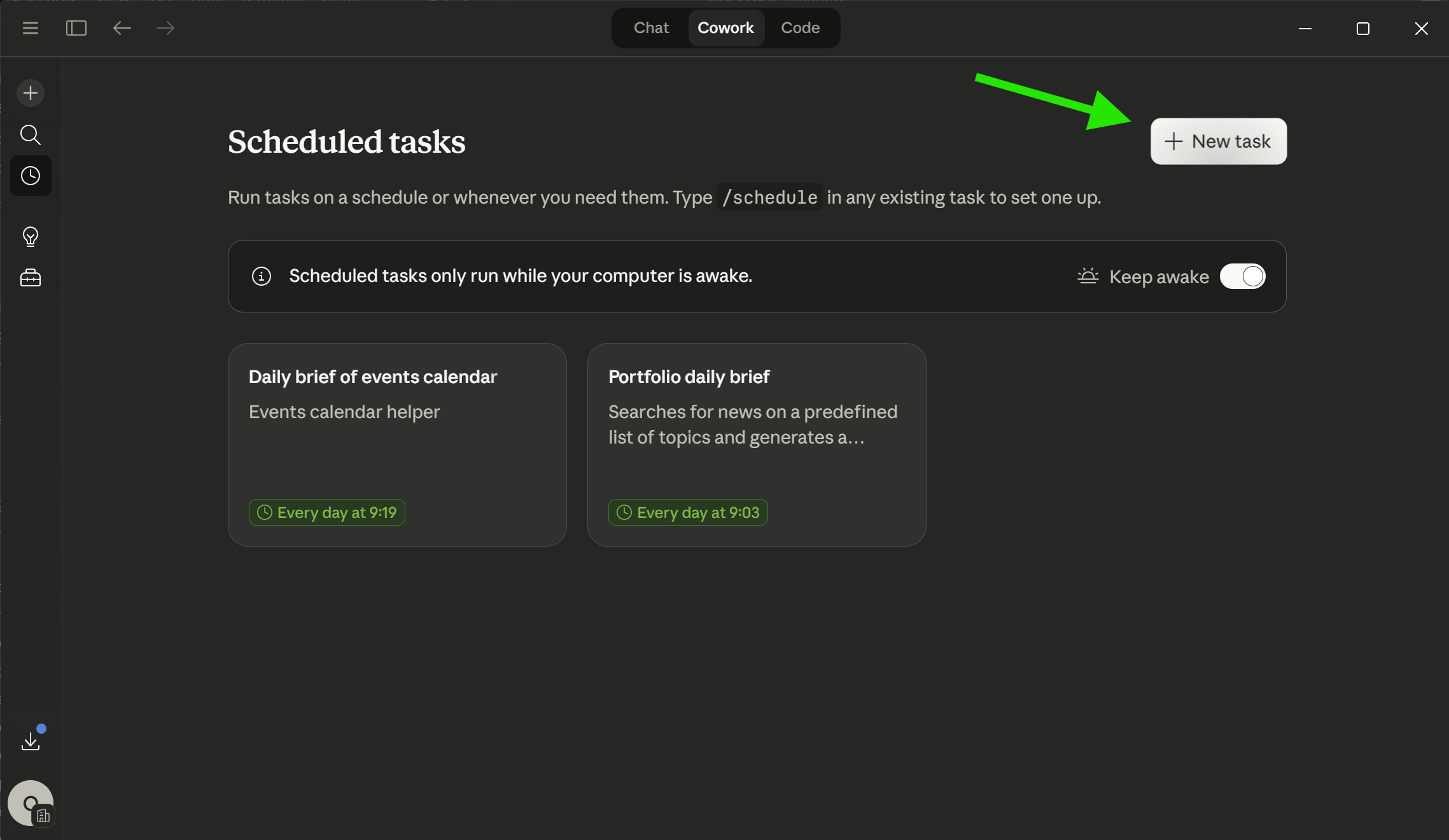
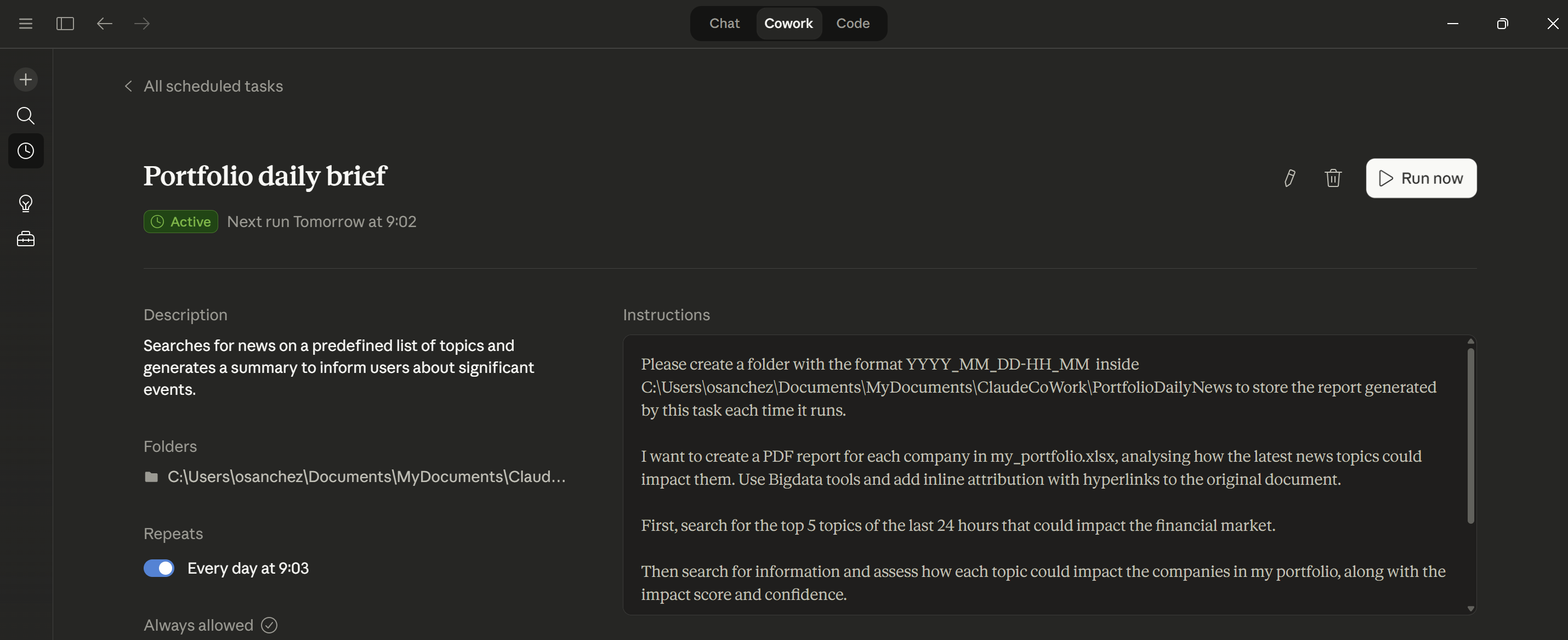
- Name:
Portfolio impact brief - Frequency: Daily at 09:00
- Model: Claude Opus 4.6 or any latest model available in your subscription.
- Folder to work in: Point to your Claude Cowork project directory where you stored the spreadsheet.
Step 3: Run the workflow
When the scheduled task triggers, Claude Cowork executes the following steps autonomously: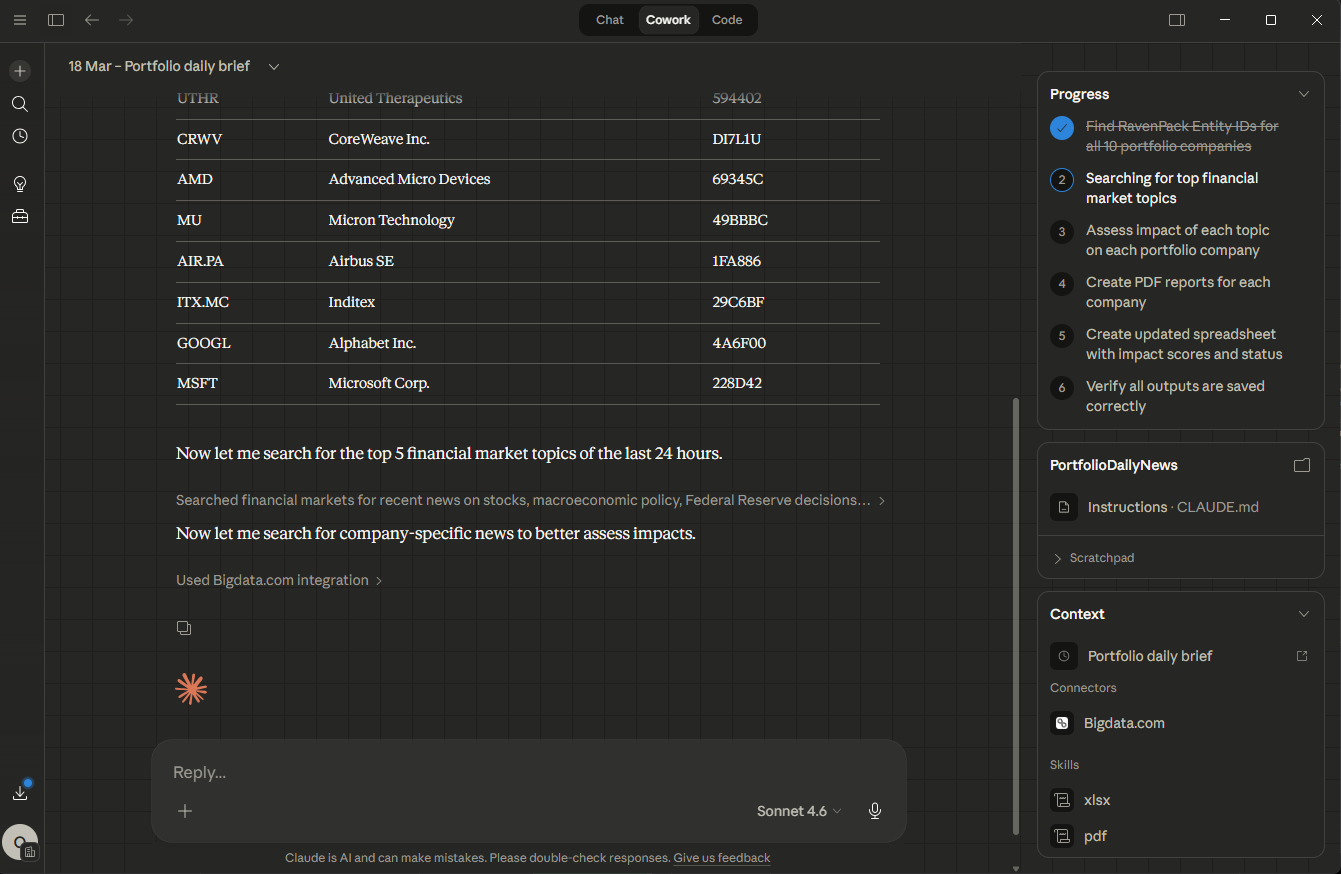
1
Search for top 5 financial news topics
Uses the Bigdata.com connector to search for the most significant financial news topics from the last 24 hours.
2
Resolve all portfolio companies
Calls
find_companies through the Bigdata Knowledge Graph to resolve each ticker in your spreadsheet to its canonical entity.3
Assess impact of each topic on each company
Cross-references the discovered topics against every company in the portfolio, determining relevance, impact direction, and confidence.
4
Create PDF reports
Generates an individual PDF brief for each company with detailed analysis and source attribution.
5
Update spreadsheet with scores
Writes the topic mappings, impact scores, and confidence values back into a new copy of the portfolio spreadsheet.
6
Verify outputs and finalize
Confirms all files were created successfully in the timestamped output folder.
Step 4: Review the results
Once the task completes, navigate to your project folder. You will find a root-level structure with your original template and timestamped daily folders: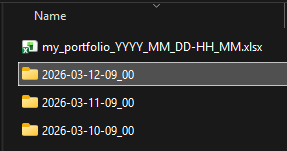
Updated spreadsheet
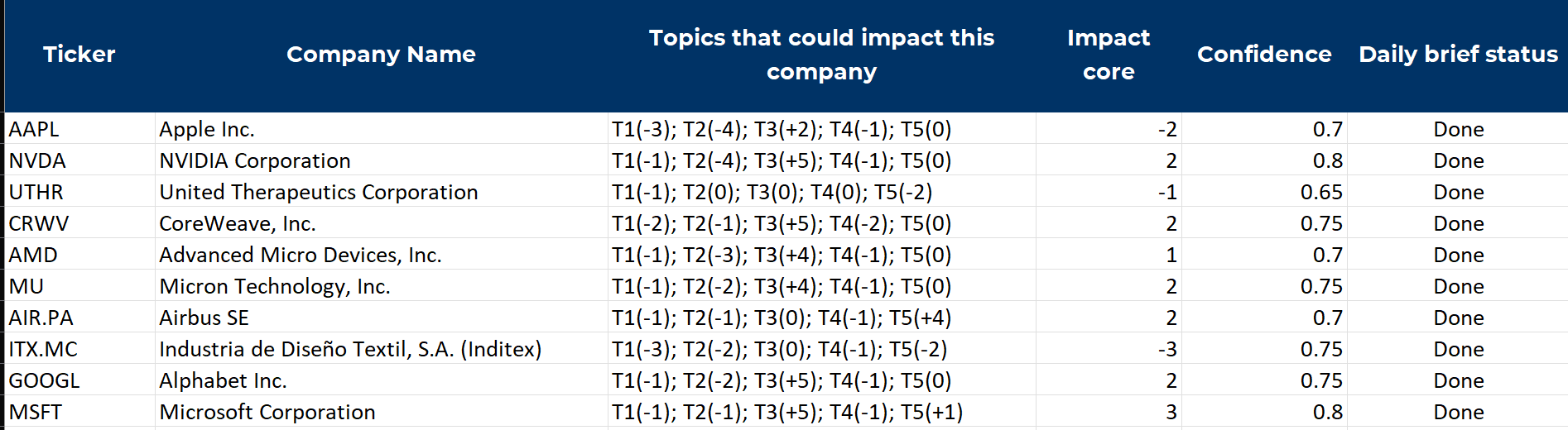
Inside each daily folder, the updated spreadsheet contains the analysis summary. Each row now shows:- Topics: Which of the top 5 topics (T1-T5) are relevant, with their individual impact direction (positive or negative)
- Impact score: A net score aggregating the impact of all relevant topics
- Confidence: The model’s confidence level in the overall assessment
- Daily brief status:
Doneonce the PDF report has been generated
Individual PDF reports
Each company receives its own detailed PDF brief namedDailyBrief_{TICKER}_{DATE}.pdf, containing the full analysis with inline attribution linking back to the original sources indexed by Bigdata.com.
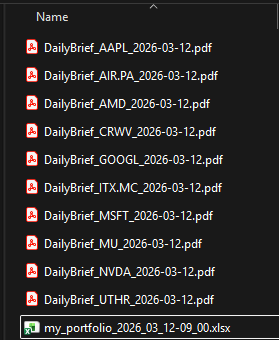
- AAPL
- NVDA
- UTHR
- CRWV
- AMD
- MU
- AIR.PA
- ITX.MC
- GOOGL
- MSFT
Tips and customization
Adjust the number of topics
Adjust the number of topics
Modify the instructions to search for more or fewer topics (e.g. “top 10 topics”) depending on how broad you want the coverage to be.
Filter by sector or geography
Filter by sector or geography
Add constraints to the search prompt such as “focus on US technology sector” or “topics affecting European markets” to narrow the scope.
Change the schedule
Change the schedule
Set the task to run multiple times per day (e.g. morning and afternoon) to capture intraday developments, or only on weekdays to skip weekends.
Add more columns to the spreadsheet
Add more columns to the spreadsheet
Extend the template with columns like Sector, Region, or Portfolio Weight to give Claude additional context for more nuanced impact assessments.