

If your organization does not have access to Claude.ai, you can connect Bigdata.com to Claude Code instead. See the Claude Code MCP Integration guide.
Configuration Steps
1
Find the Bigdata.com connector in the Organization settings.
- Open Organization settings in Claude.ai
- Go to Connectors
- Scroll down and click Browse Connectors to open Claude’s Official Connectors Gallery
- Type Bigdata in the search bar
2
Click the Bigdata.com connector and click Add to team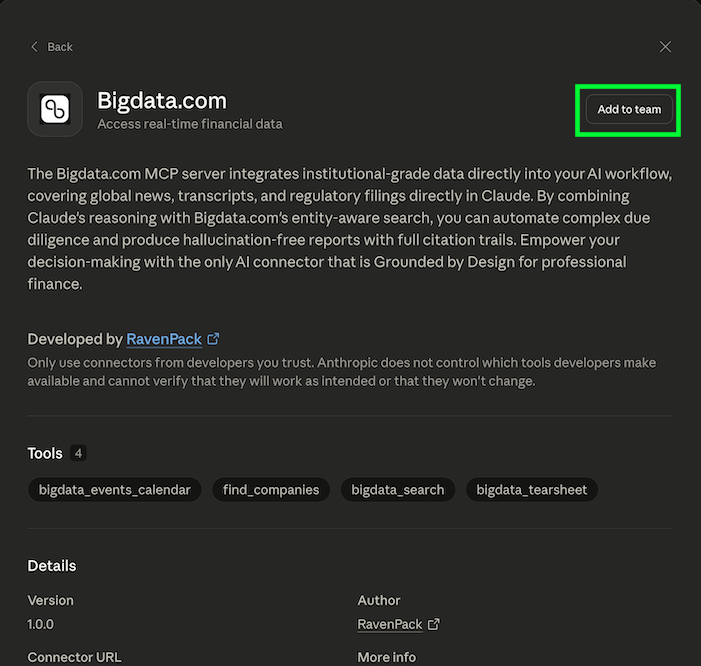
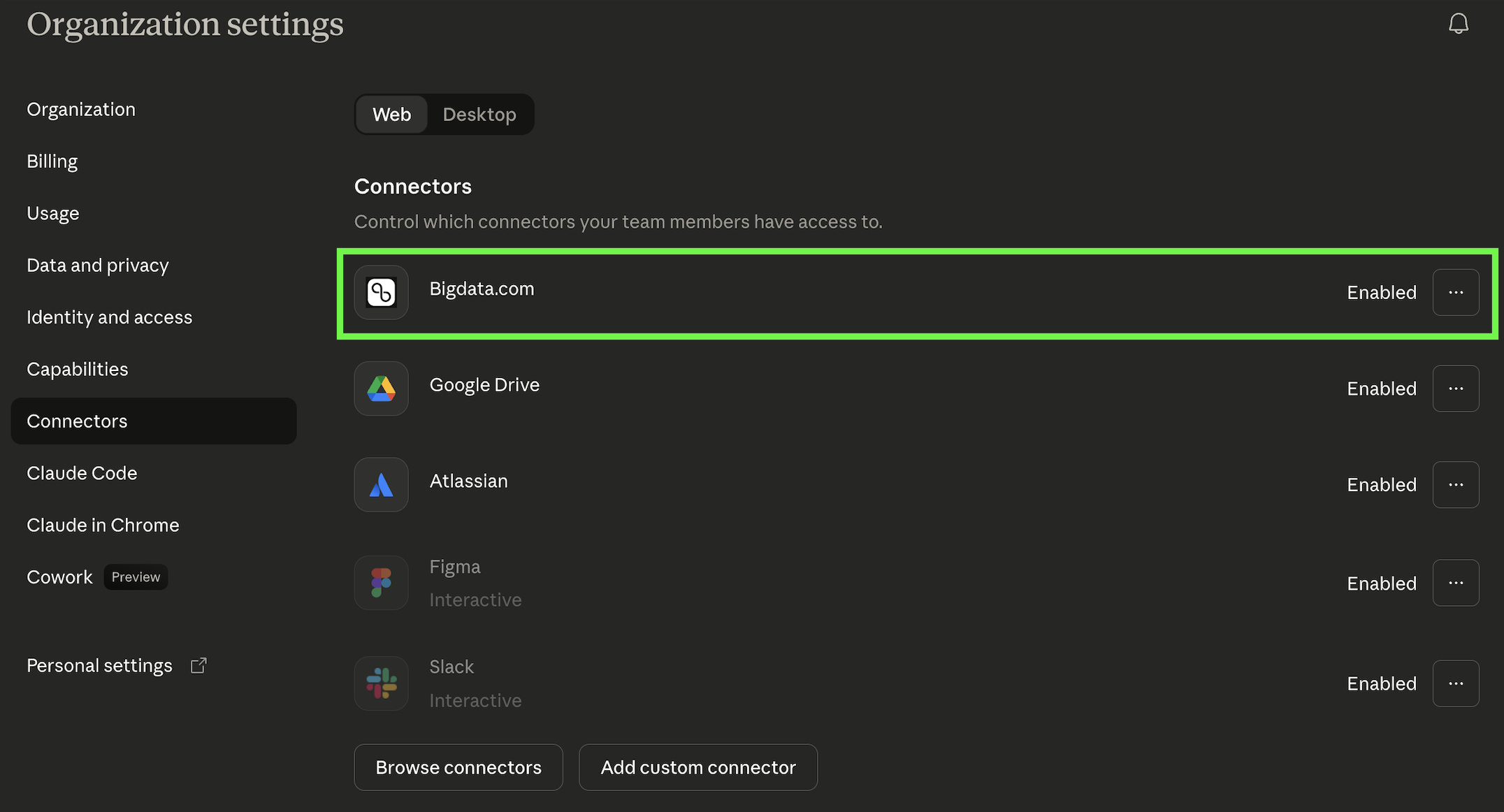
Using the Connector
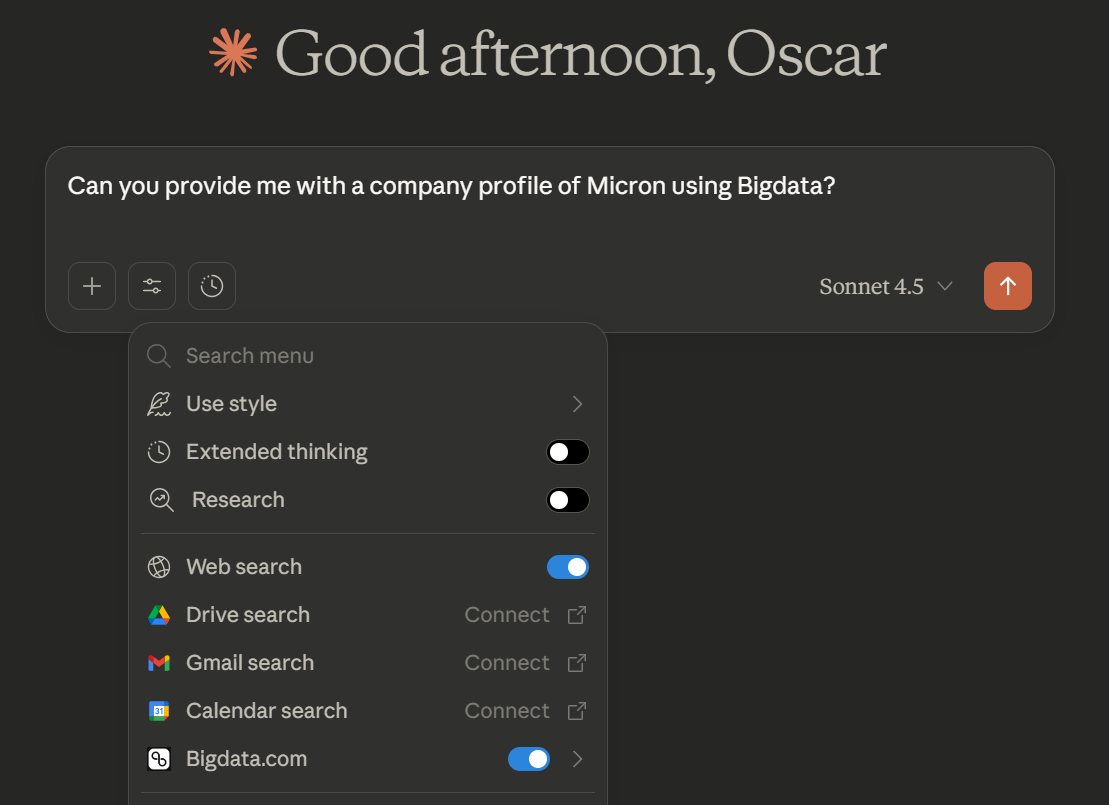
Once the Bigdata.com connector has been enabled, you can connect to it and start using Bigdata.com MCP tools in your Claude conversations.1
Open Claude Web App
Open https://claude.ai in your browser and navigate to Settings > Connectors.
2
Connect to Bigdata.com
Click on Connect at the Bigdata.com connector, and if you are still not logged in to Bigdata.com, it will redirect you to the login page.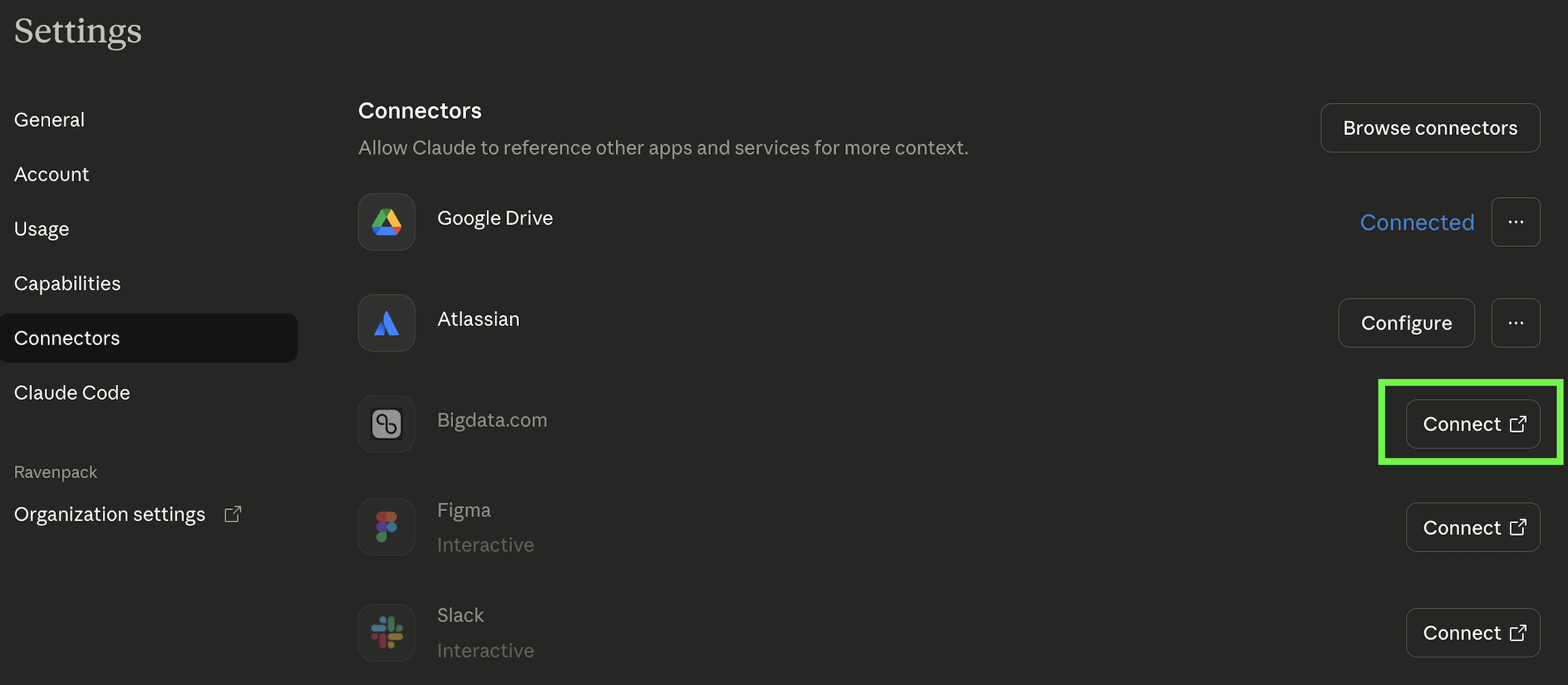
3
Log in to Bigdata.com
Once the browser redirects to Bigdata.com, you can log in using your Bigdata.com credentials, and the browser will redirect you back to Claude after a successful login into the Bigdata.com App.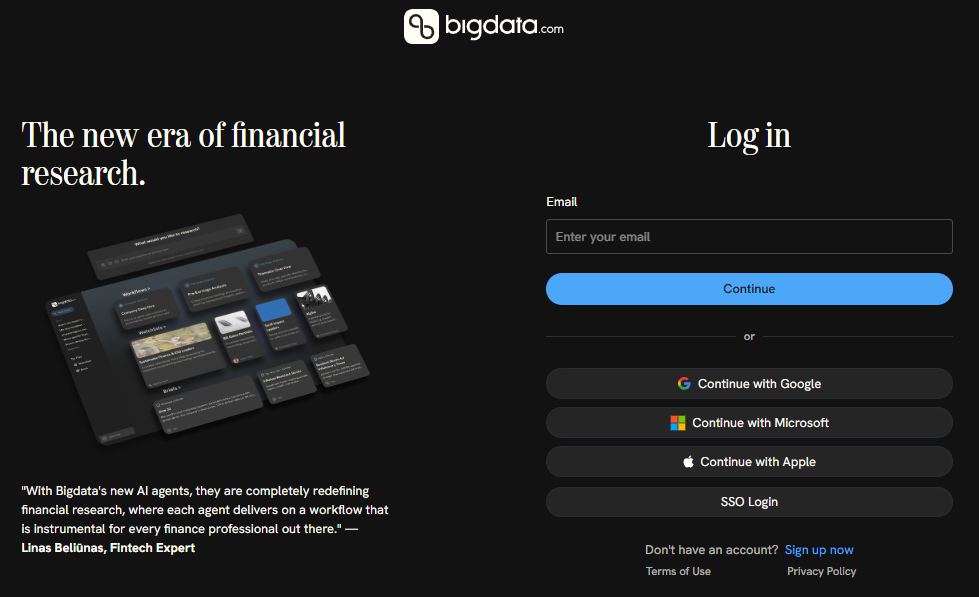
4
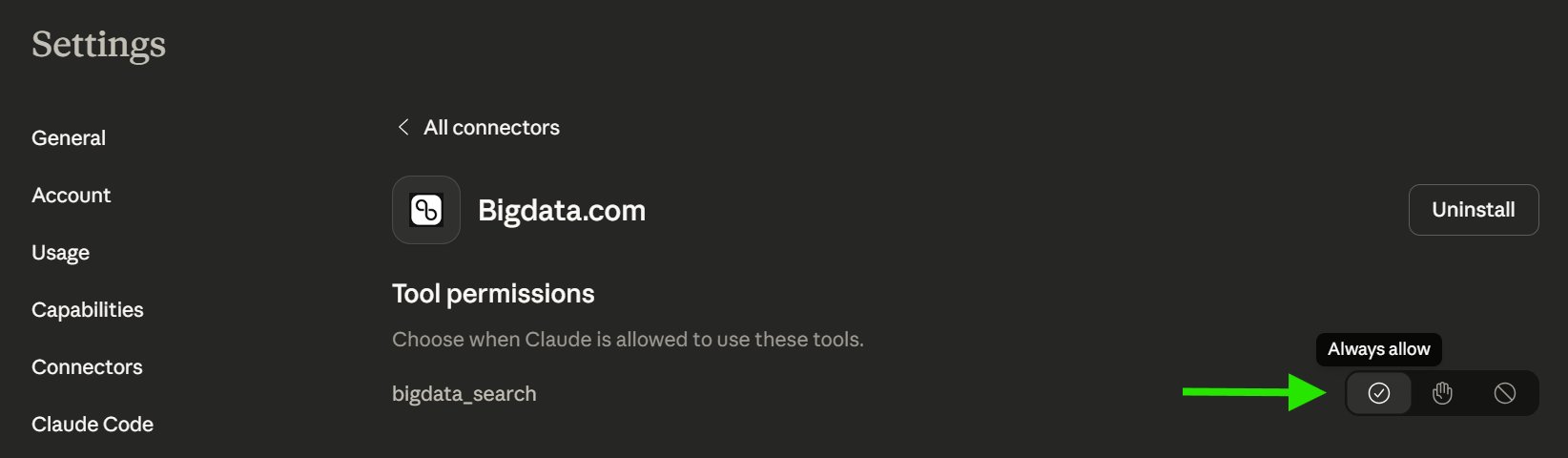
Configure tool permissions
To provide a smooth experience, we recommend configuring the tool to use the “Always allow” permission so Claude can query Bigdata.com without manual confirmation.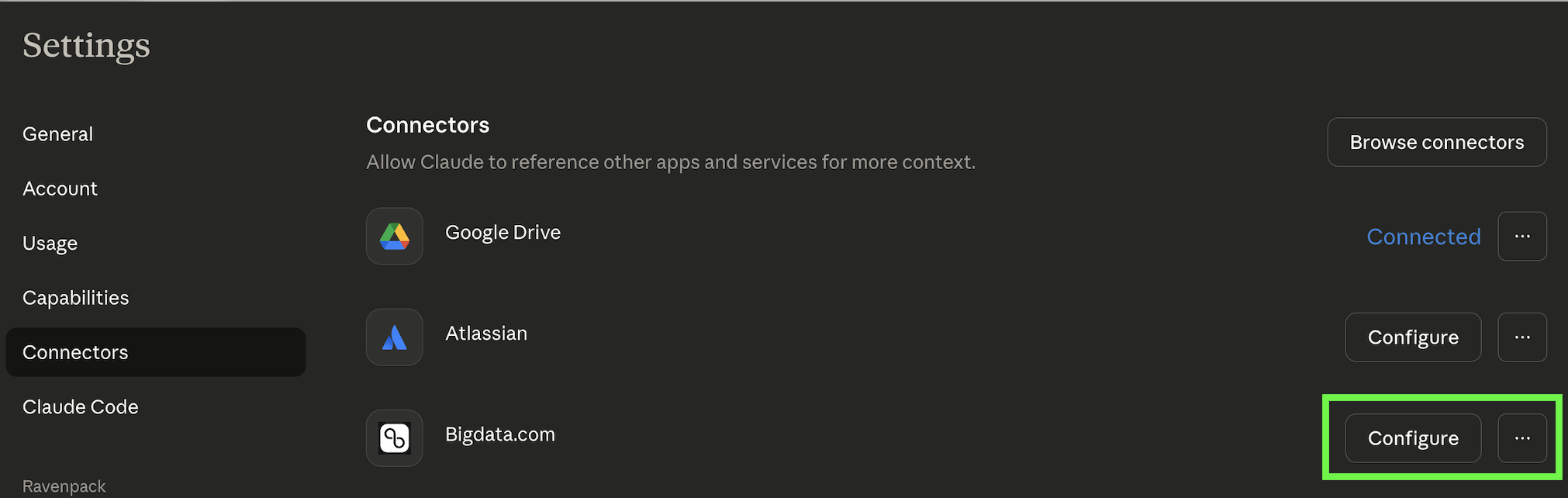

Troubleshooting
What should I do with my Bigdata custom connector?
What should I do with my Bigdata custom connector?
You can delete the custom connector and enable the official Claude Bigdata MCP connector in your organization. They both point to the same Bigdata MCP server. Claude does not allow two connectors with the same URL, so it’s better to delete the custom one.